The features of the PianoKitty app
What PianoKitty can do, one page per feature: screenshots, keyboard shortcuts and exercises you can open straight away.
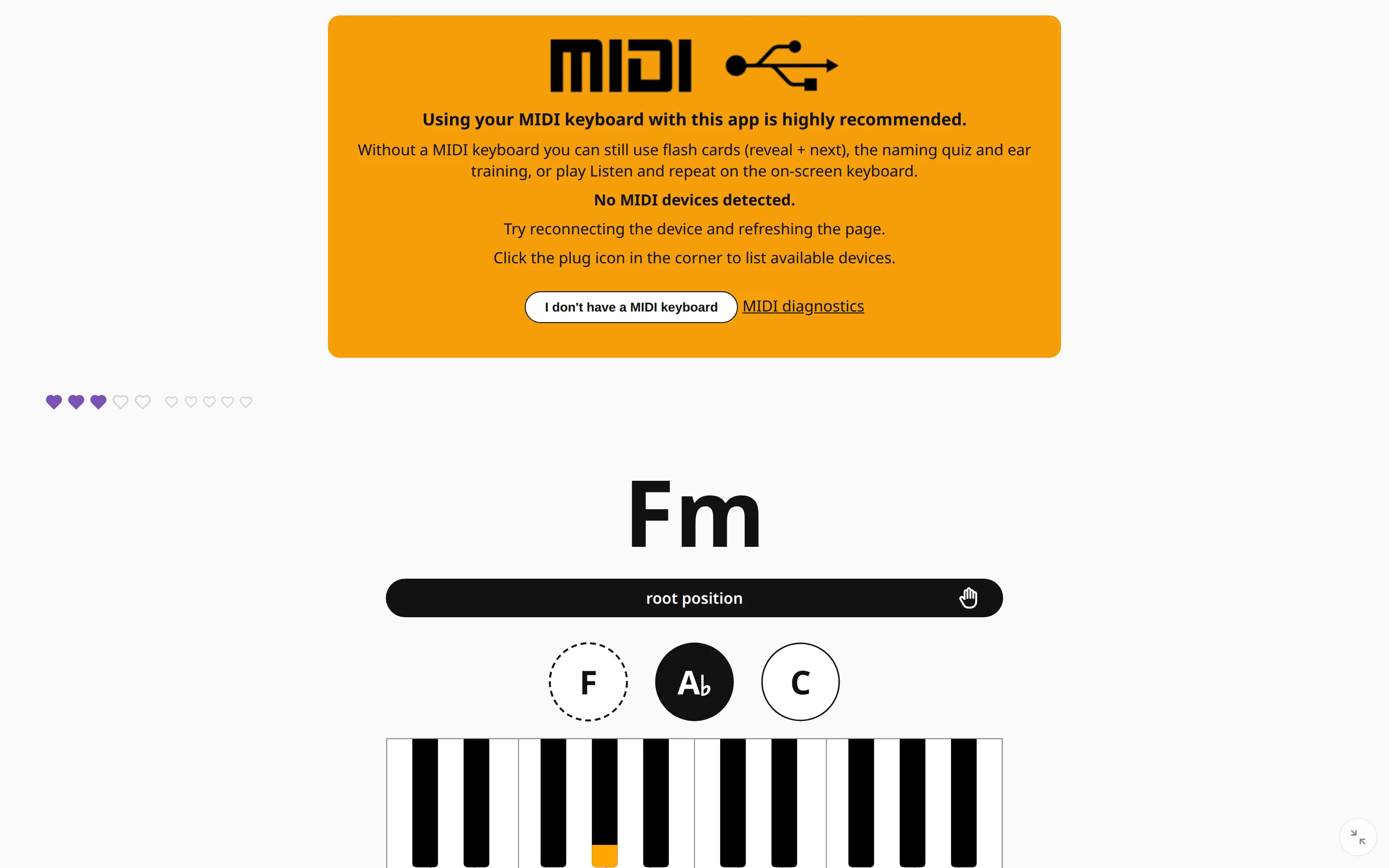 Works in your browser, no installation needed Open the site and play. PianoKitty runs in the browser on a computer, a tablet or a phone — and hears your MIDI keyboard in Chrome, Edge and Firefox.
 Plug your piano in Connect a MIDI keyboard and PianoKitty hears every note you play. It asks for a chord, you play it on your own keys, and it records how you did.
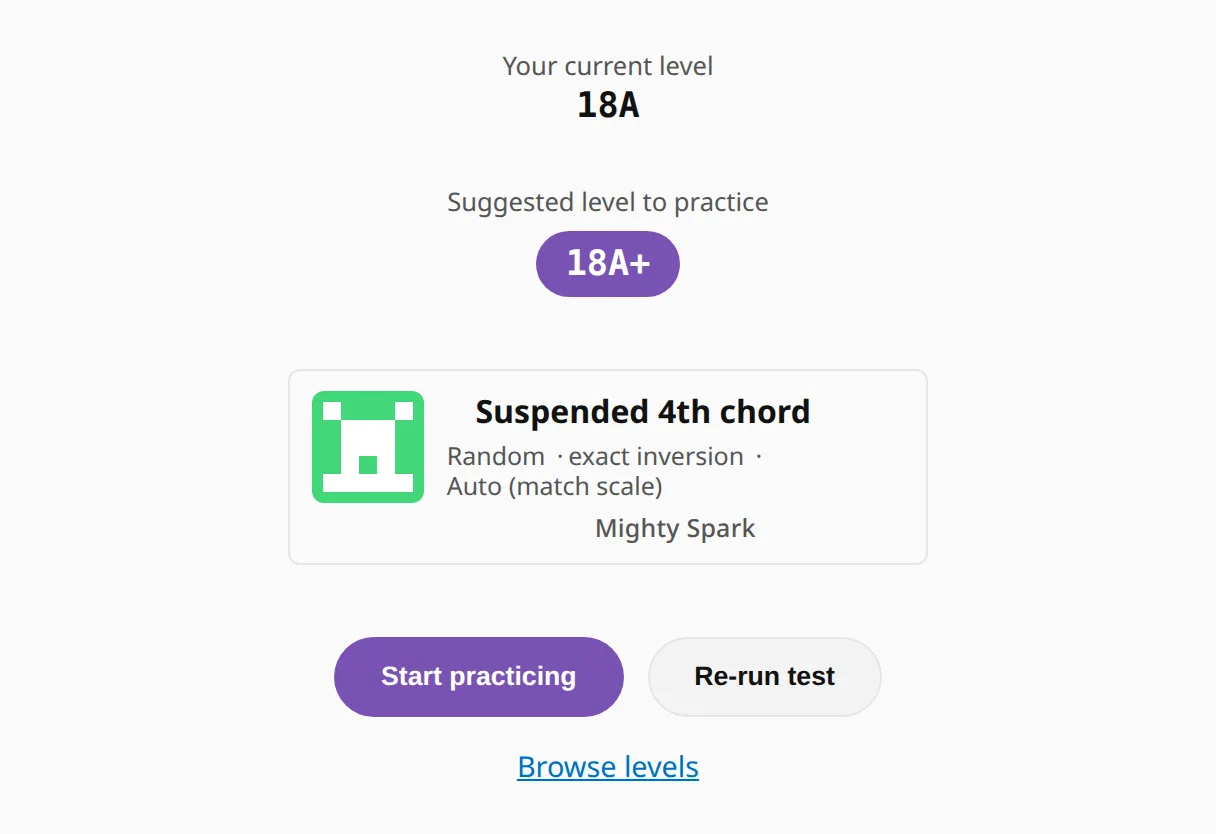 Find your level Play for two or three minutes and the app works out where you should start, then gives you the exercise to open next.
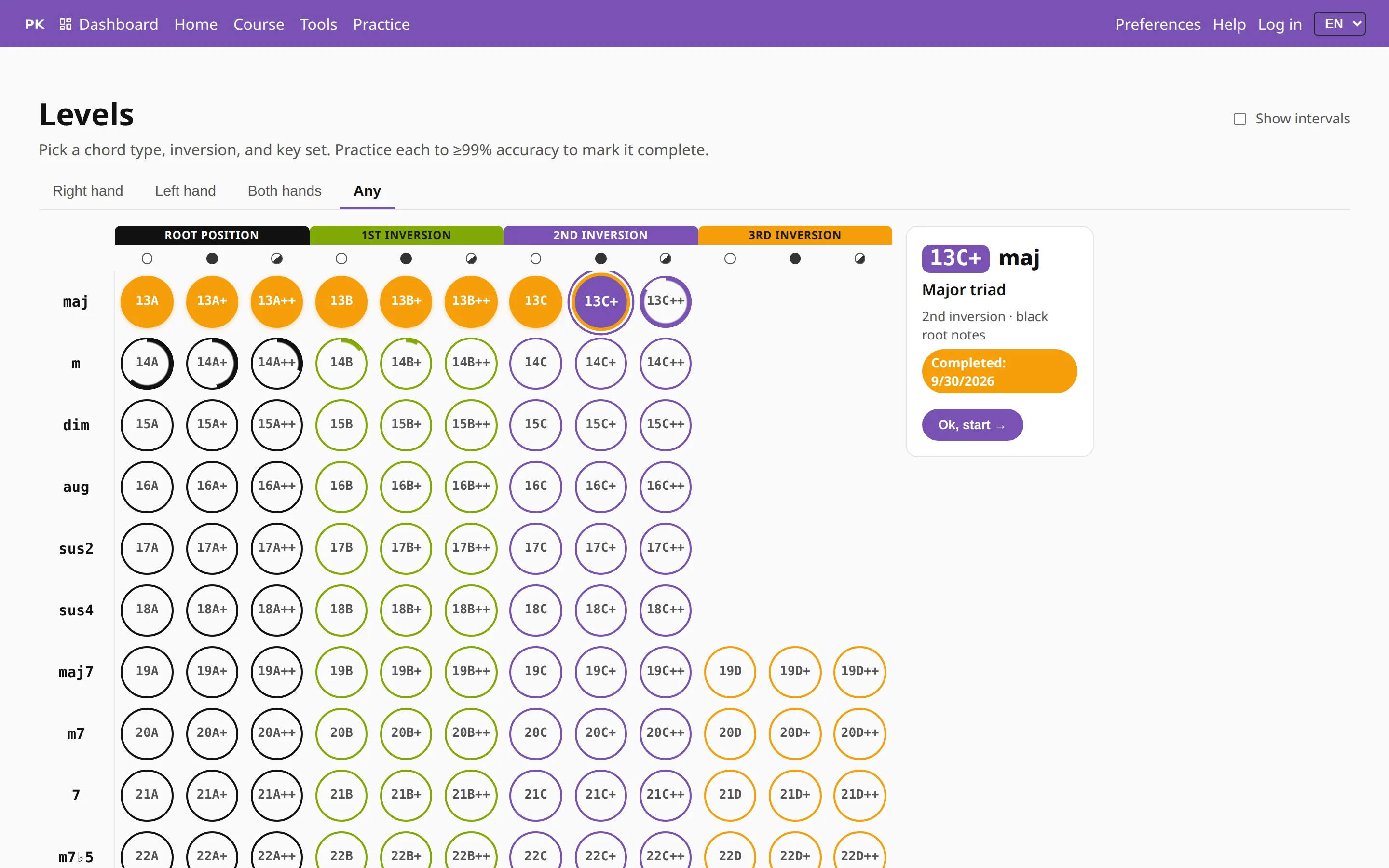 The levels ladder Every chord type, in every inversion, on white keys, black keys and all twelve — laid out as one grid you clear a cell at a time.
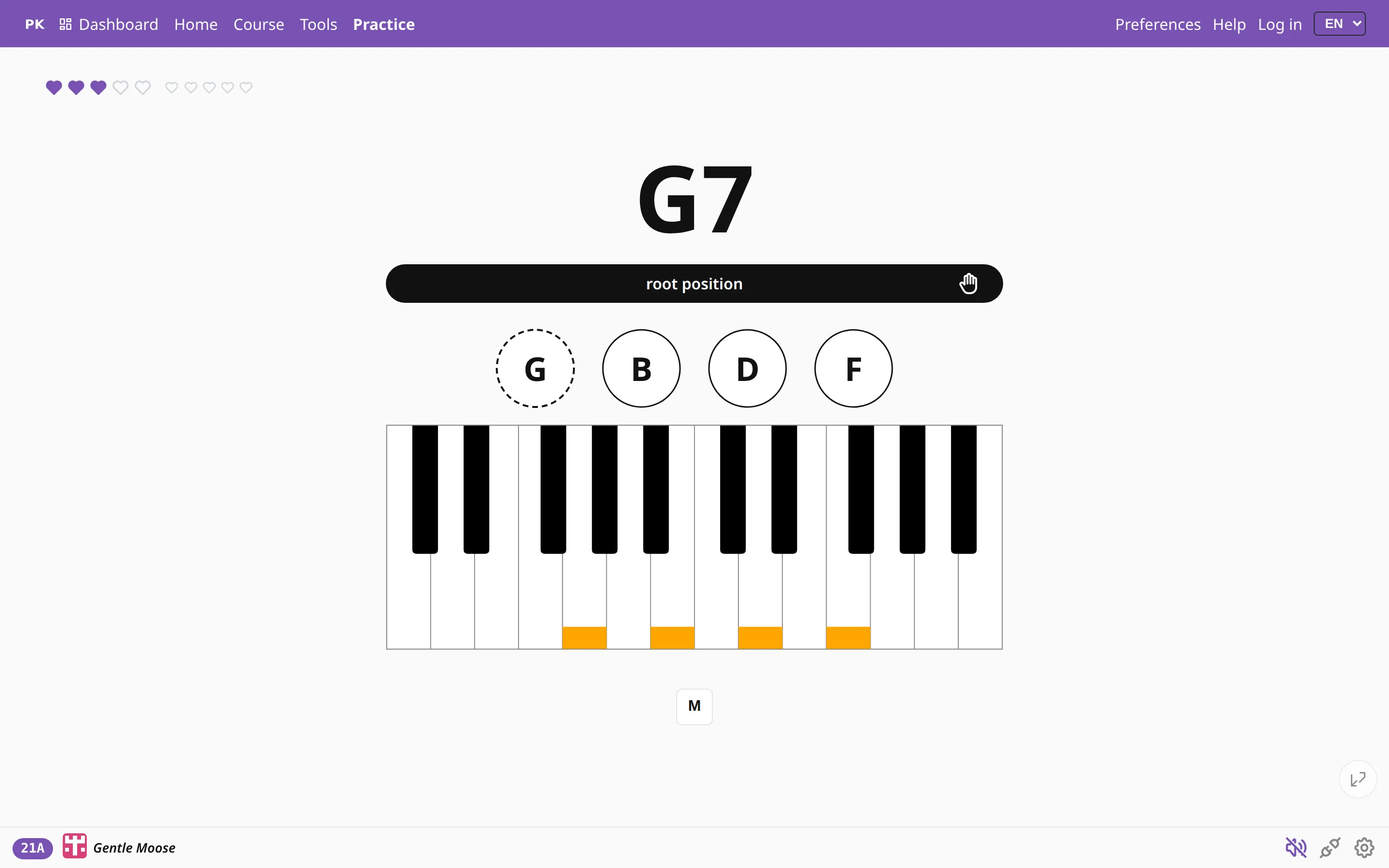 Random chords + levels Pick the chord qualities you want and PianoKitty asks for them in random keys, in a different order every time.
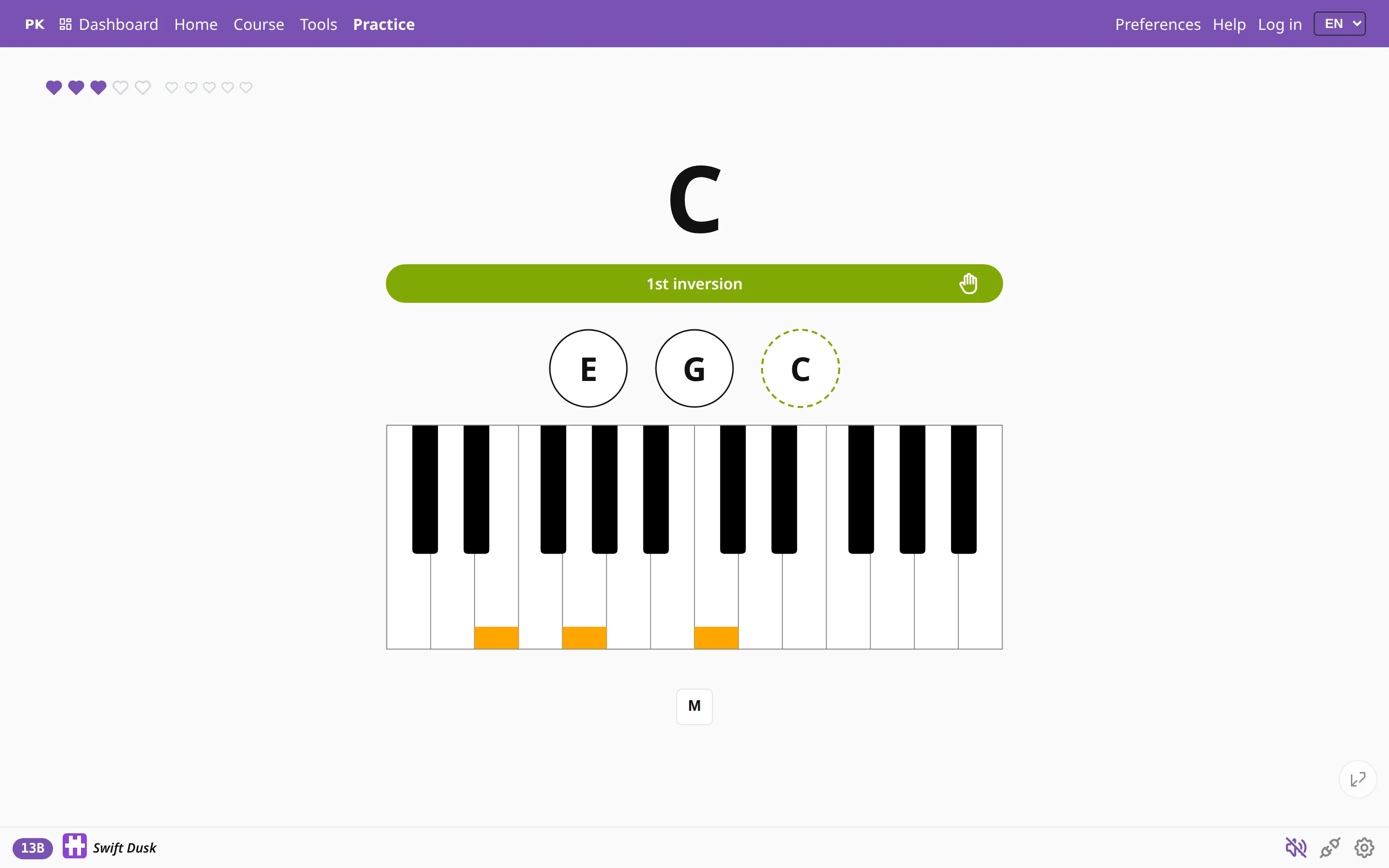 Inversions, fast Drill root position and the first, second and third inversions, and switch between them with a single key press.
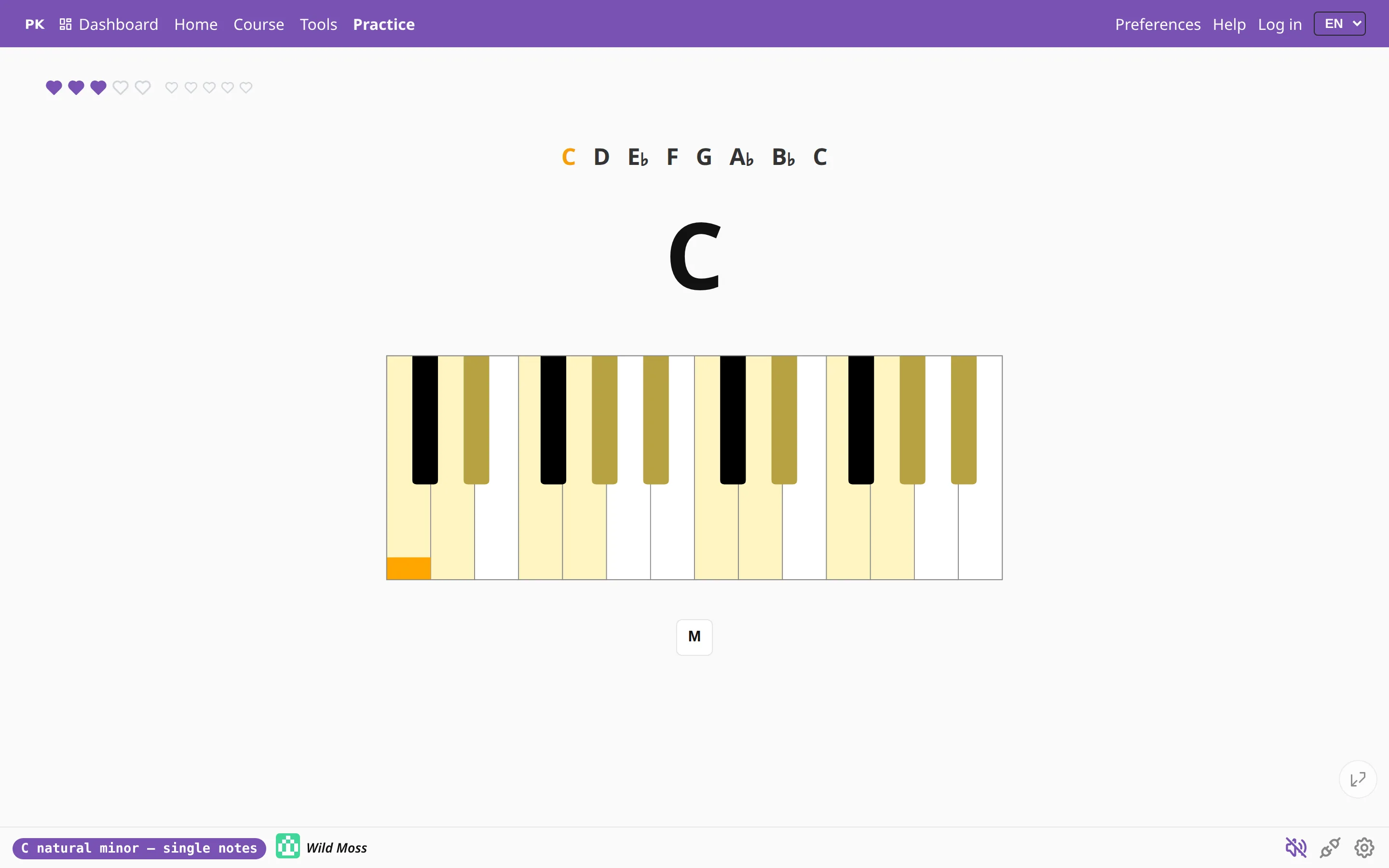 Scales, and the chords inside them Play a scale one note at a time with its notes marked on the keys, then drill the triads and seventh chords of the same key.
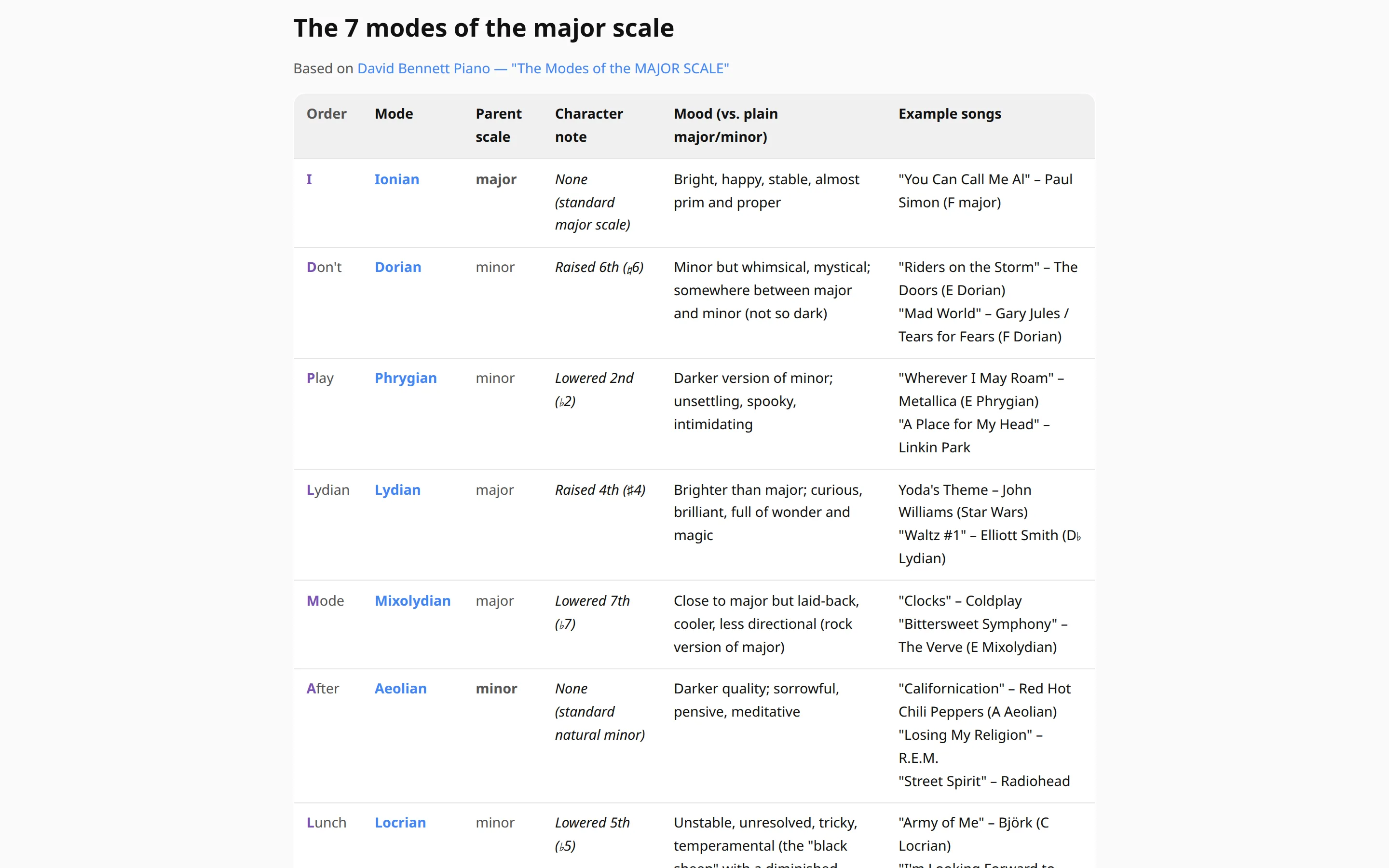 Modes of the major scale A tutorial on the seven modes — what each one sounds like, which note gives it its color, and a button to drill it — plus a roulette that picks a scale for you.
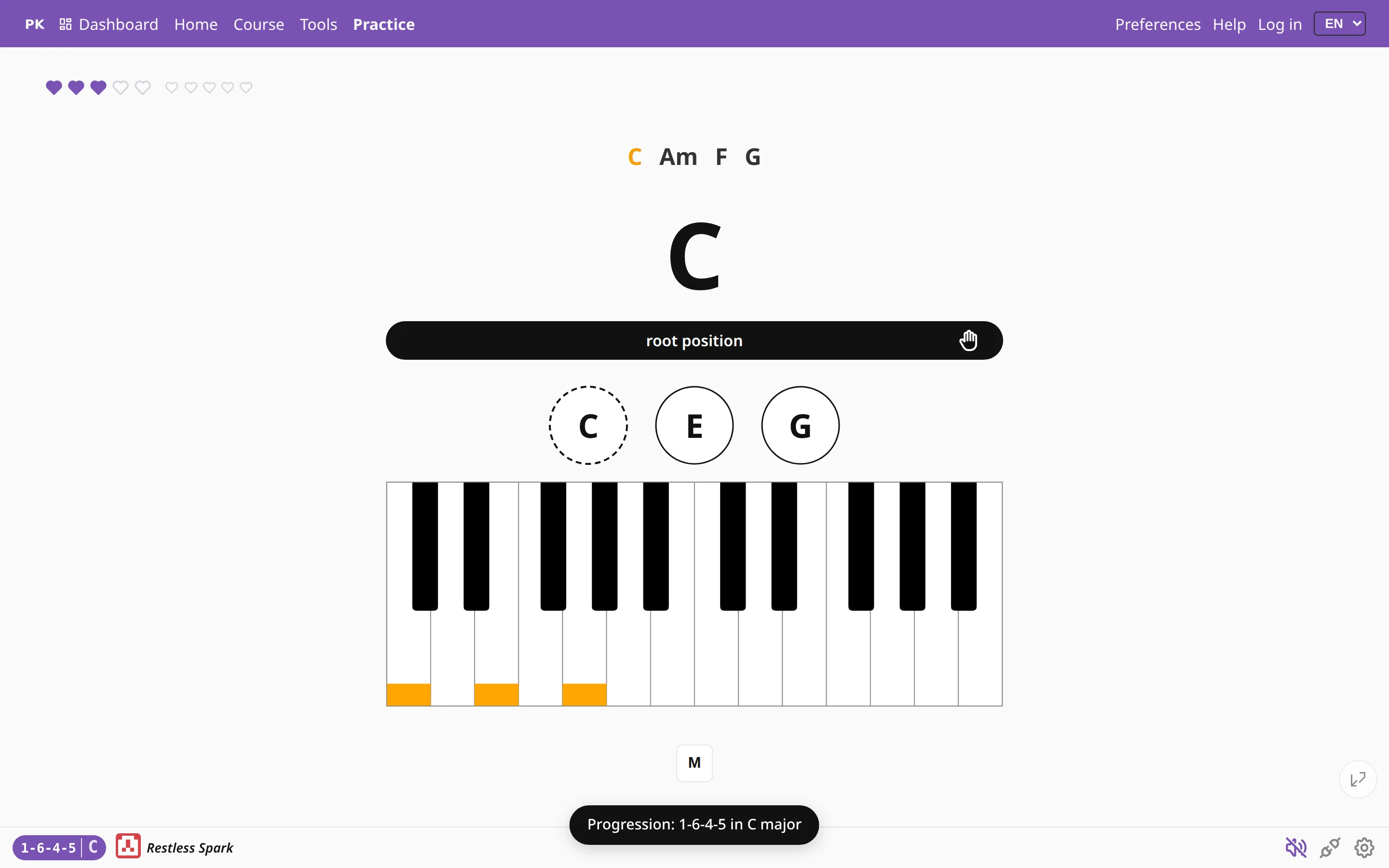 Chord progressions Drill the chord sequences songs are built from. They are written in numerals, so one progression works in every key.
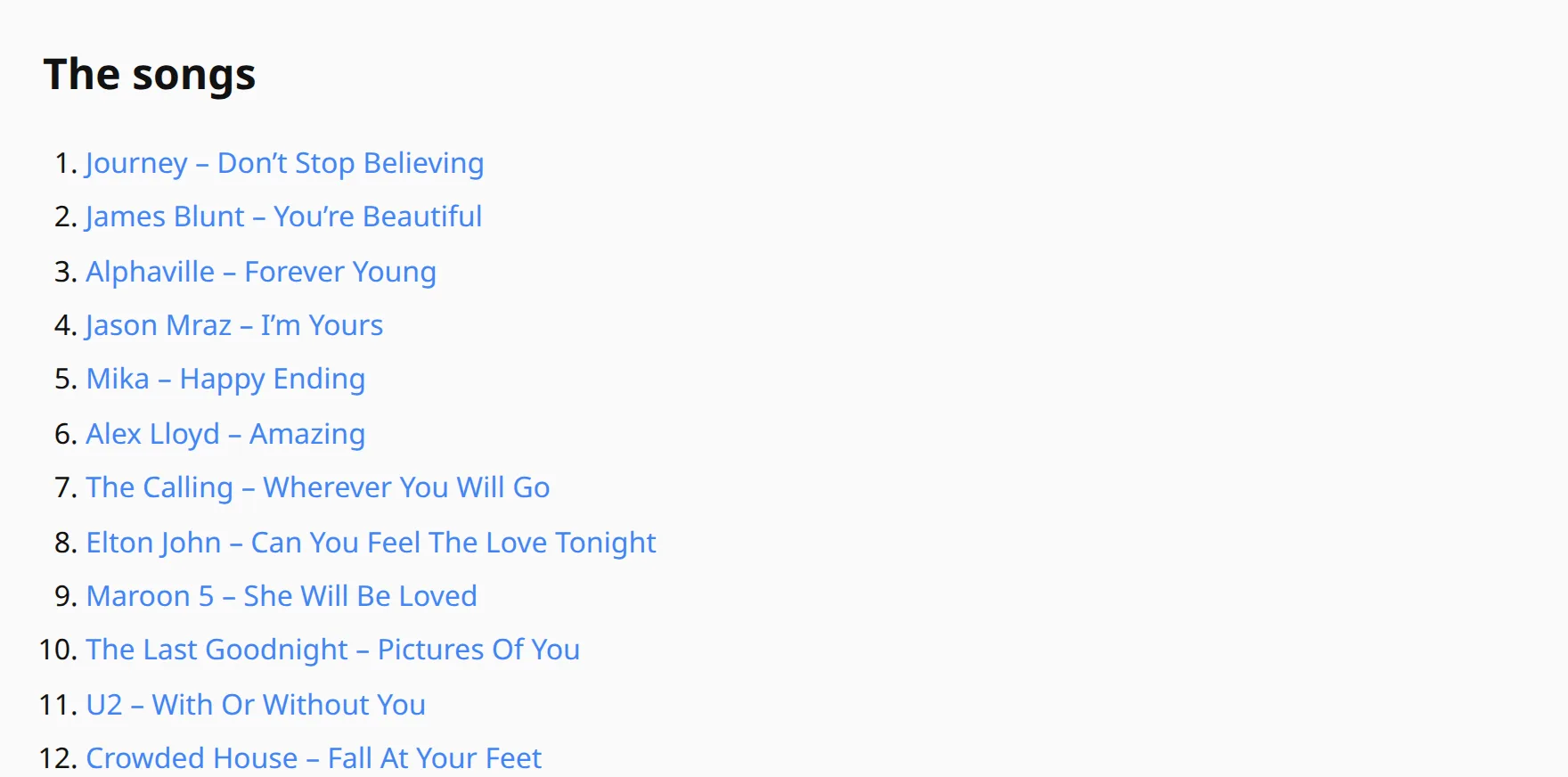 Four chords, over a hundred songs The vi–IV–I–V progression behind a huge number of pop songs, with the song list and a table that opens it in any key, with or without inversions.
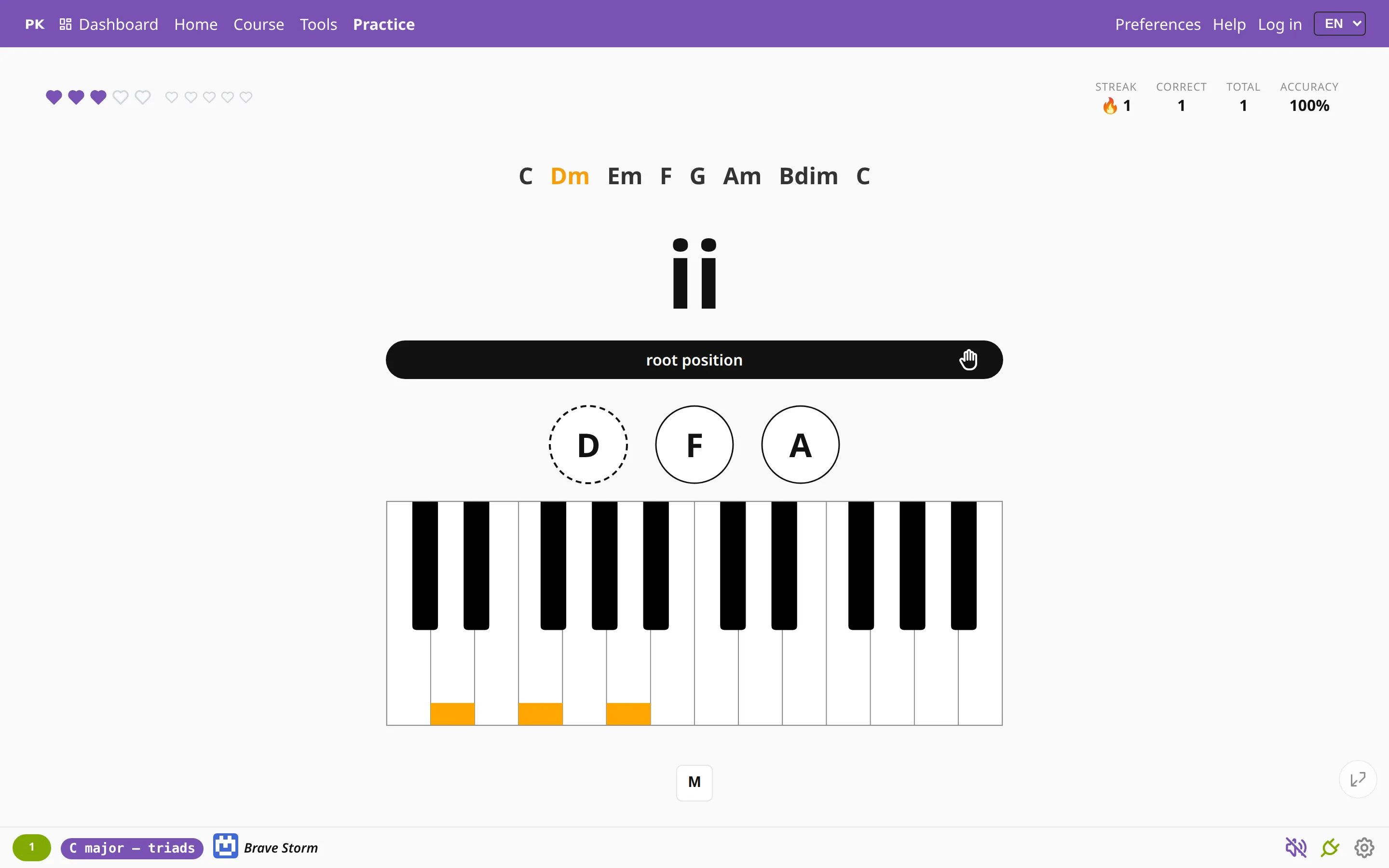 Chord names, numerals or functions In scales and progressions, choose how the app asks for each chord: by its name, as a Roman or Arabic numeral, or by its function in the key.
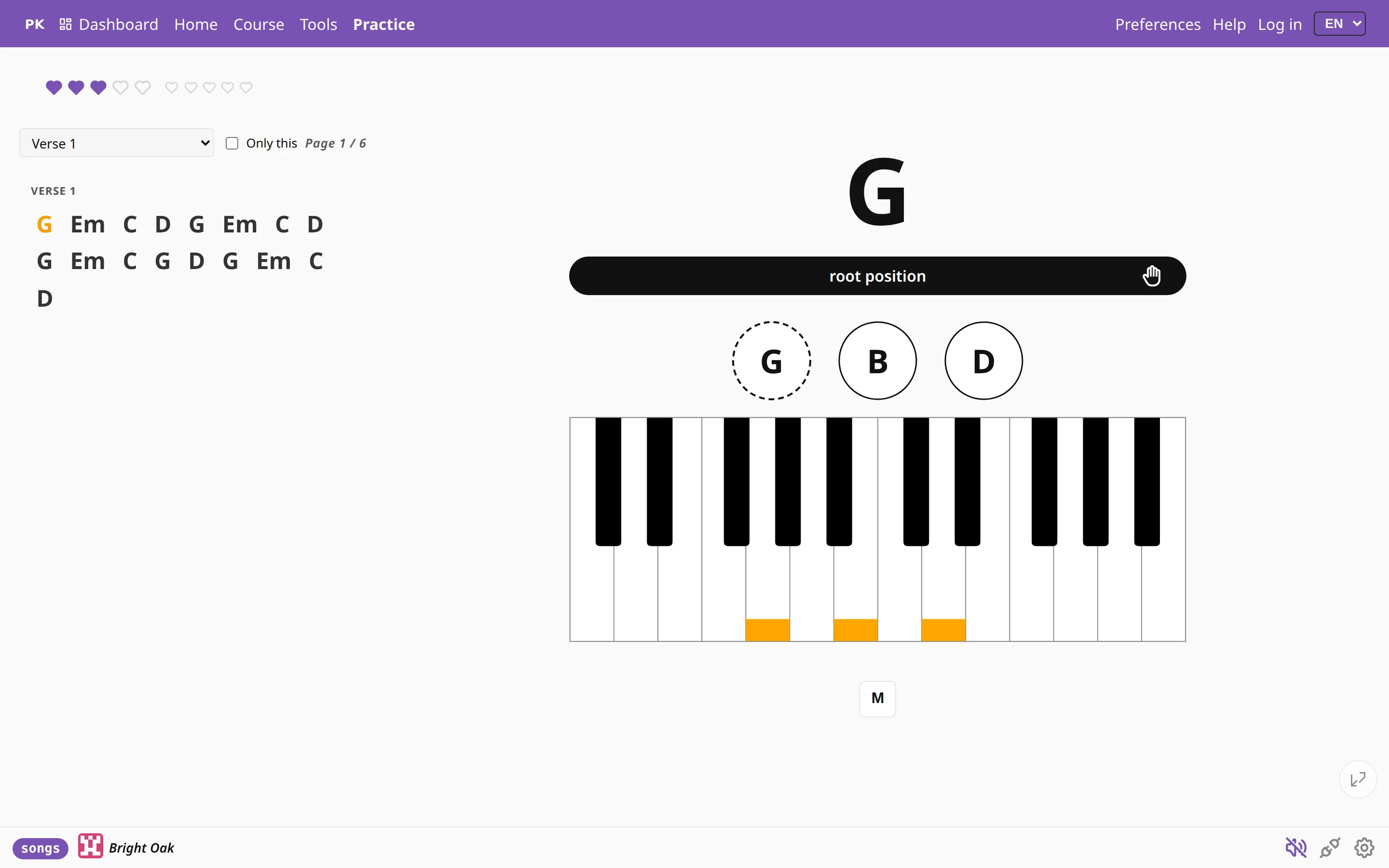 Practice real songs Find a song by name and drill its chords verse by verse and chorus by chorus, in a key that suits your voice.
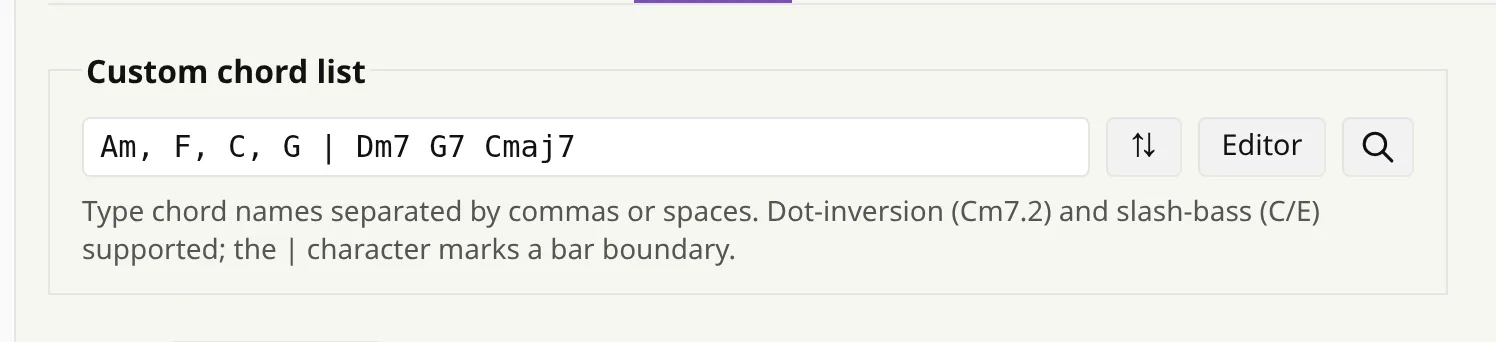 Type your own chords Paste a chord sequence, from a song you are learning or from your teacher's homework, and practice it in any key.
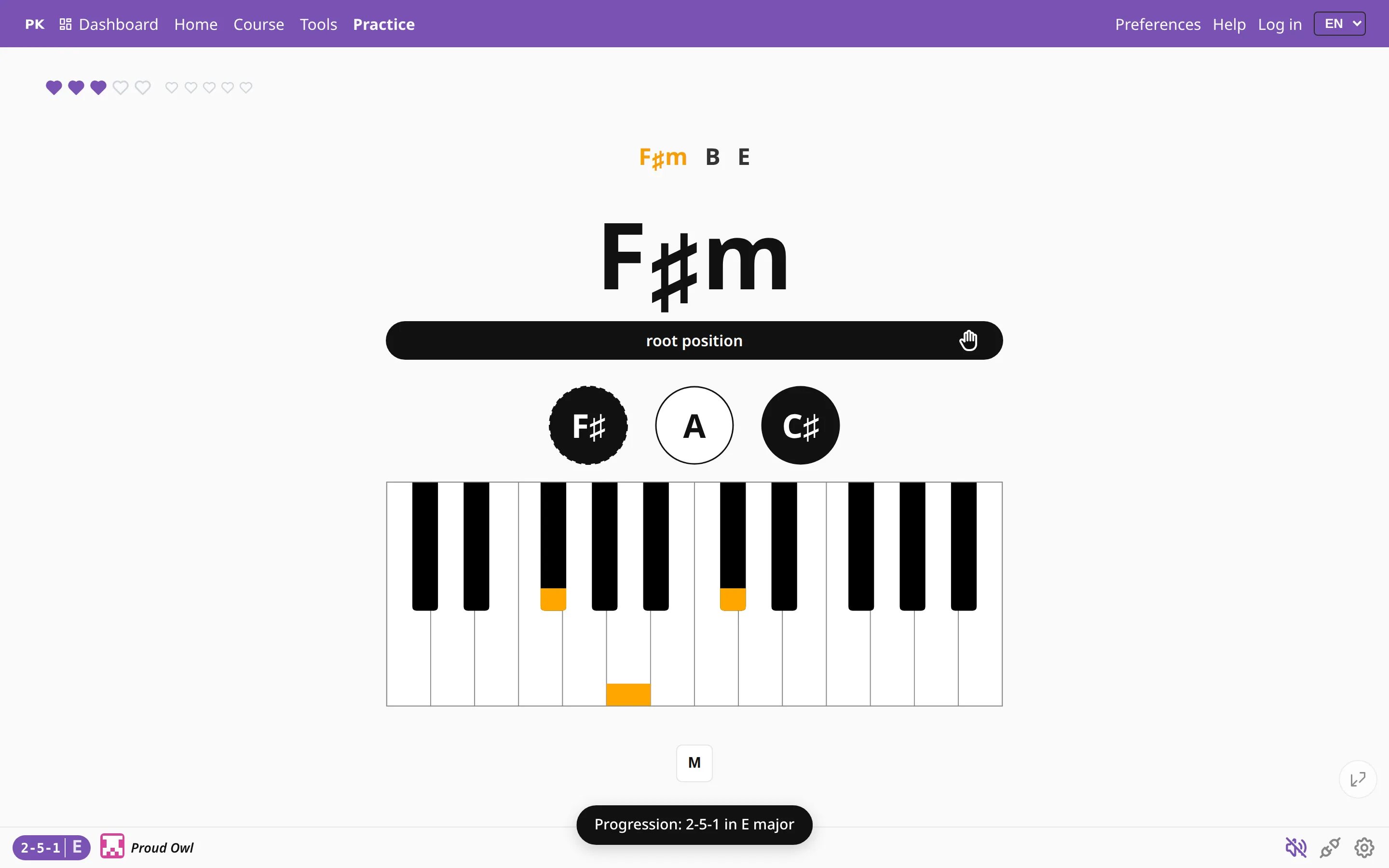 Play it in any key You can move anything you practice to another key with one keypress, round the circle of fifths, or automatically after a few clean passes.
 Transpose a song Move a whole chord chart up or down by a half step, a whole step or a fifth, from the keyboard or with a button. The chord names stay readable.
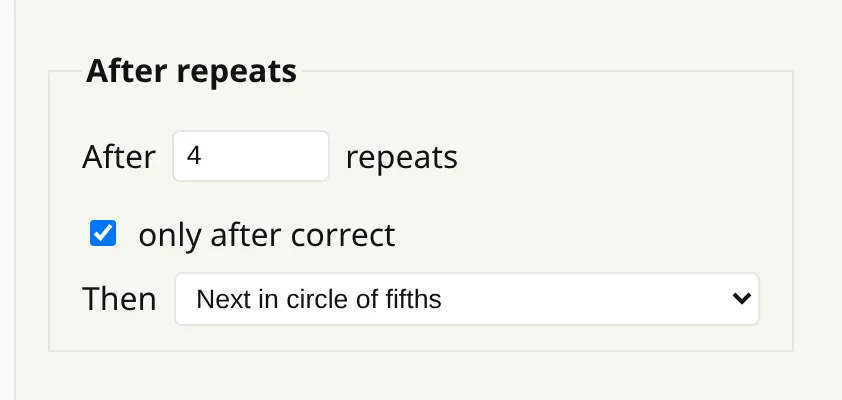 “Now practice it in all twelve keys” Set how many clean repeats each key needs and which direction to go, and the app moves you to the next key while you keep playing.
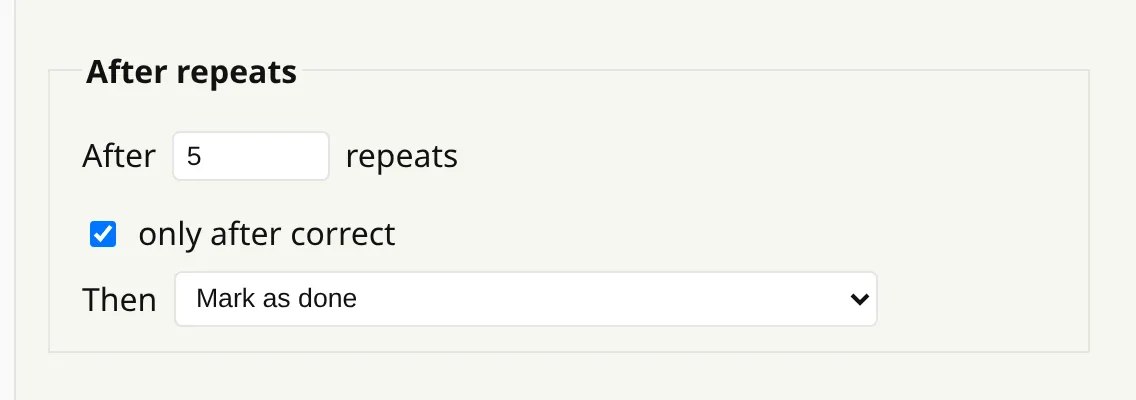 When is an exercise done? You decide: after how many passes, whether a pass with a mistake counts, and what happens then — mark the exercise as done, or move on to the next key.
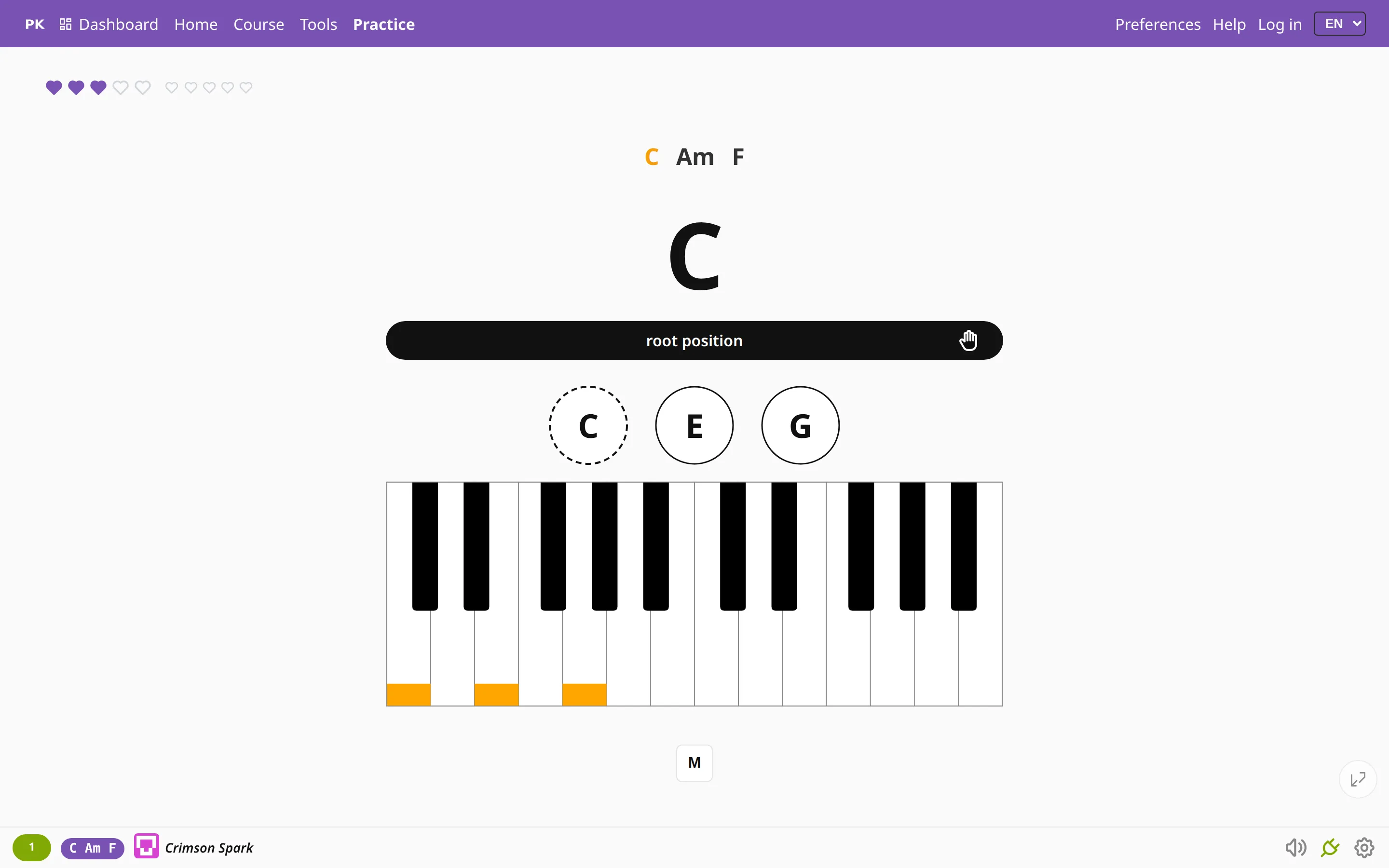 Record what you play Play a few chords on your MIDI keyboard and the app recognizes them and turns them into an exercise.
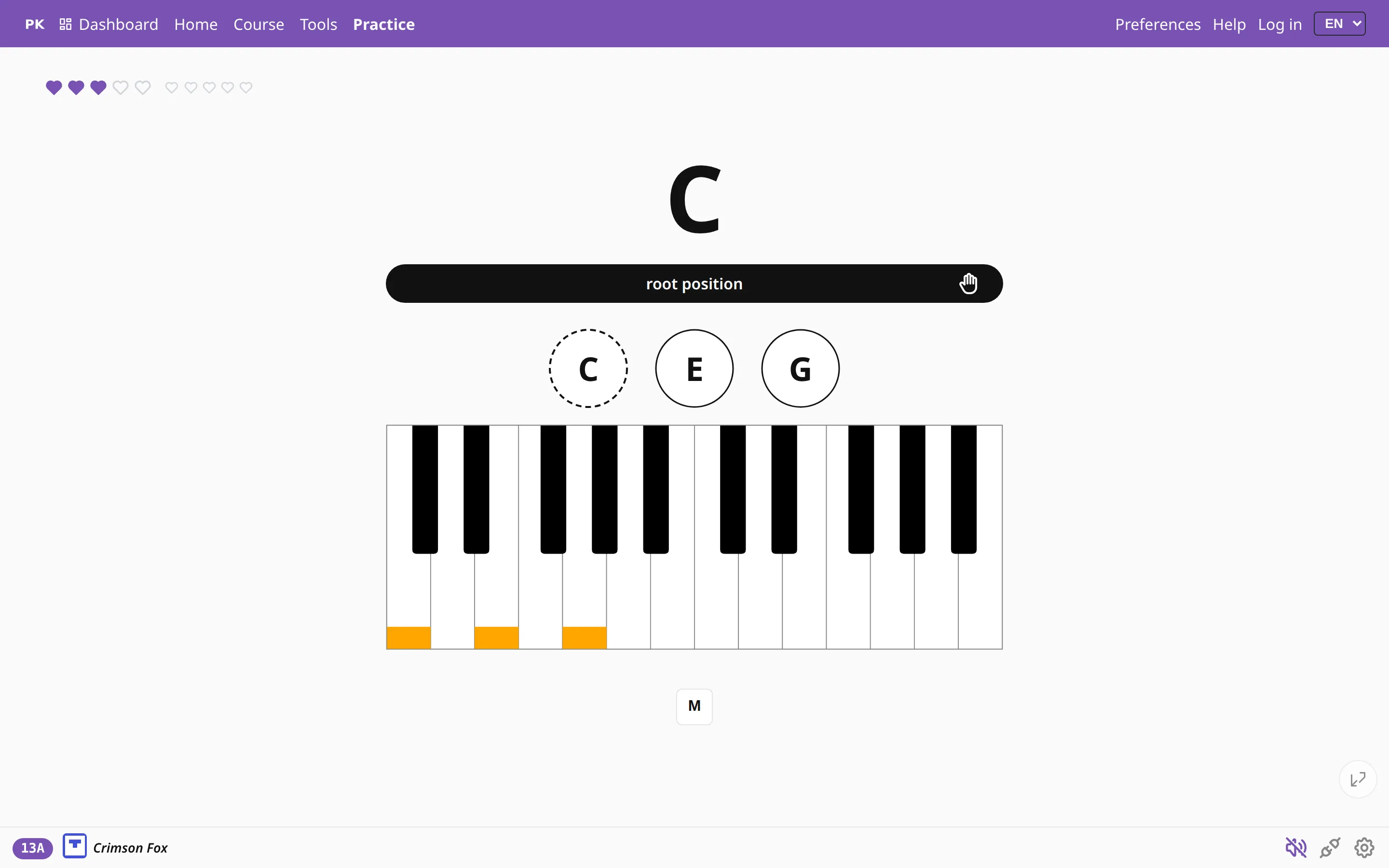 Broken chords and arpeggios Roll a chord or arpeggiate it and take as long as you need. PianoKitty checks which keys you are holding and does not time you.
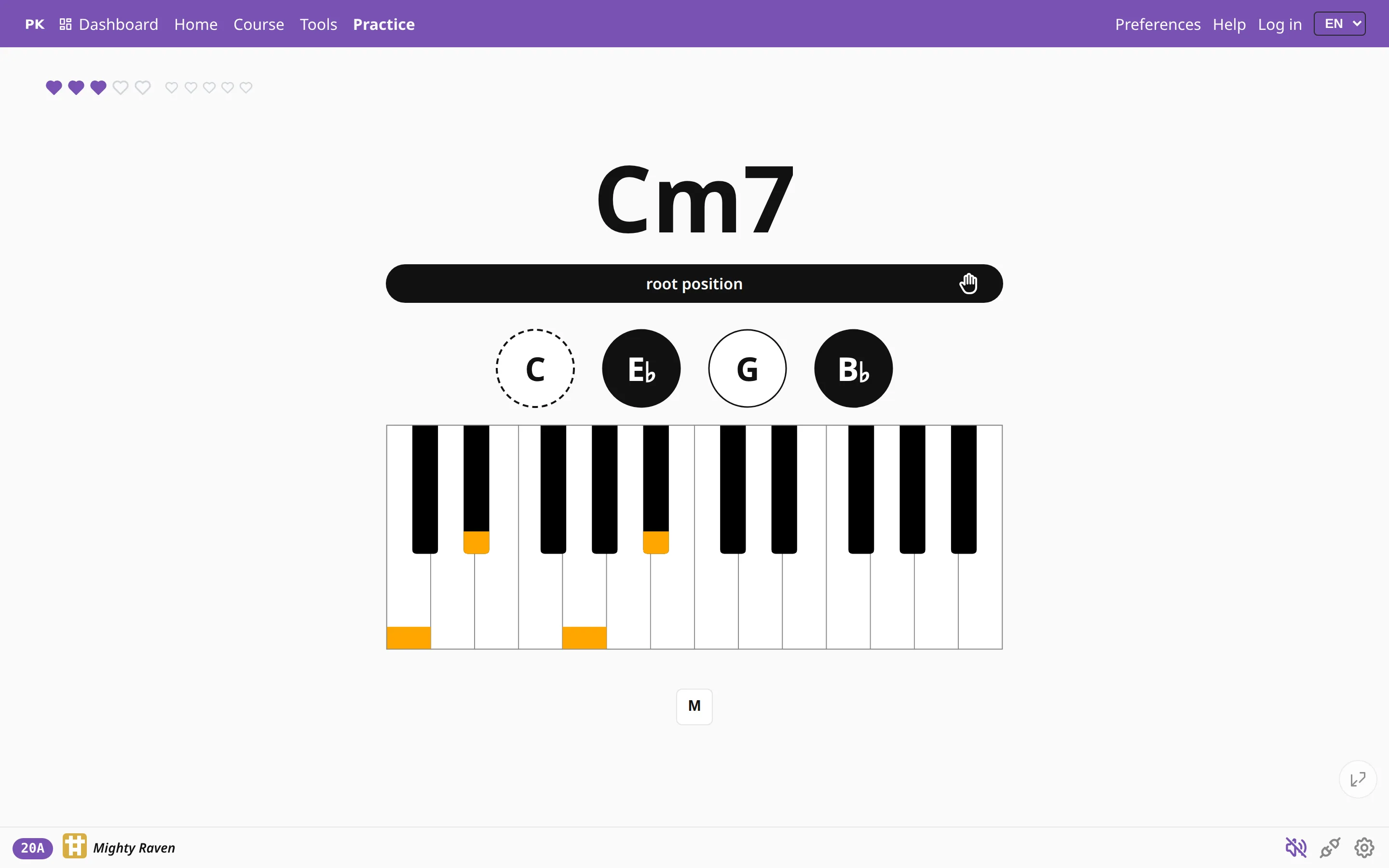 Chord names or sheet music Each question can be written as a chord symbol or printed on the staff, and chord names can use American, German, jazz or solfège spelling.
 Languages and notations The app in English or Polish, and four ways to write chord names: American, German, solfège and jazz.
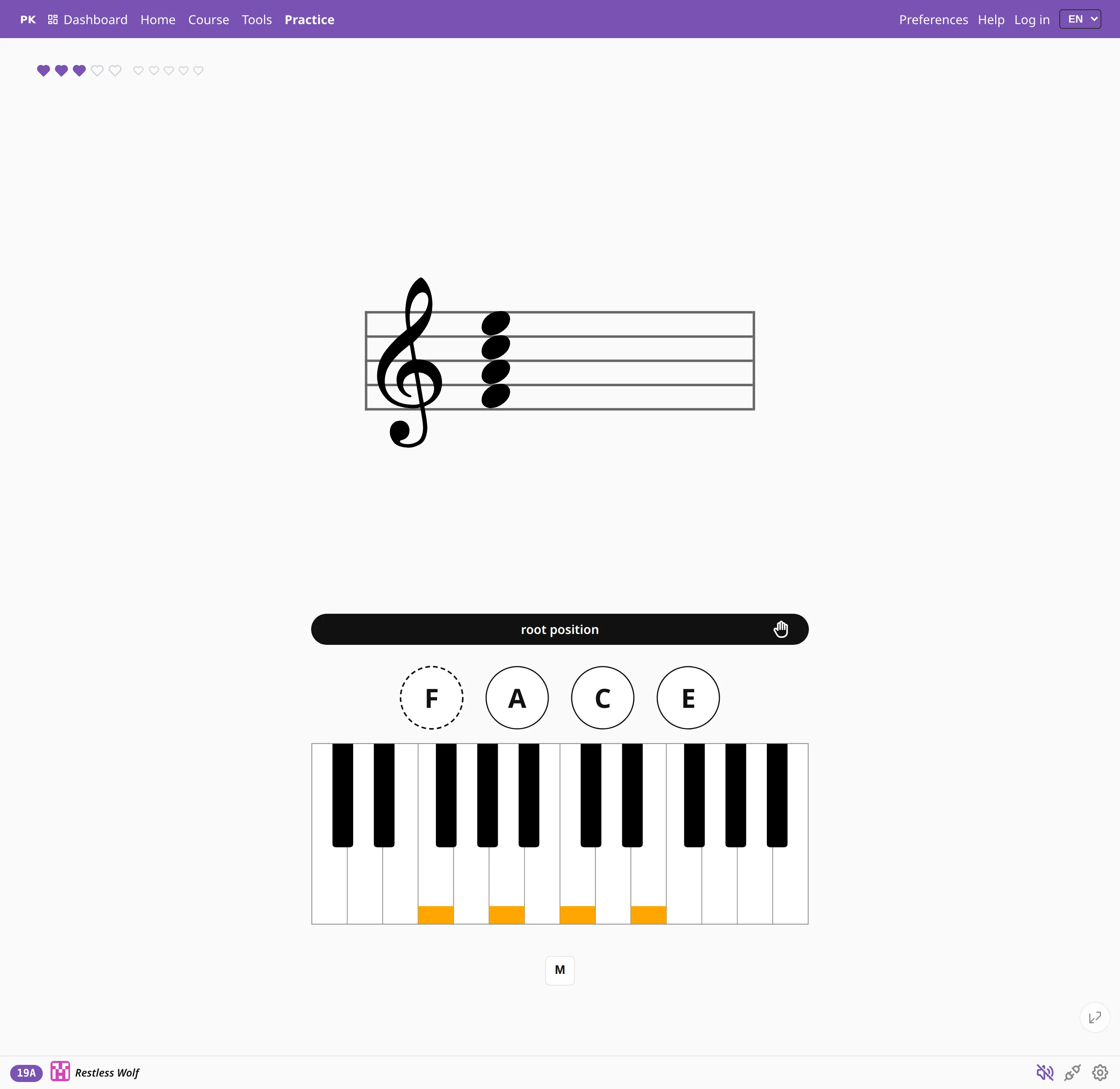 Learn to read notation one chord at a time Each chord is printed on a staff instead of named, either stacked or laid out as a run of notes going up, going down or in shuffled order.
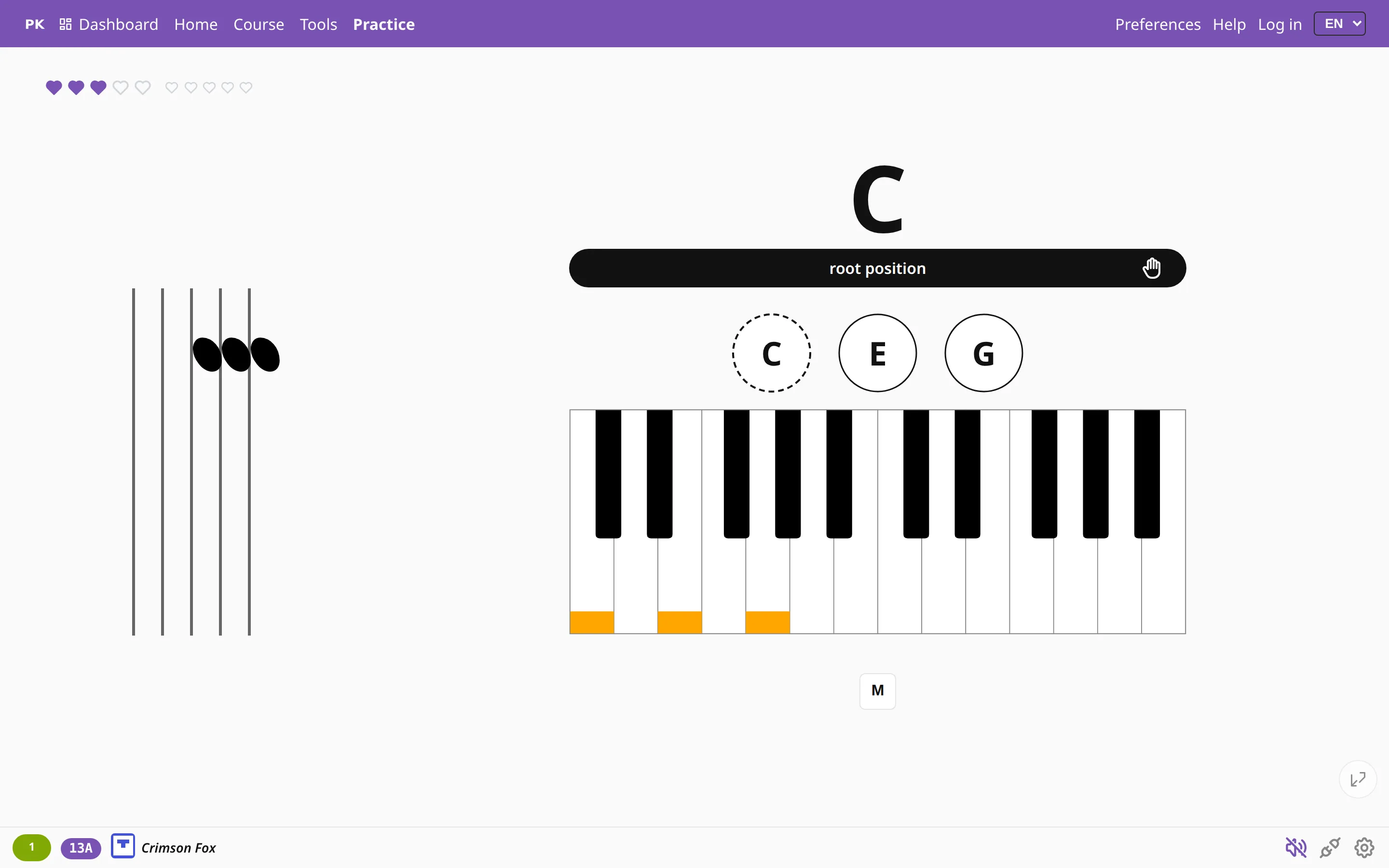 Turn the staff to match the keys On a staff higher notes go up, and on a keyboard they go to the right. Give the staff a quarter turn and both run in the same direction.
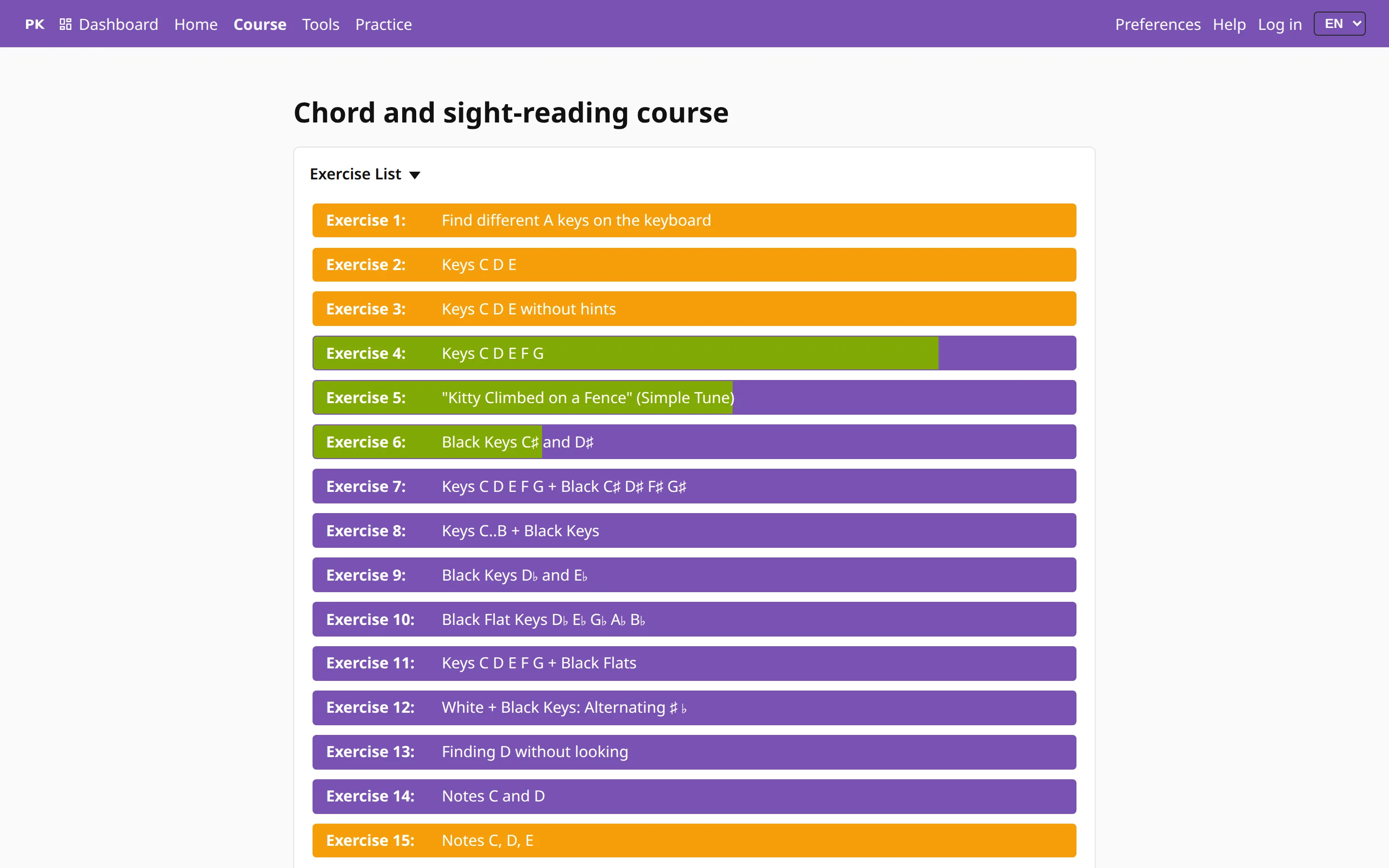 The course and the tutorials A step-by-step course from “where is A?” to chords in both hands, with about 120 exercises in the text, plus tutorials on modes and upper structures.
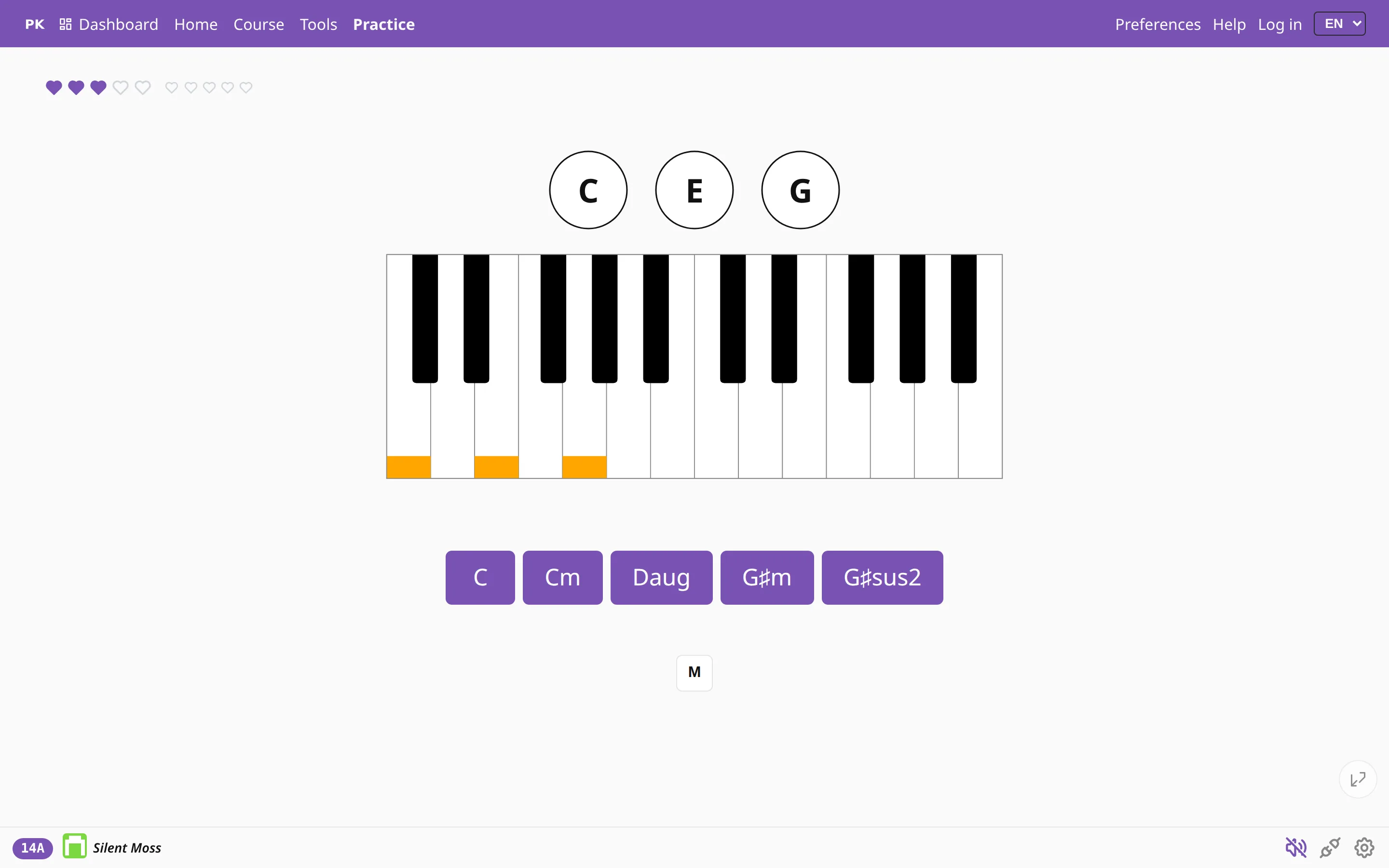 Practice away from the piano Name chords, read notes and train your ear on a phone, on the bus or anywhere else without an instrument.
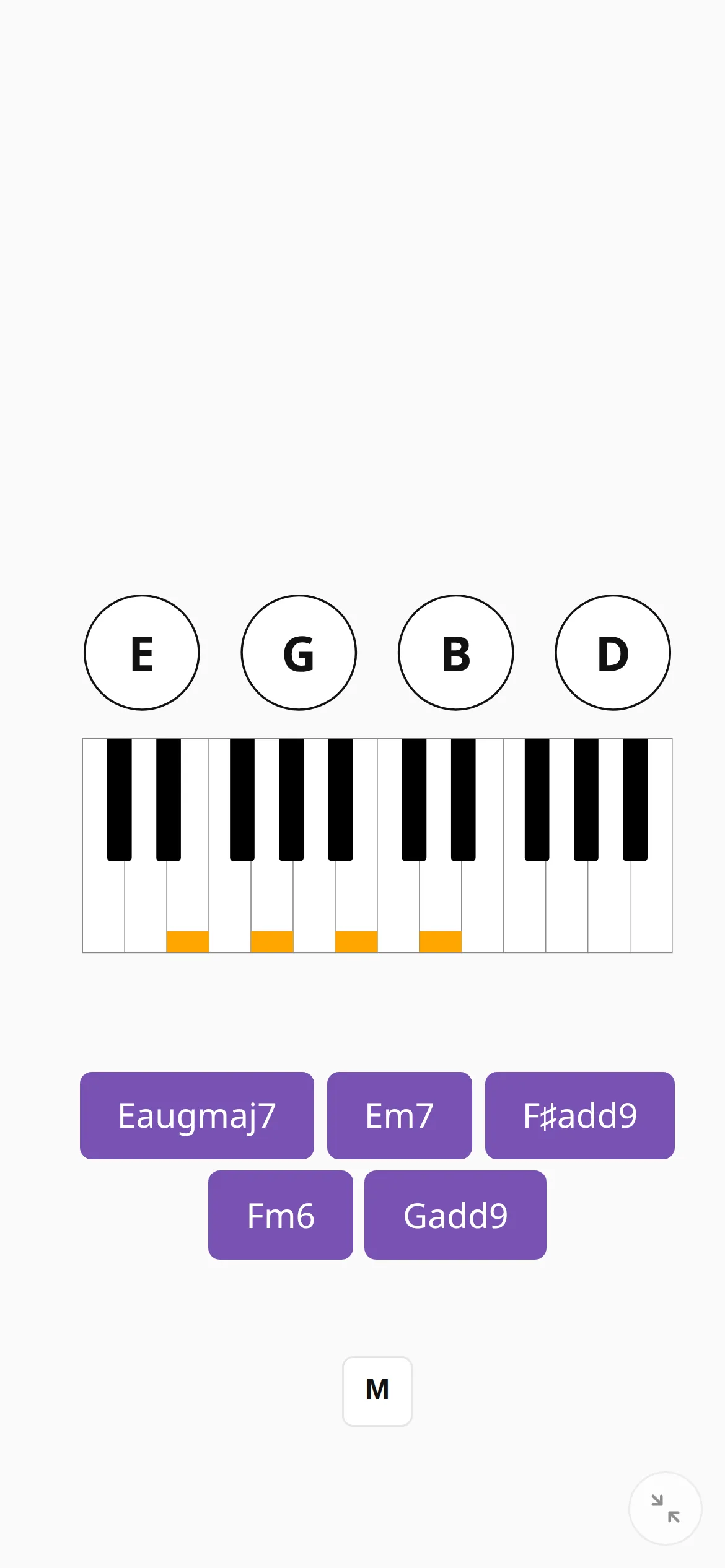 Practice without or away from your piano Short sessions on a phone, with no piano, no MIDI keyboard and no sign-up: the naming quiz, ear training and the Listen and repeat game.
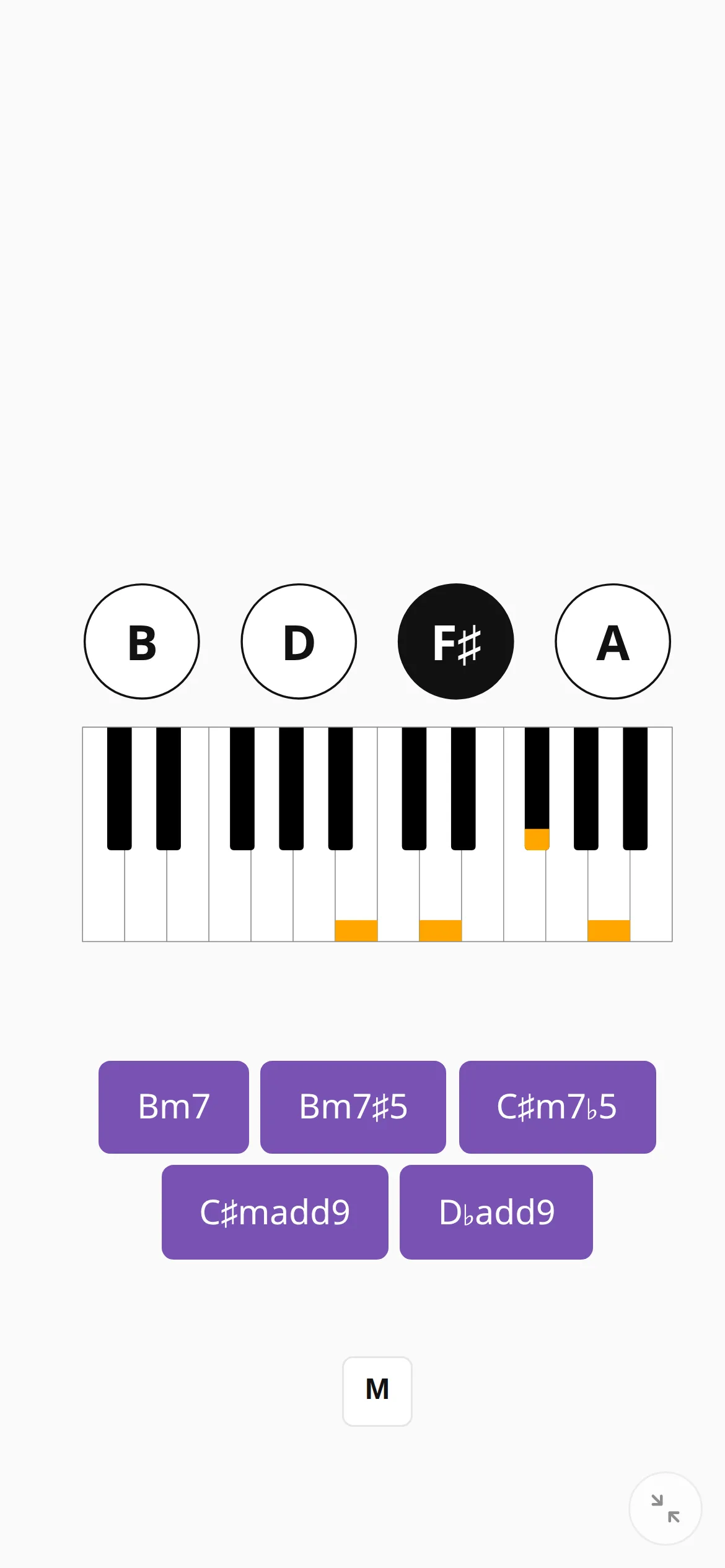 The naming quiz Practice without an instrument: the app shows a chord, a staff or a key signature and you tap the answer. Six kinds of question, all of them on a phone.
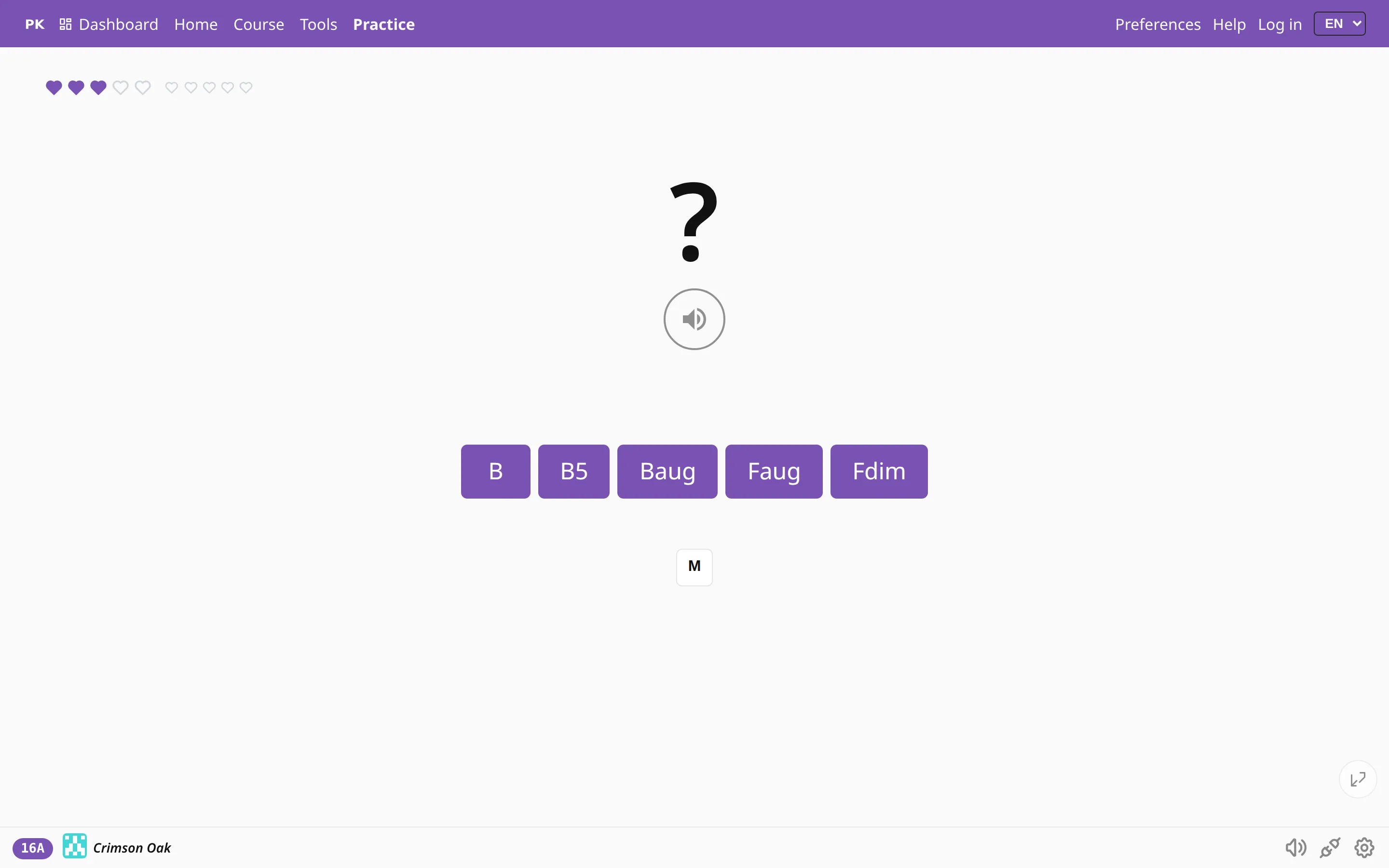 Ear training The app plays a chord without showing it, and you name it from the sound, either with the buttons or by playing it back on your keyboard.
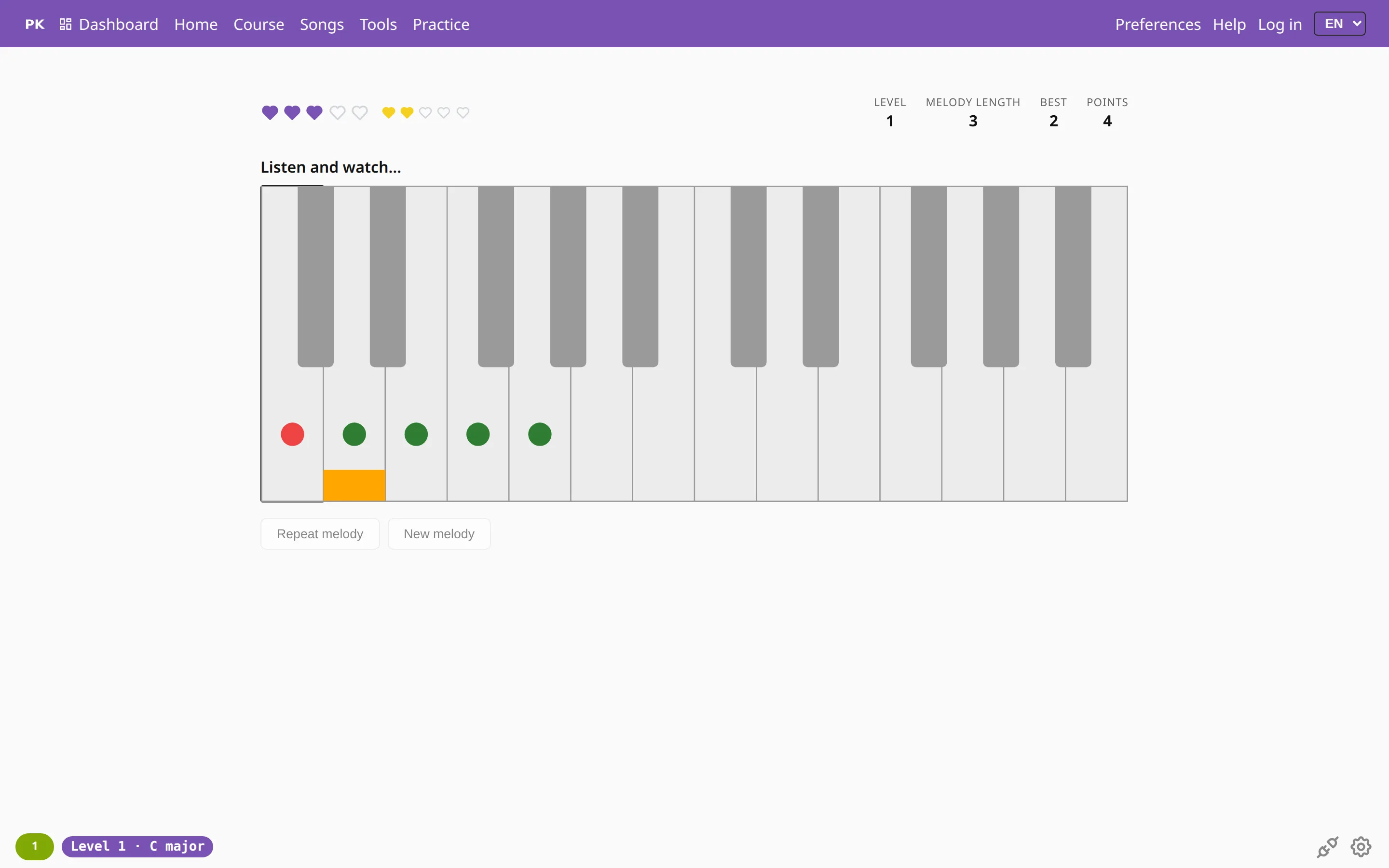 Listen and repeat A piano melody memory game: listen to a short melody, then play it back on a MIDI keyboard or on screen. It grows by one note each round.
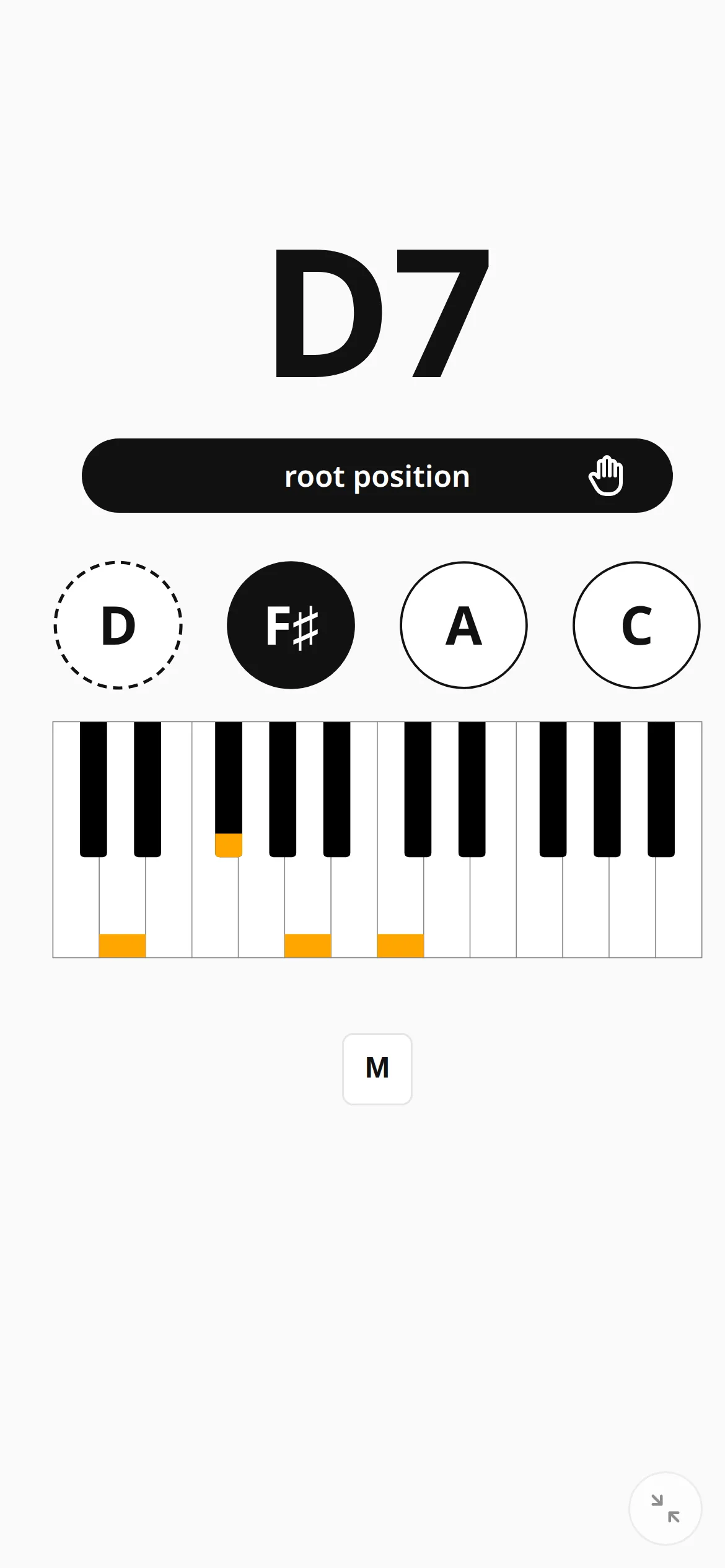 On a phone The drill, the dashboard and the stats all work on a phone. You can also add an icon to the home screen.
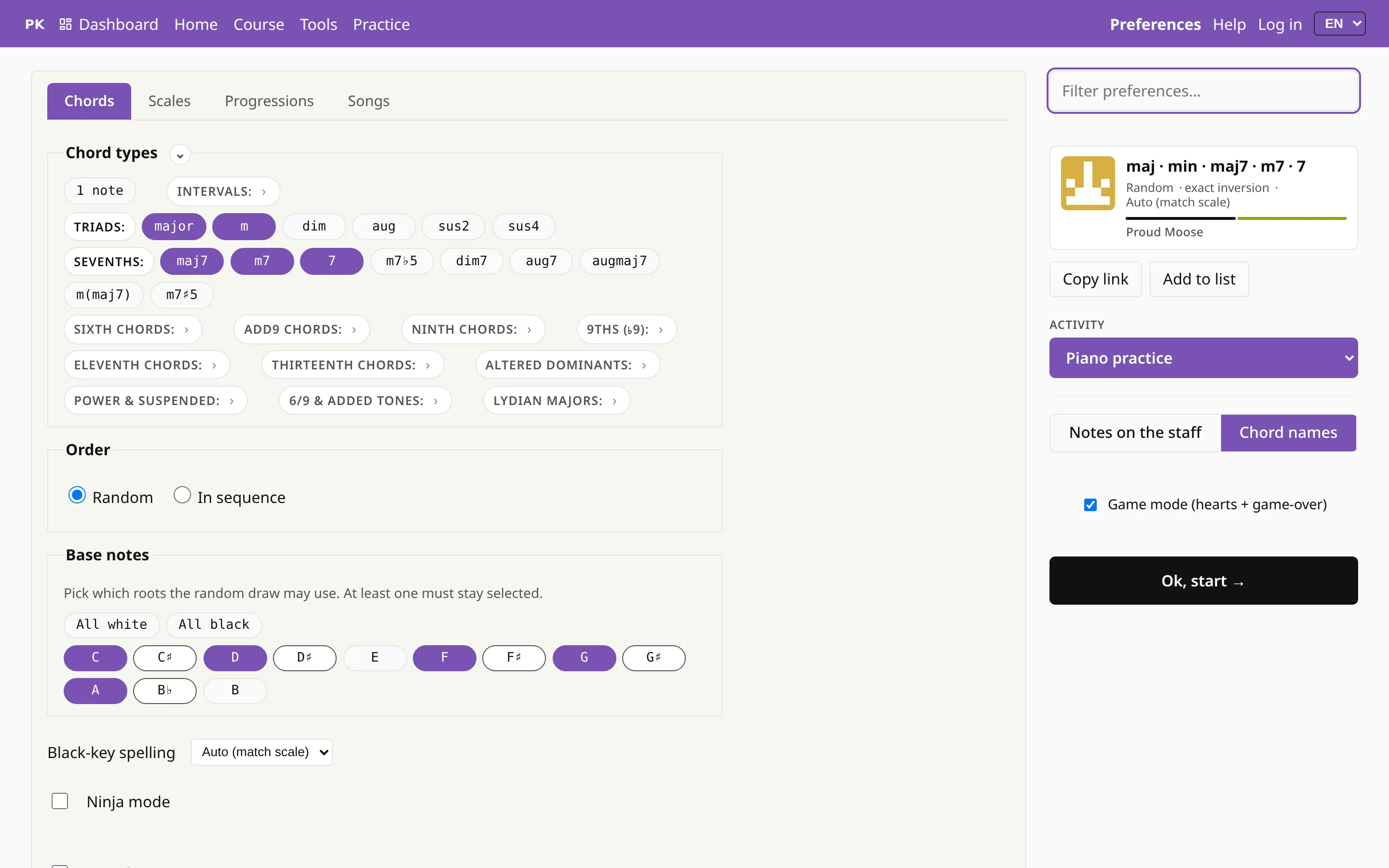 Every setting on one page, for beginners and pros Chord types, keys, inversions, hands, tempo, notation, sound and looks are all set on one page. You can search it and match the drill to your level.
 Look, sound and comfort Choose a calm or a playful look, and adjust the small settings that make long practice sessions more comfortable.
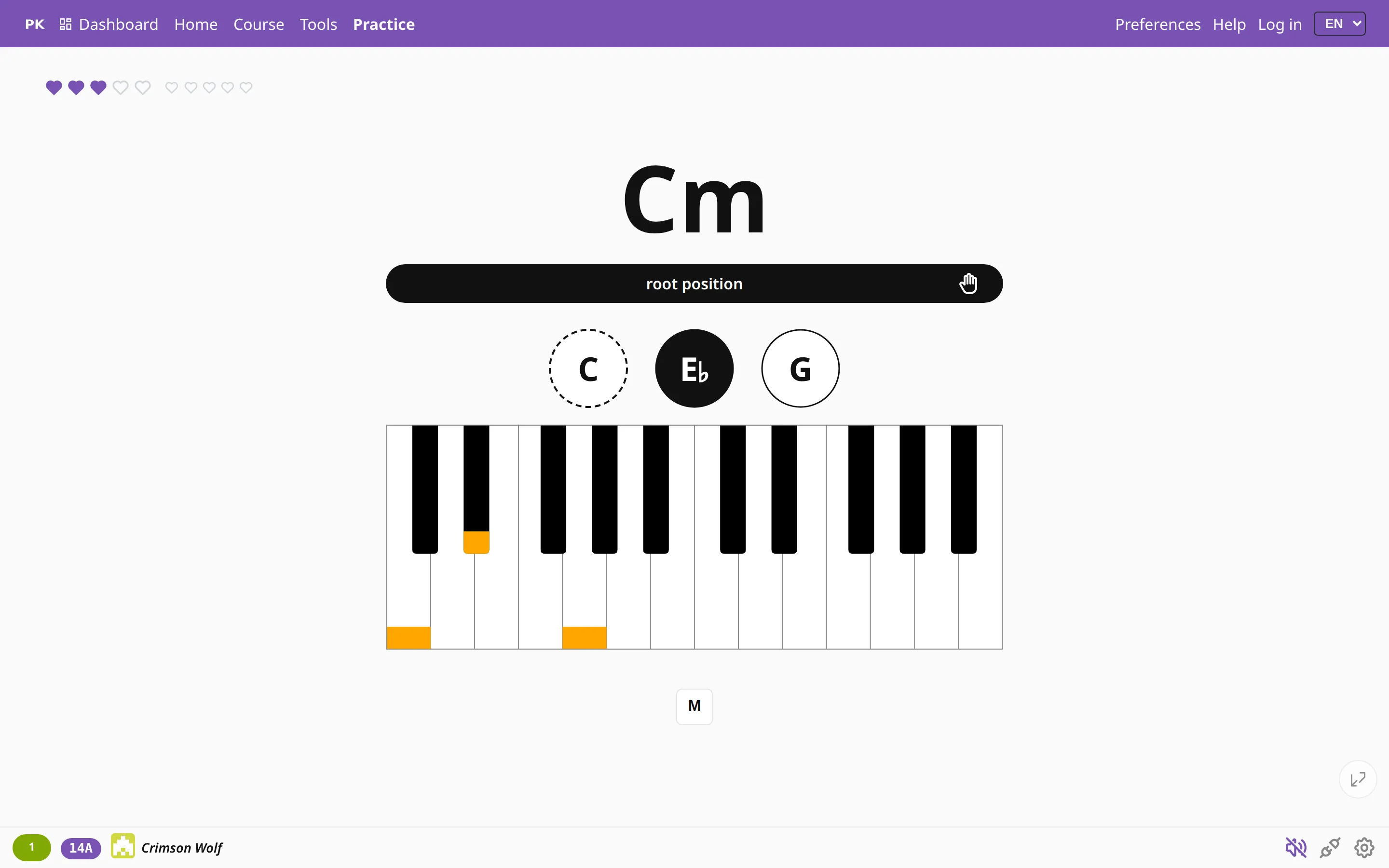
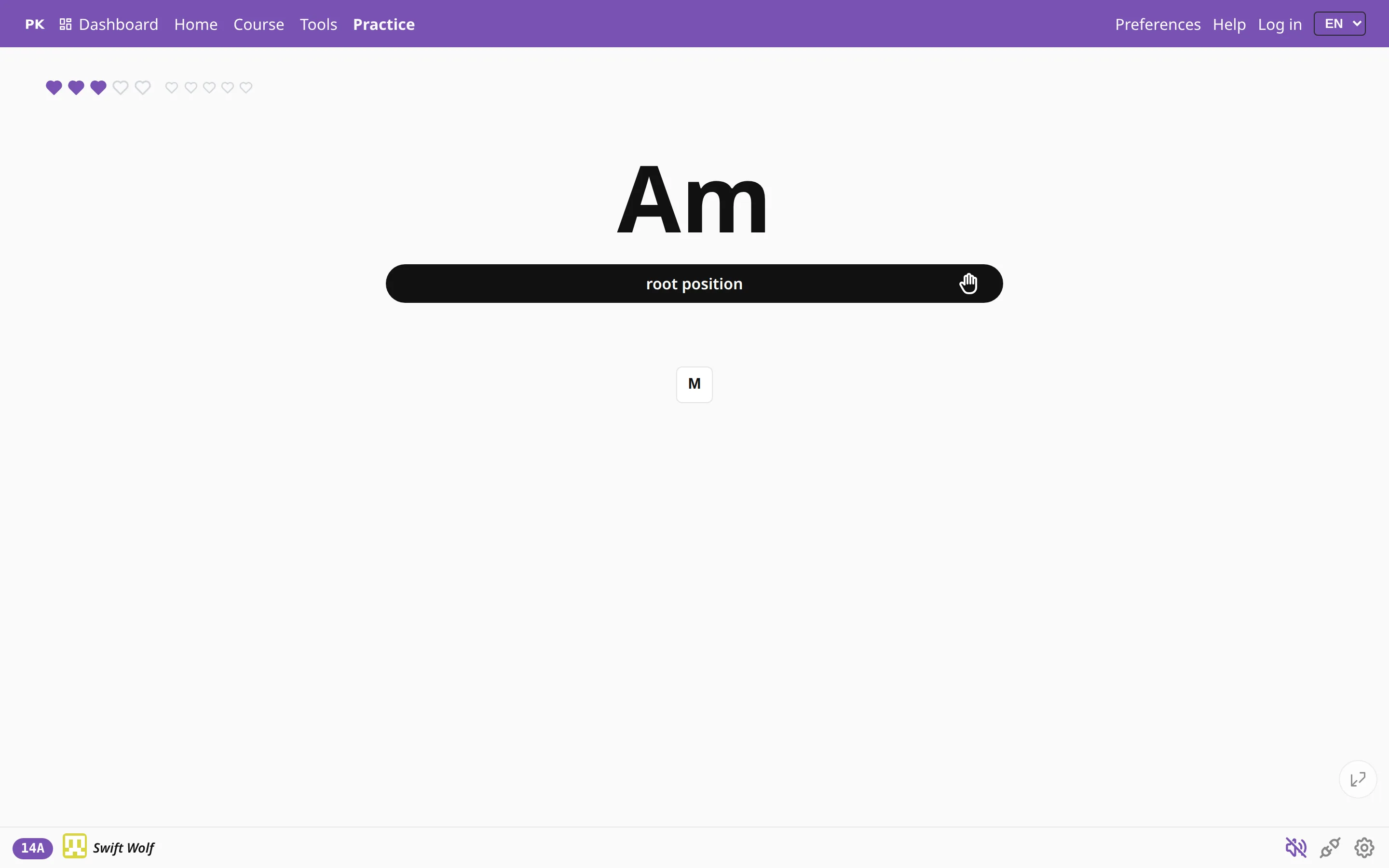 A practice screen you can strip down Press and hold any element on the practice screen to hide it: chord name, hints, inversion bar, chart, chord info or hearts. Preferences brings each one back.
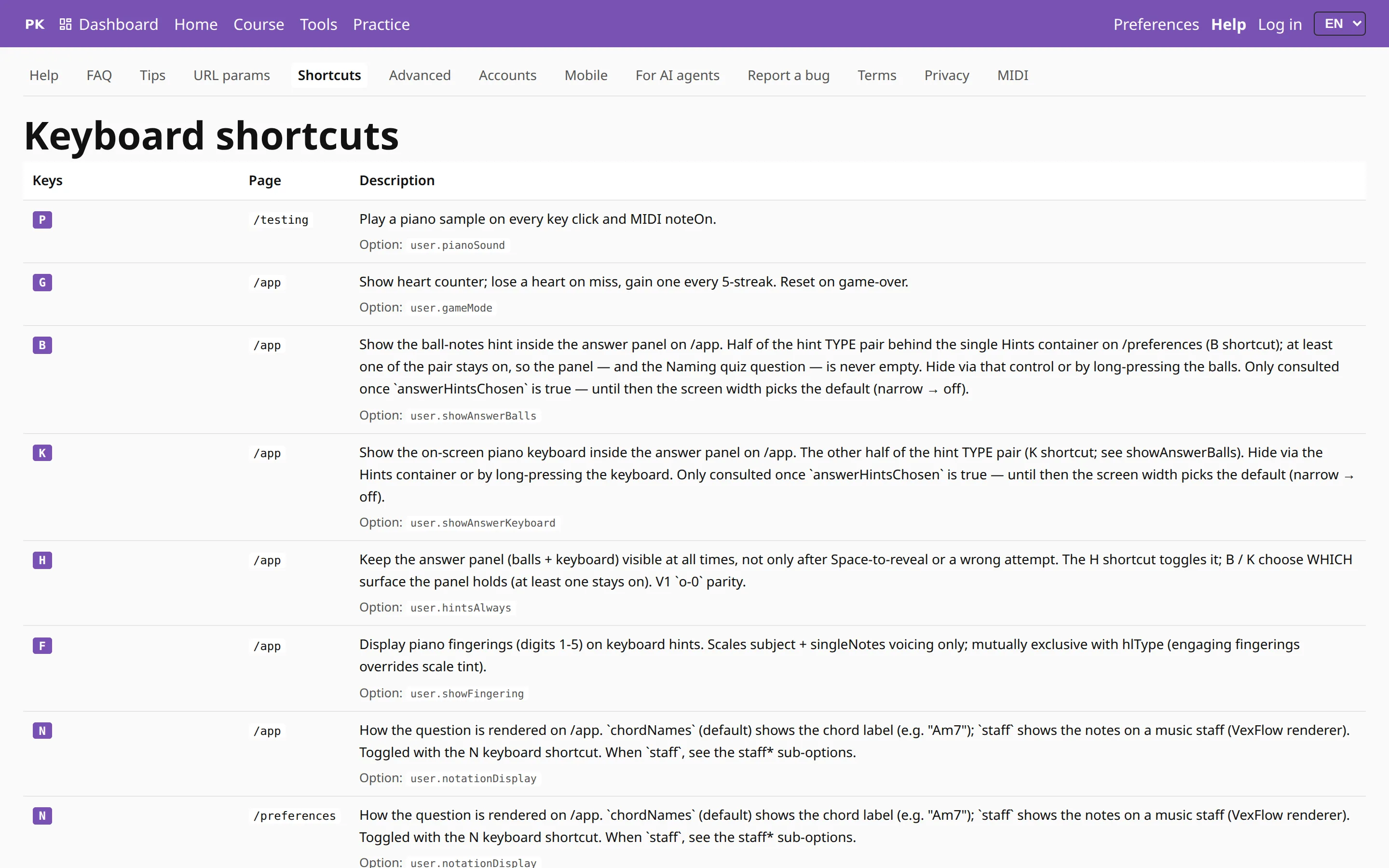 Keyboard shortcuts for a busy pair of hands Reveal the answer, start the metronome, change the key or the inversion, toggle hints and open Preferences with one key, so your hands can stay on the piano.
 An endless supply of exercises Every combination of settings makes an exercise, and each exercise gets a named card you can keep, share and come back to.
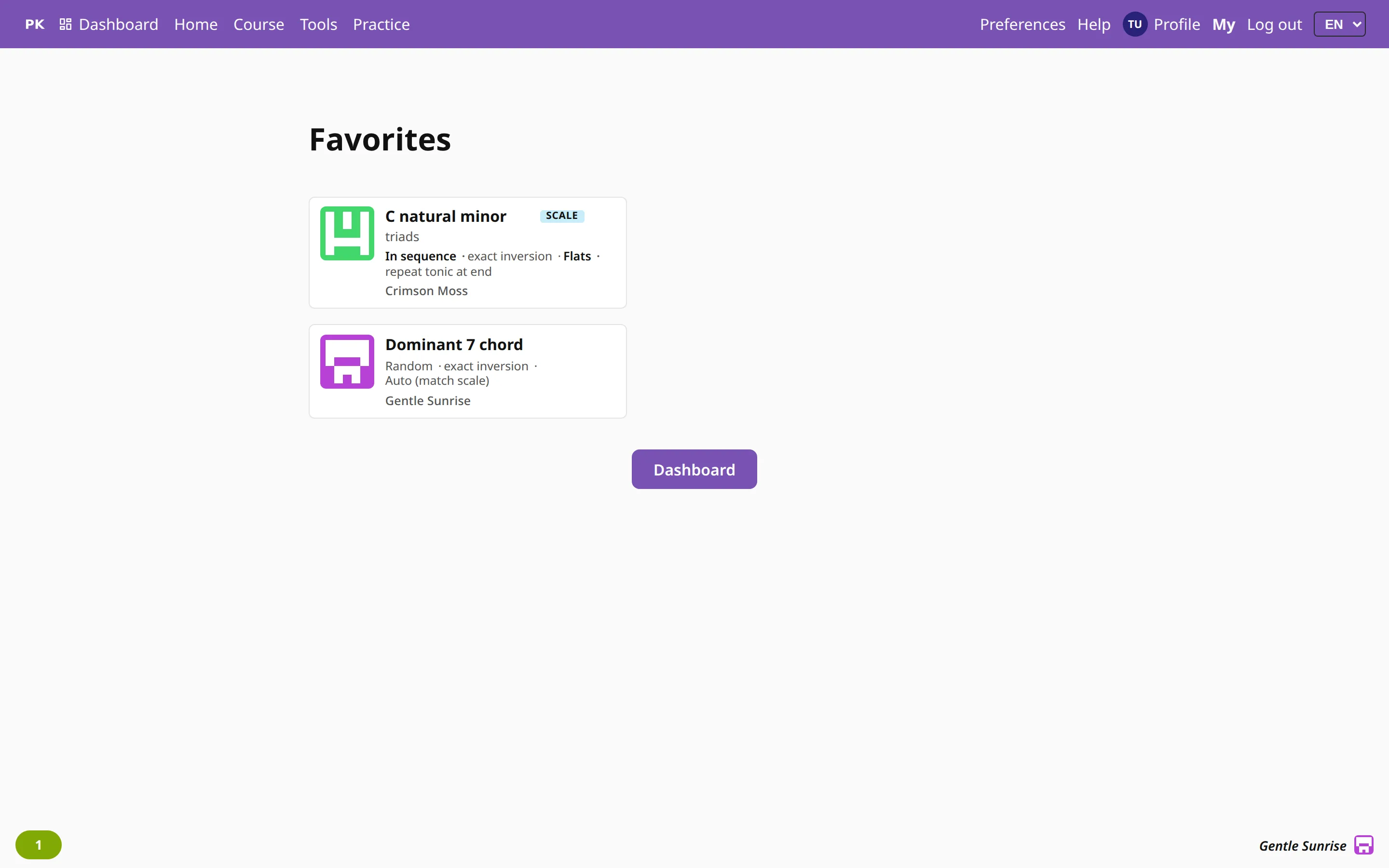 Favorites The heart in the bottom bar saves the current exercise with all its settings, so you can open it again with one tap.
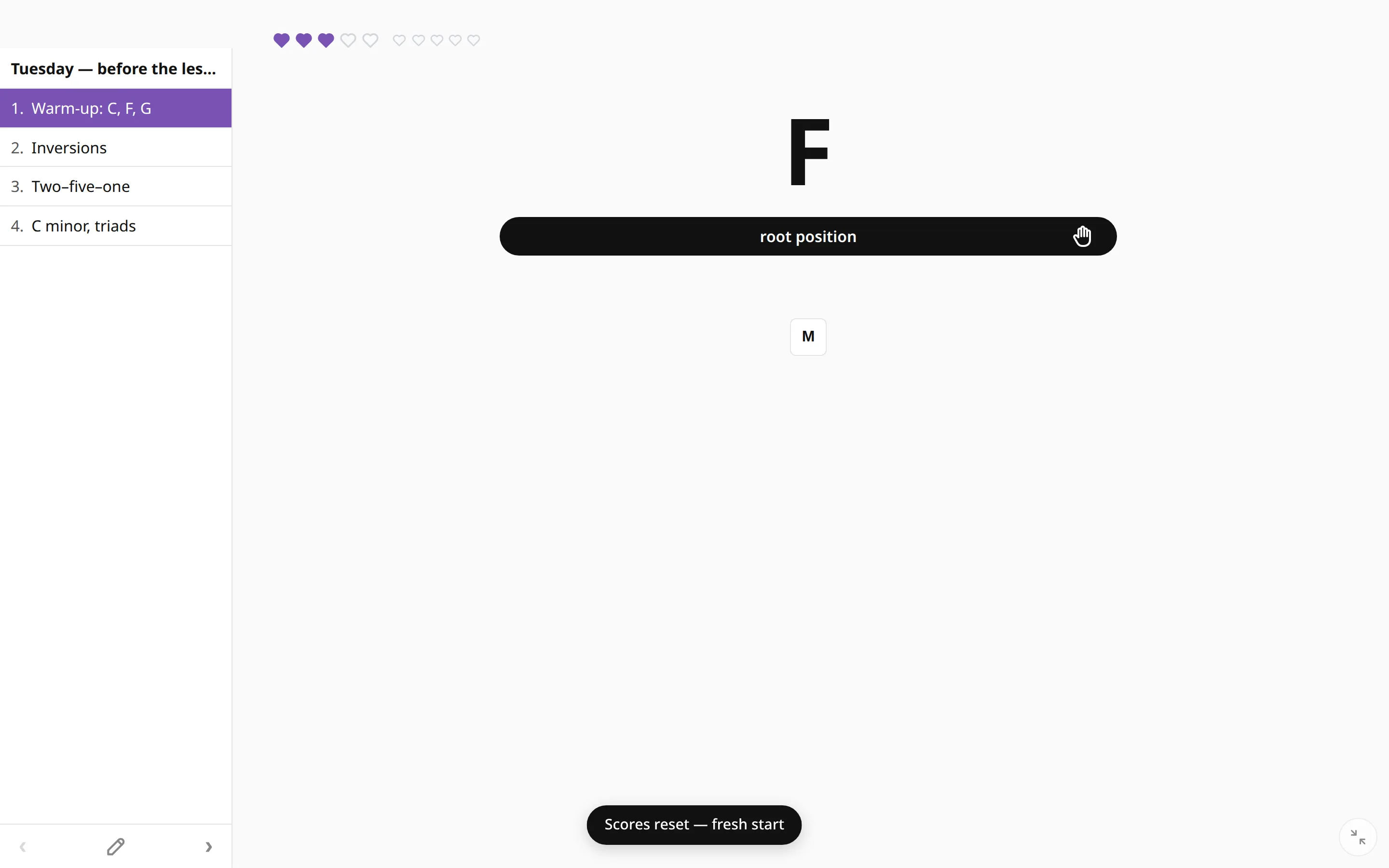 Exercise lists Put a practice session in order, with drills, a page of the score and the video to learn from, then play through it one item at a time.
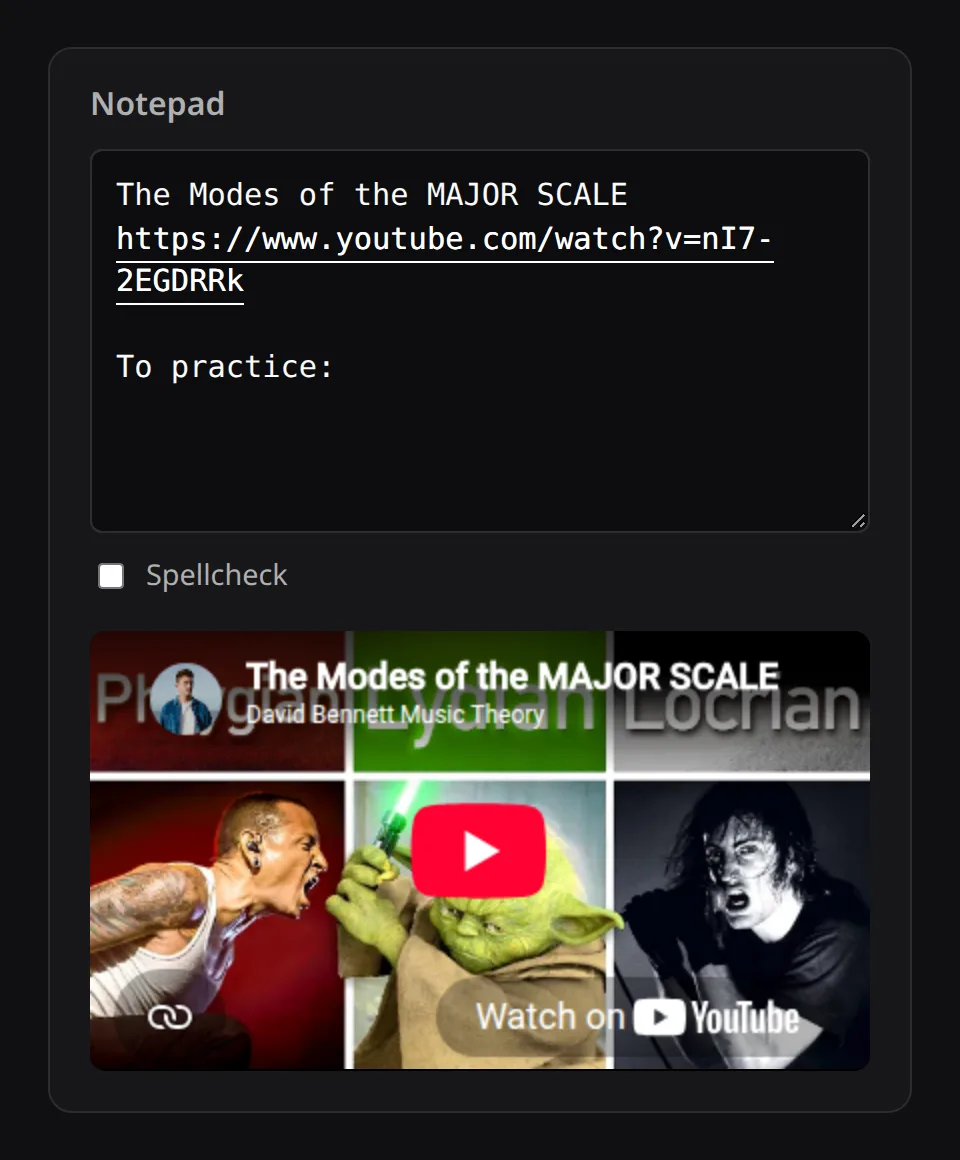
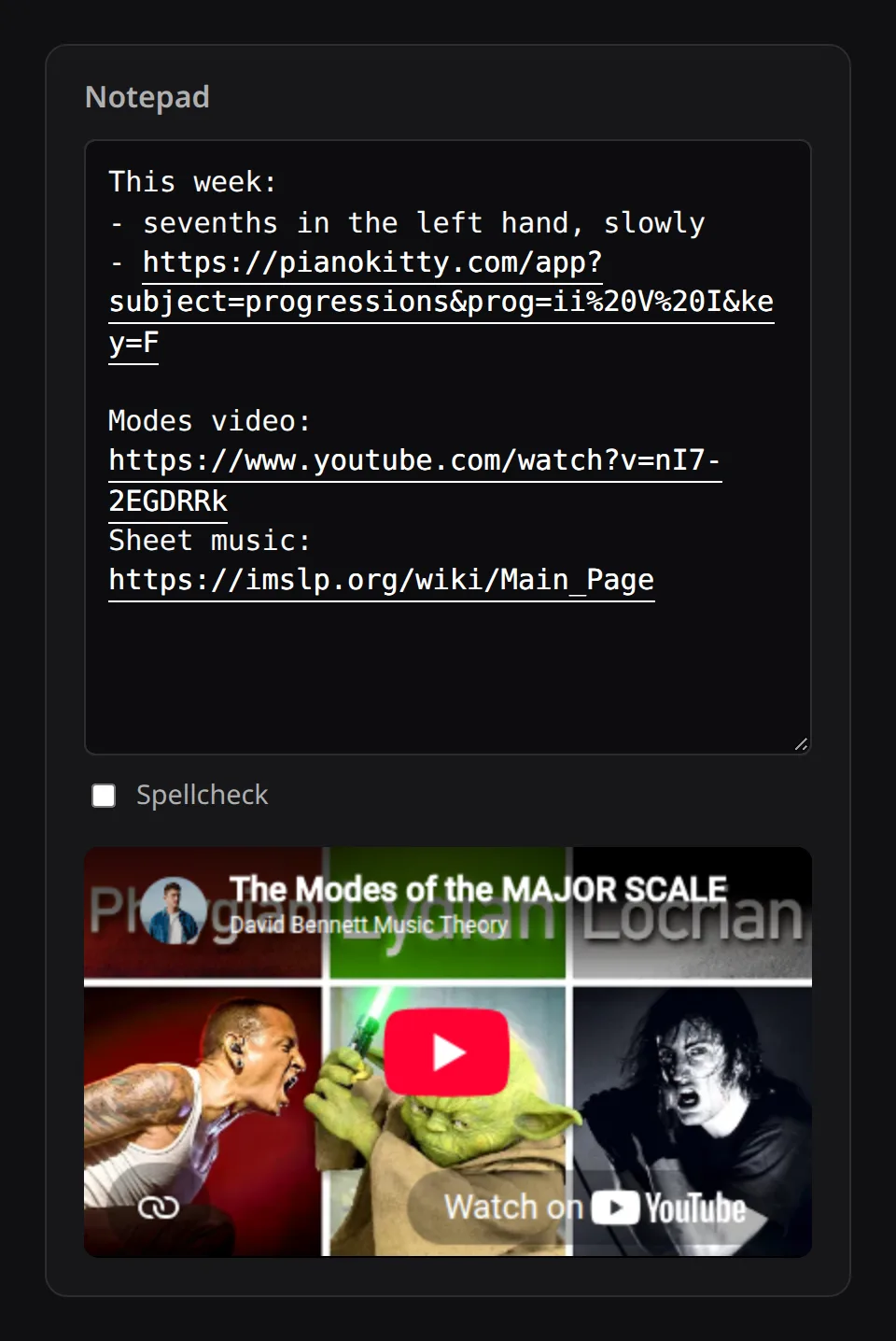 The notepad A plain text box on your dashboard. Web addresses in it become clickable links, YouTube links get a player, and exercise links open the exercise.
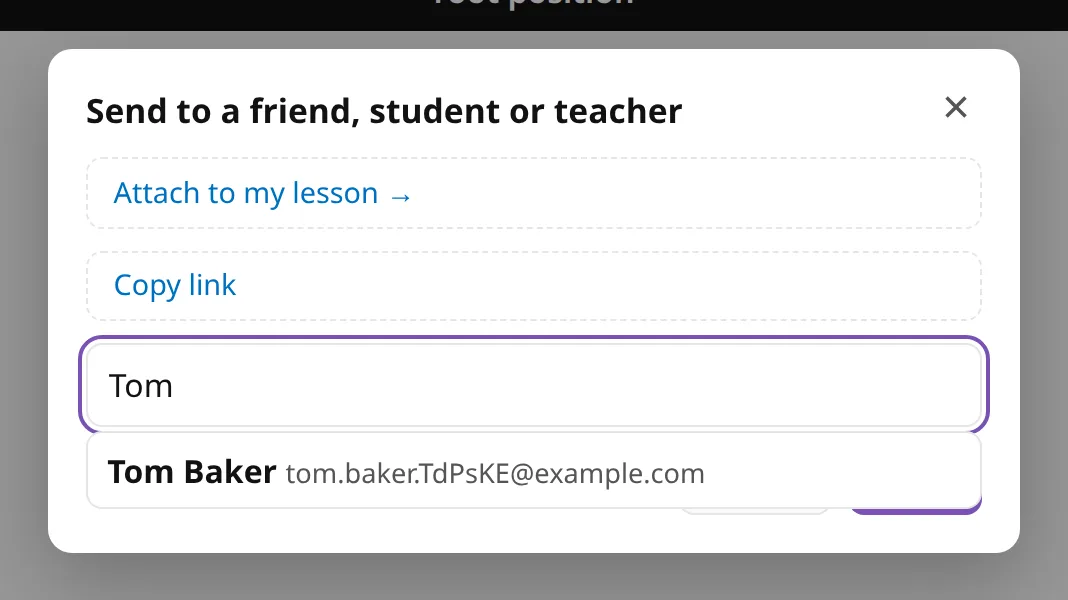 Share an exercise or a list Send an exercise, with its settings and practice options, to a student, a friend or your child, and add a note. You can also copy a short link.
 Send to PianoKitty A bookmark that sends what you are reading to PianoKitty: a page to your notepad, or a song’s chords from Chordify or Ultimate Guitar to the chord editor.
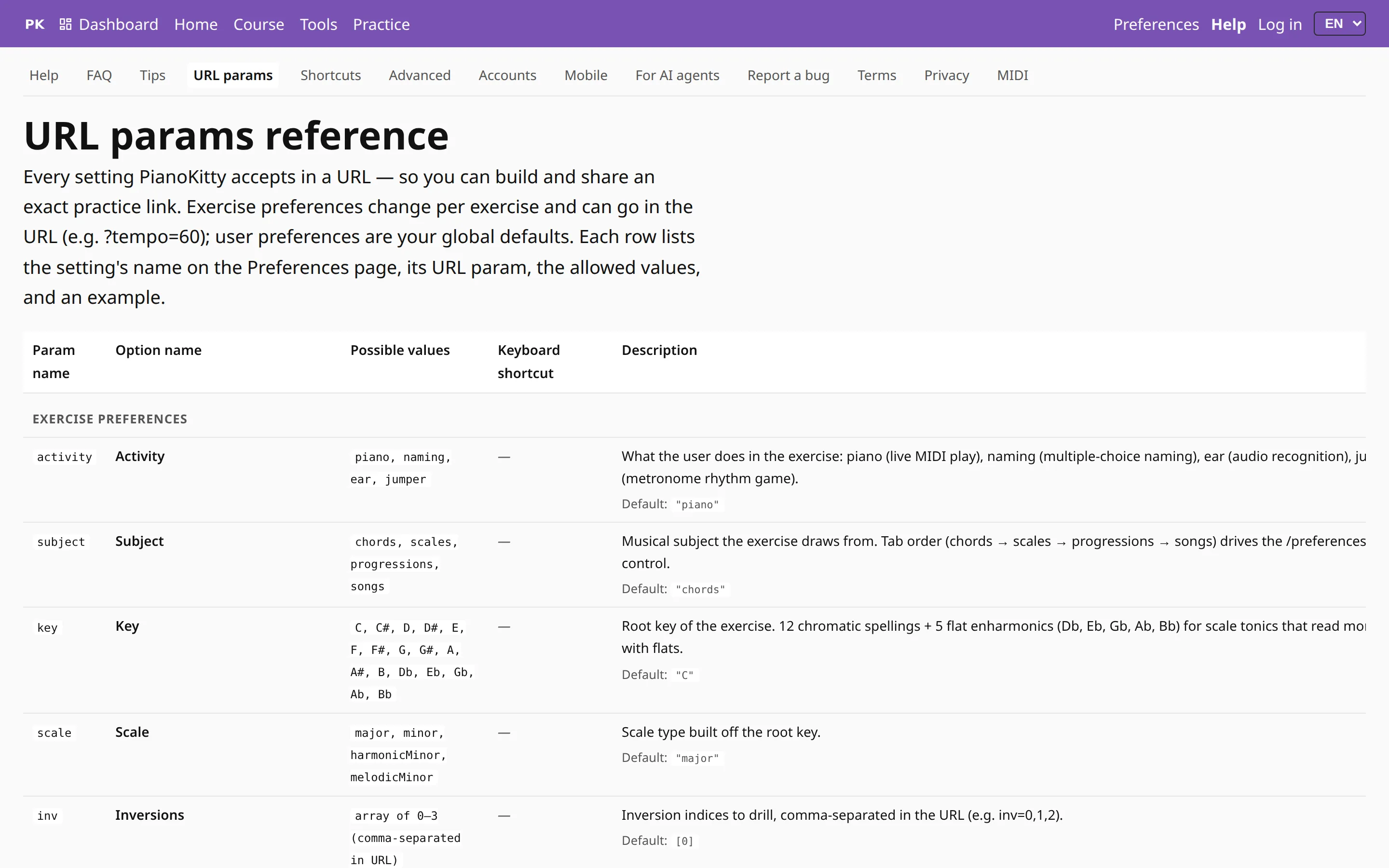 Exercises as links — and a chatbot can write them Every exercise setting fits in a link. Build one by hand, start from a ready-made set, or describe the drill to an AI assistant and let it write the link.
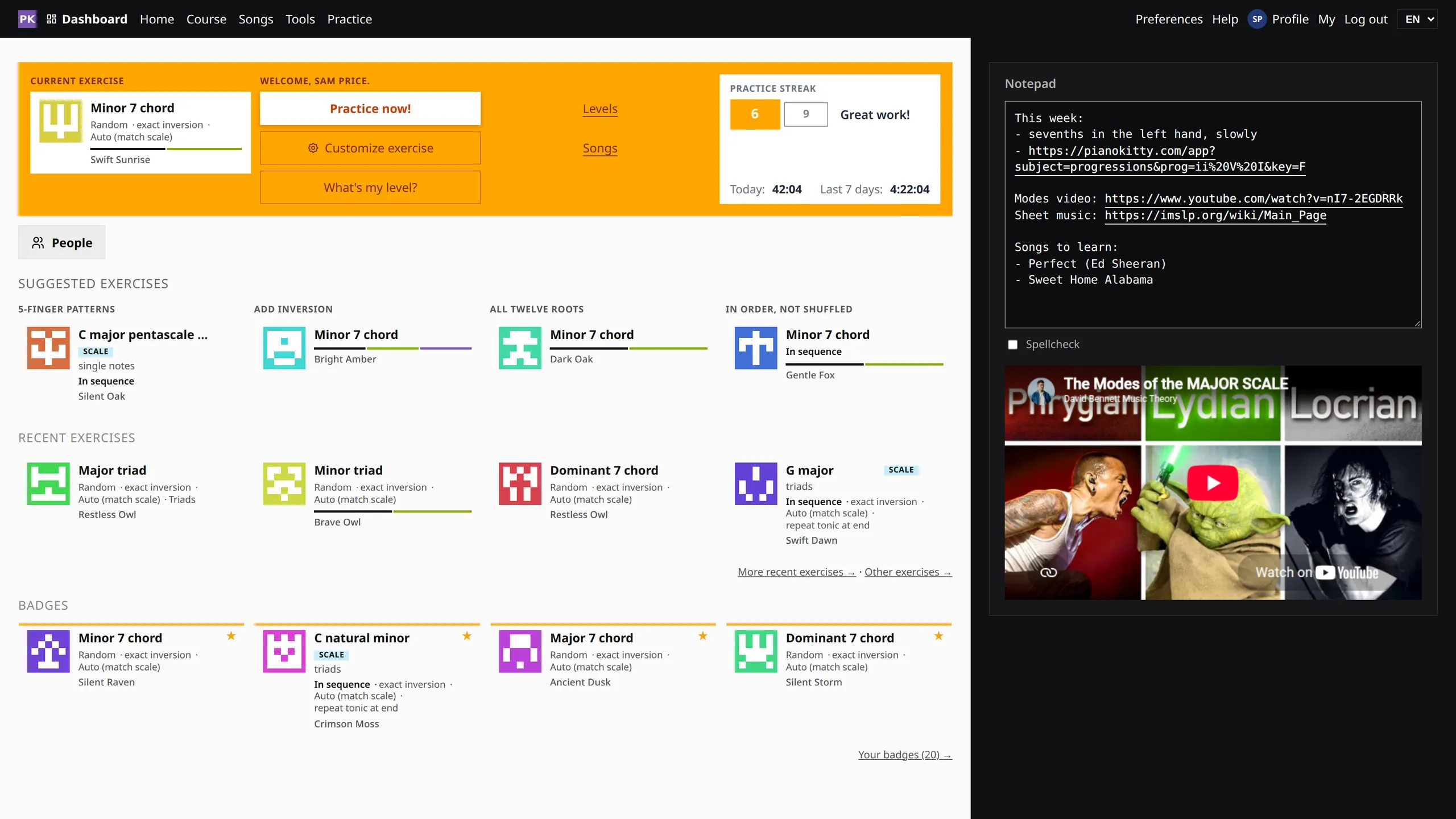 The dashboard One screen for deciding what to practice today: your current exercise, your streak, suggestions for what to try next, and a notepad for your links.
 The metronome, and the ladder A click to practice to, and a tempo ladder that raises the speed one rung at a time and drops back a rung when you miss.
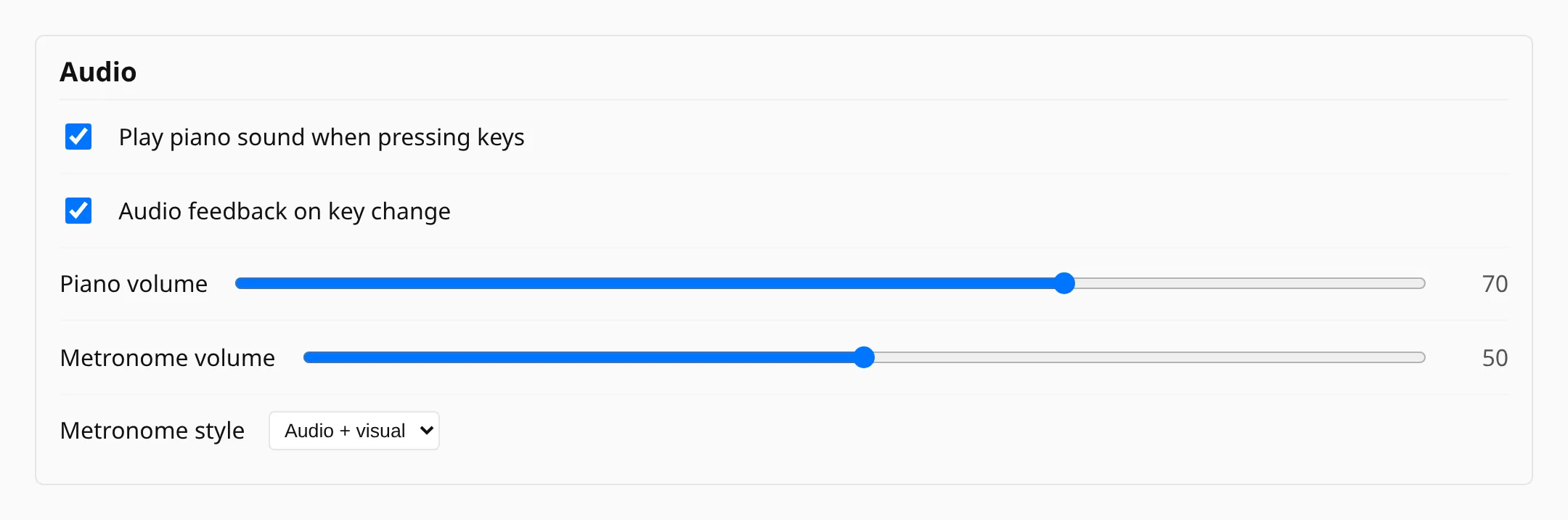 Piano sound and volume A sampled piano plays every key you press, with its own volume, separate from the metronome — and a gong when the drill moves to a new key.
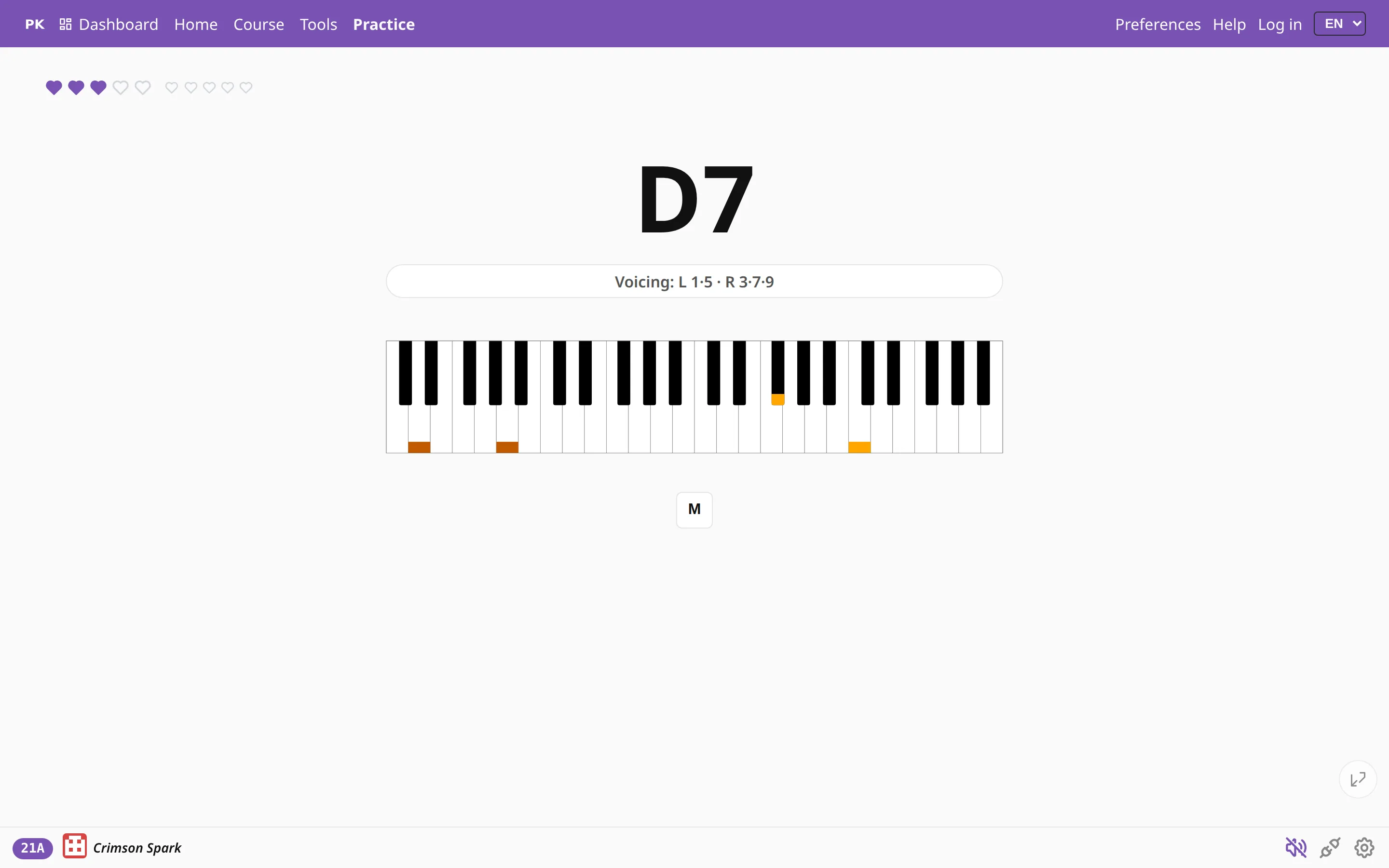 Choose your own voicing Choose which parts of the chord each hand plays, or set the exact notes step by step and let the app ask only for the root.
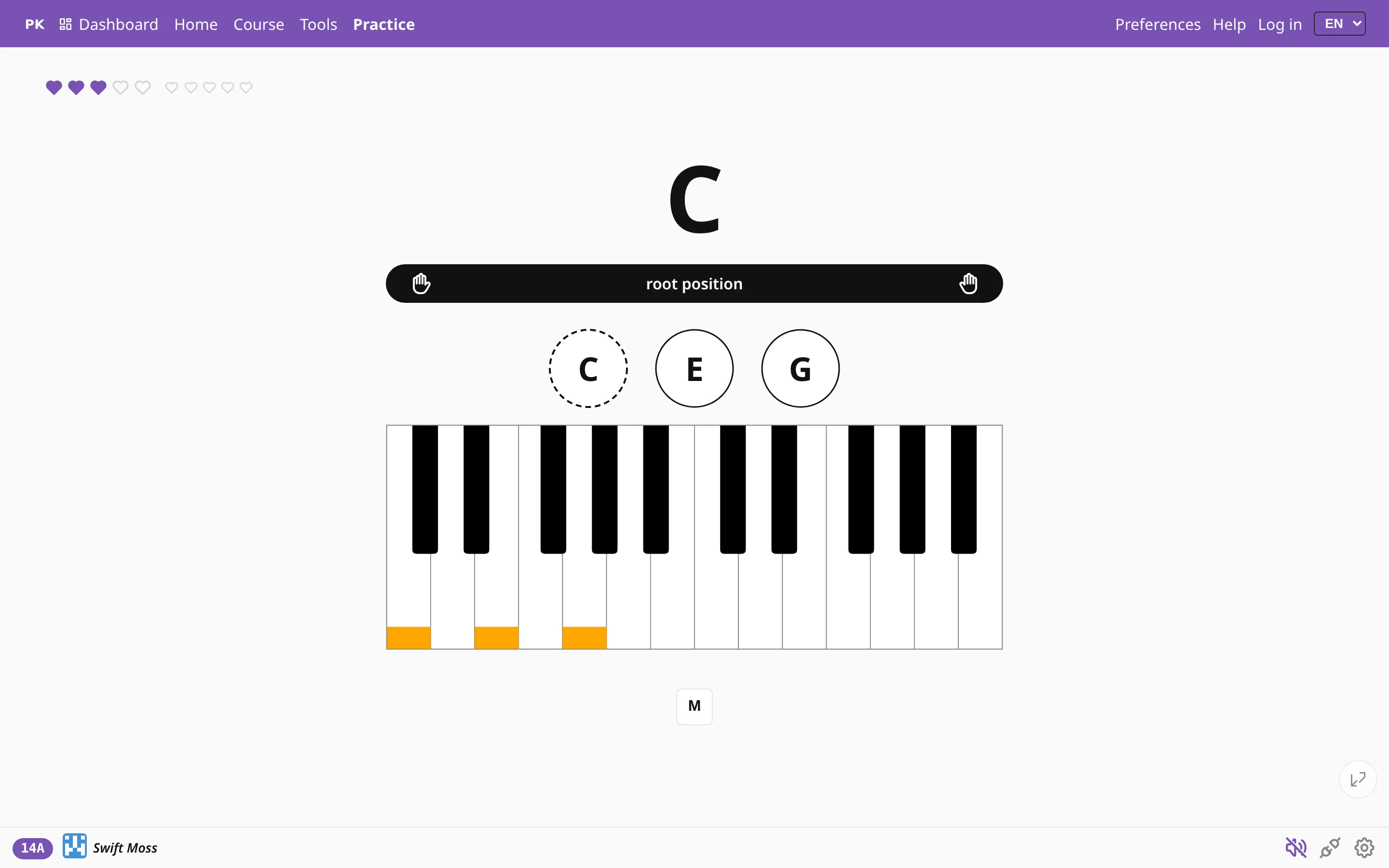 Left hand, right hand, or both Practice one hand at a time, or both, with the left hand given its own part: the root, octaves, fifths, or the whole chord doubled.
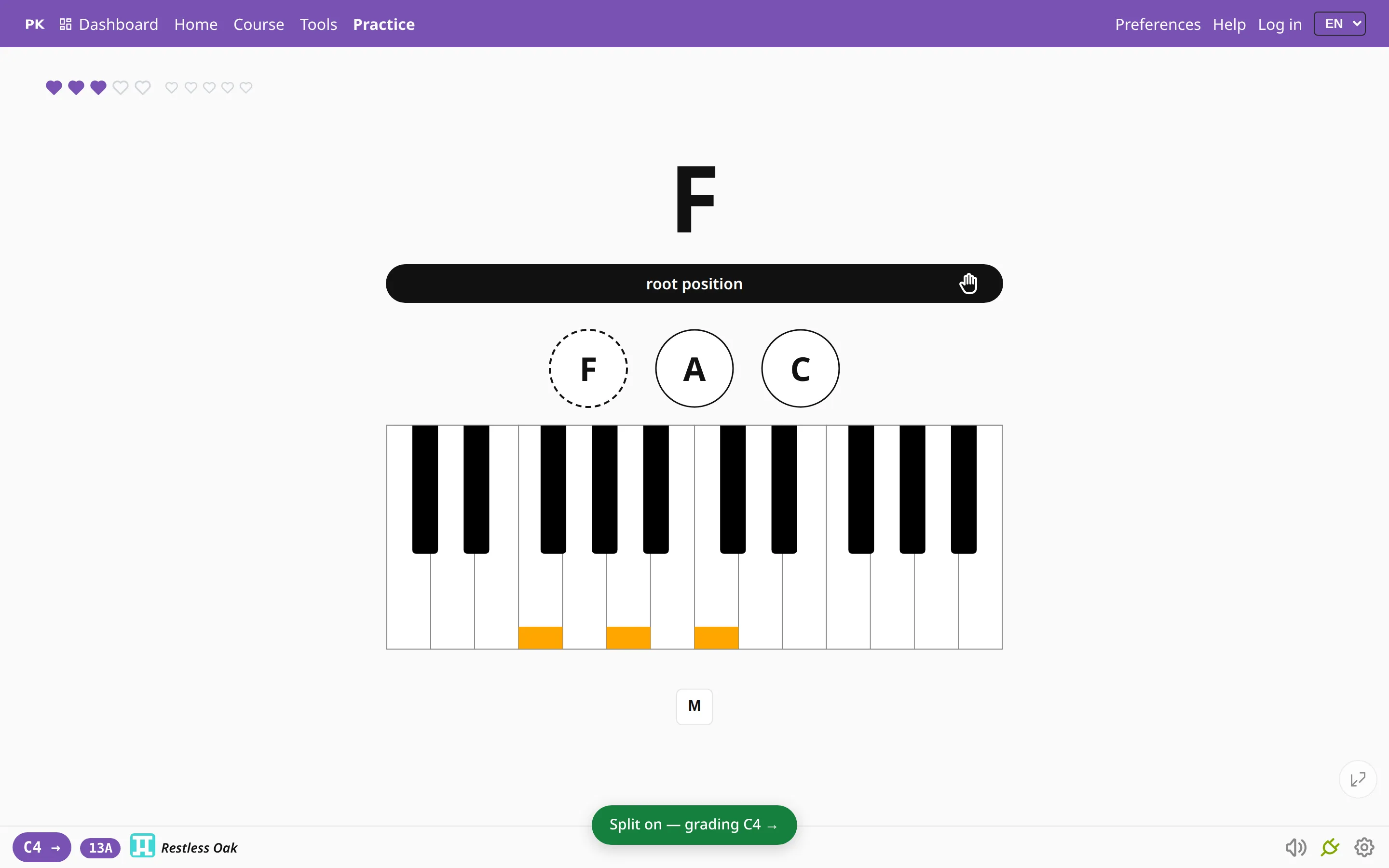 Split the keyboard Grade only one side of the keyboard and leave the other free for a bass line, a melody, or a teacher playing along.
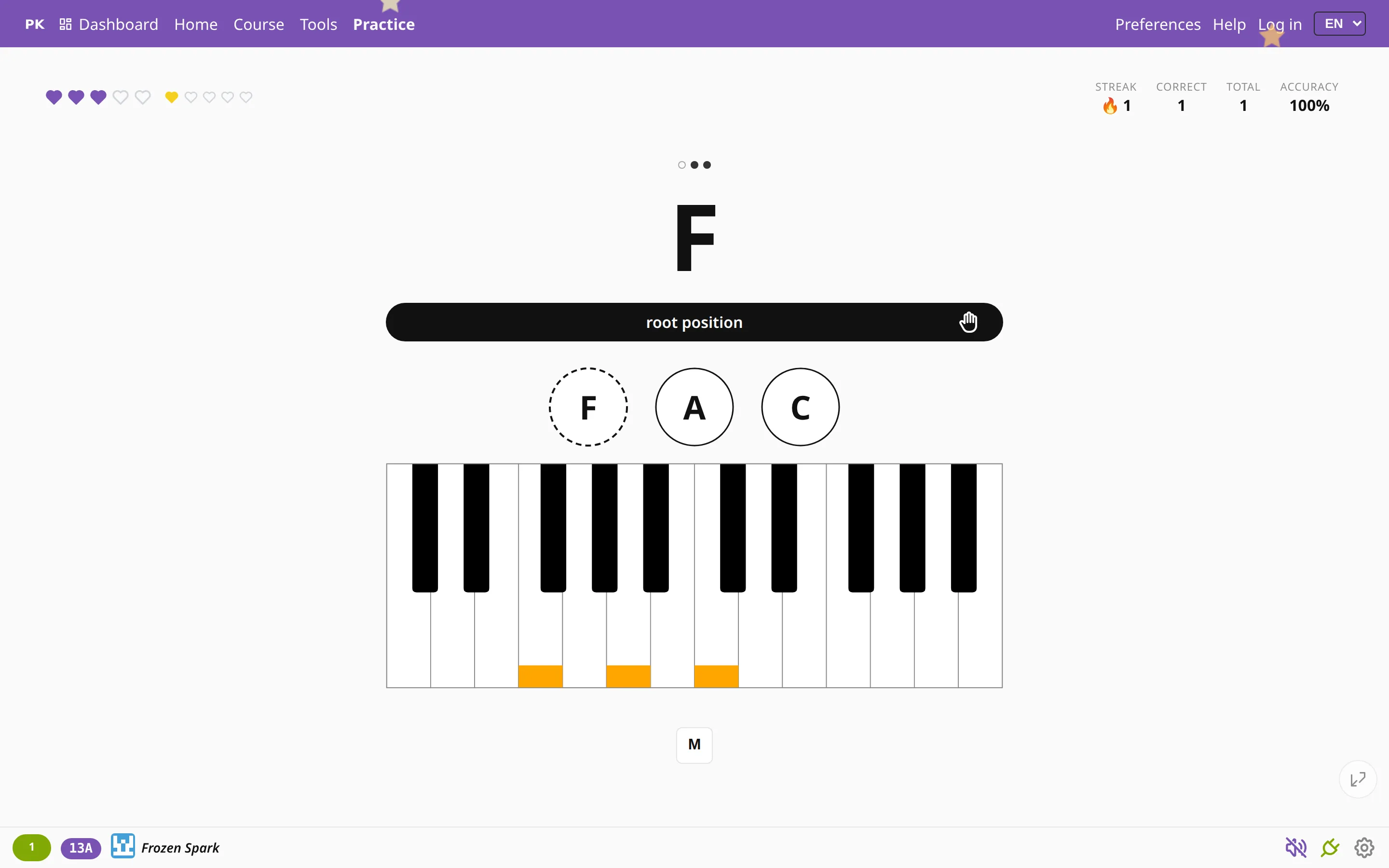 Play each chord three times Play the same chord several times in a row before moving on, to practice rhythm, voicing and a clean release.
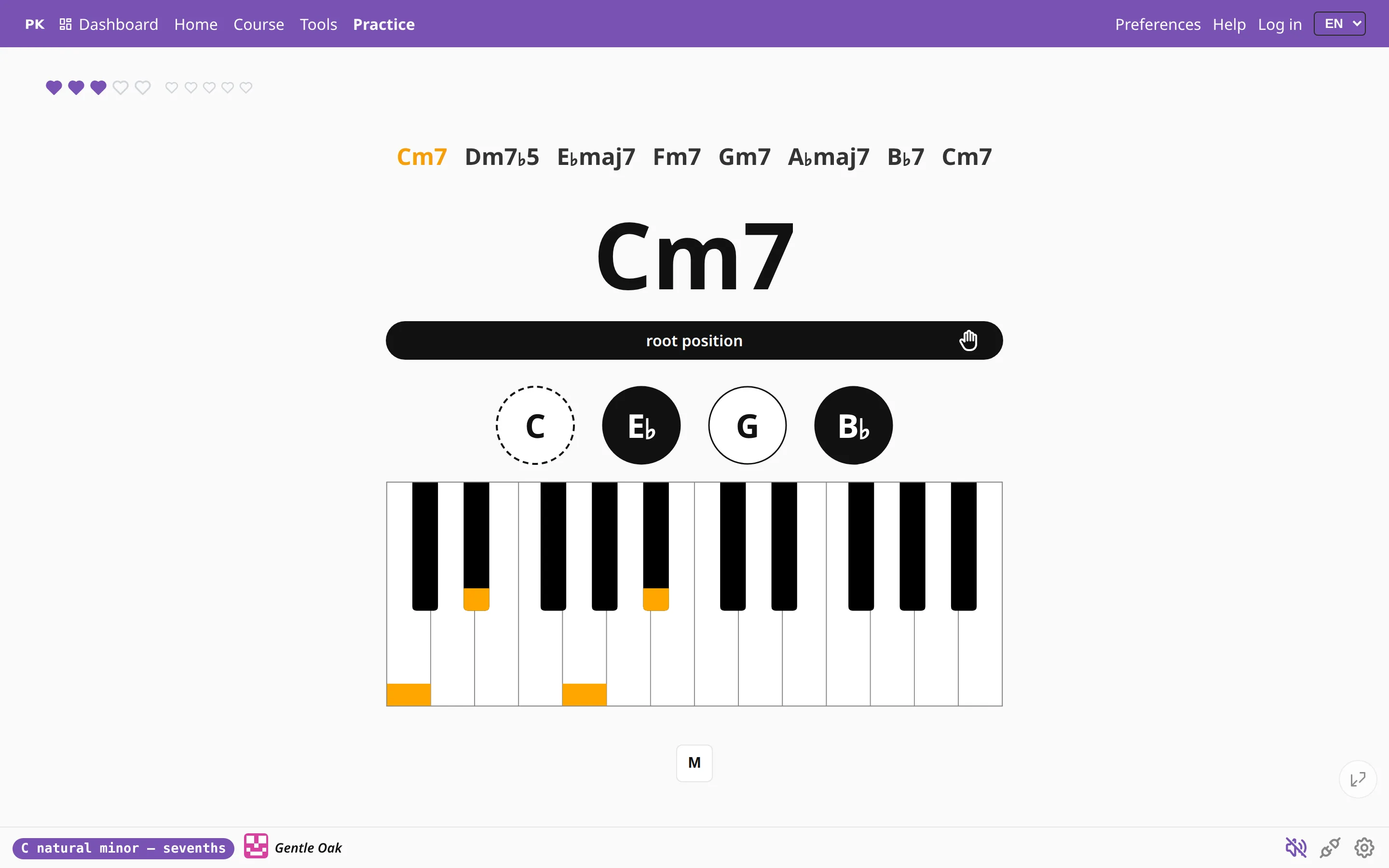 The chord chart The whole key in one strip above the question. Tap any cell to narrow the drill to the chords you keep missing.
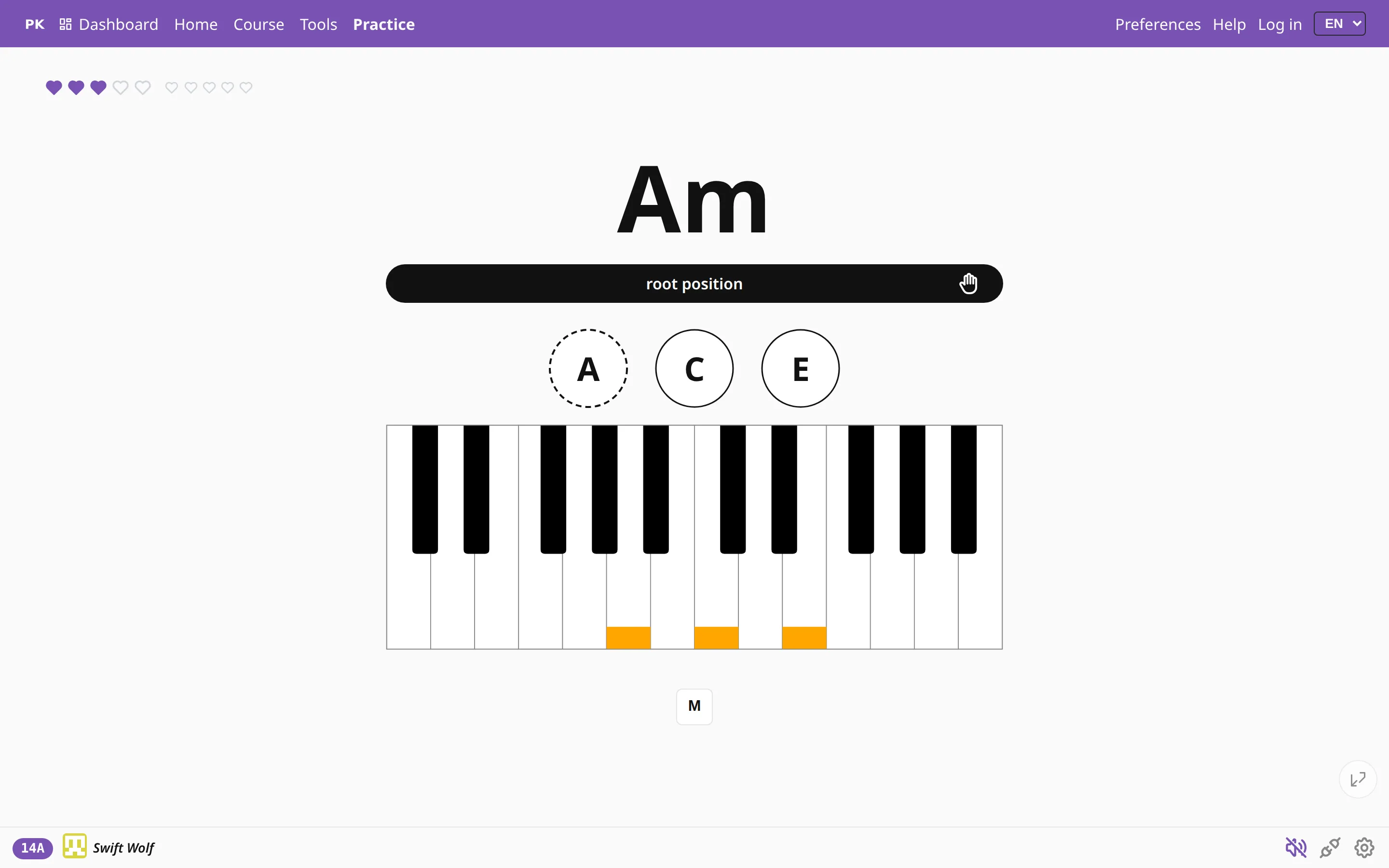 Hints, and how much help you want Choose the note names, the shape on the keyboard, both, or no hints at all, with an option to show them only when you are about to lose.
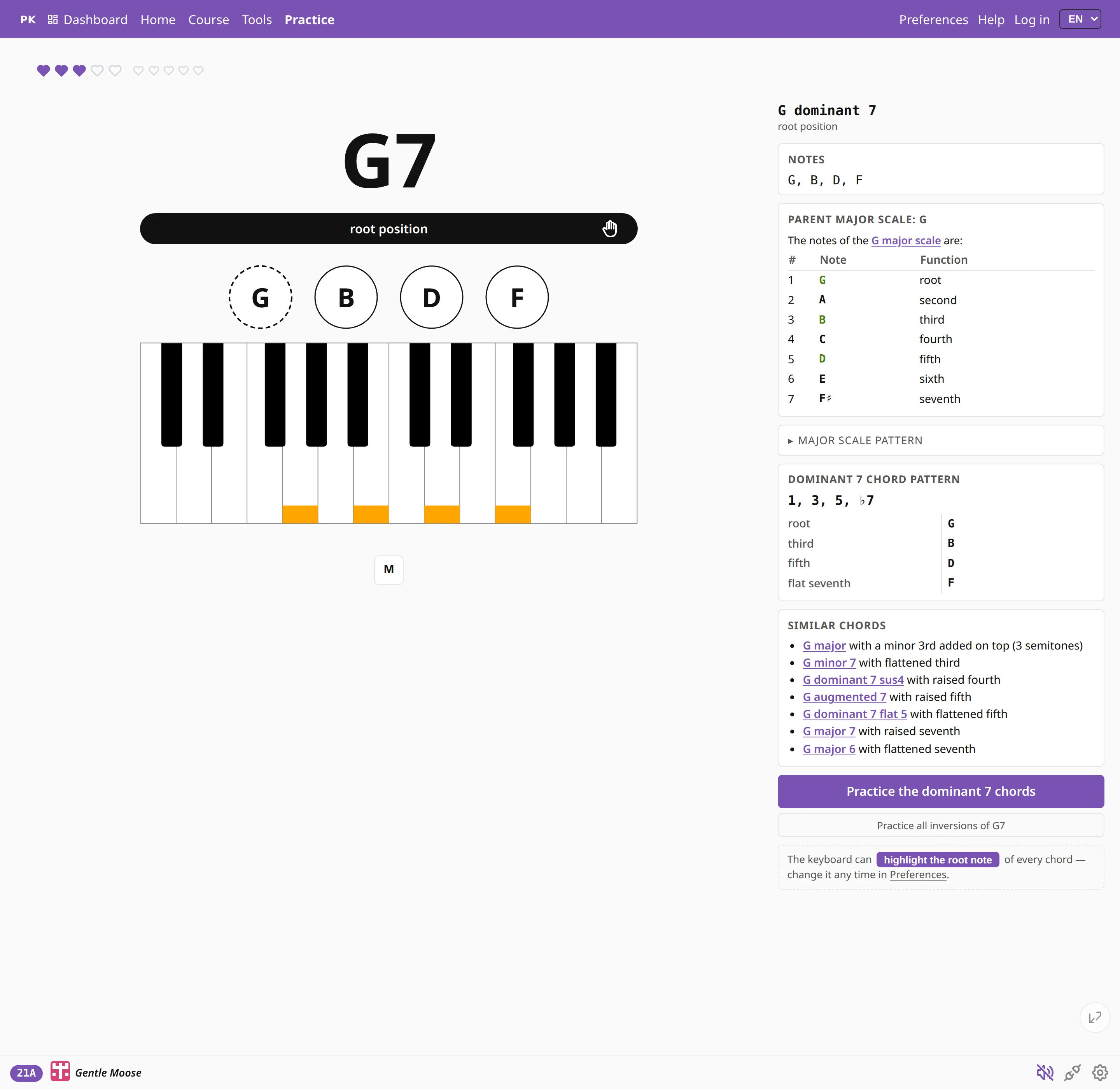 What is this chord, exactly? Press I to see what the chord is made of: its notes, the scale it comes from, its formula, and the chords one note away from it.
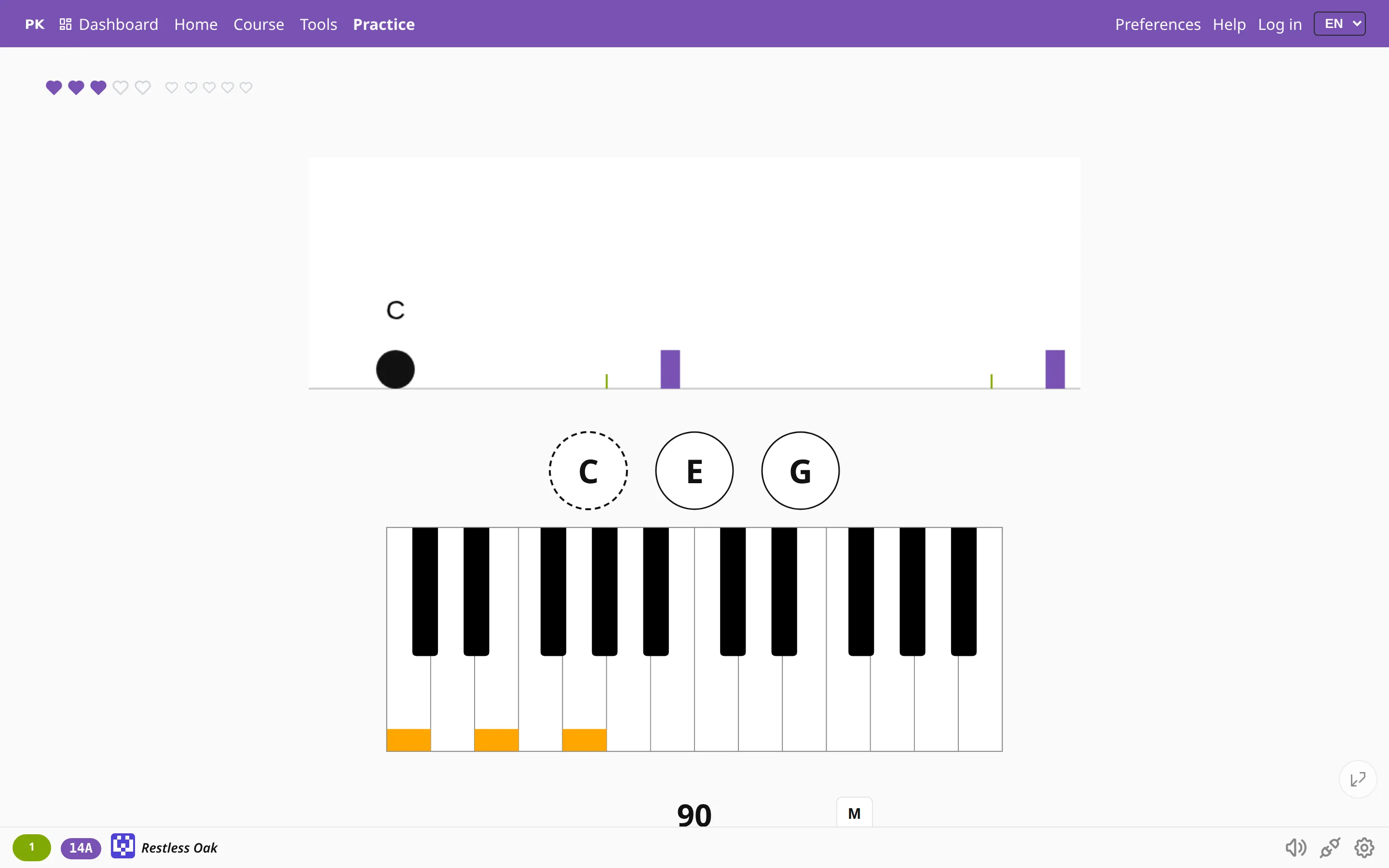 Piano chord games: flashcards, ear training, rhythm Four free piano games that teach chords: play them, name them, hear them or jump to the beat. Hearts, streaks and coins keep you coming back.
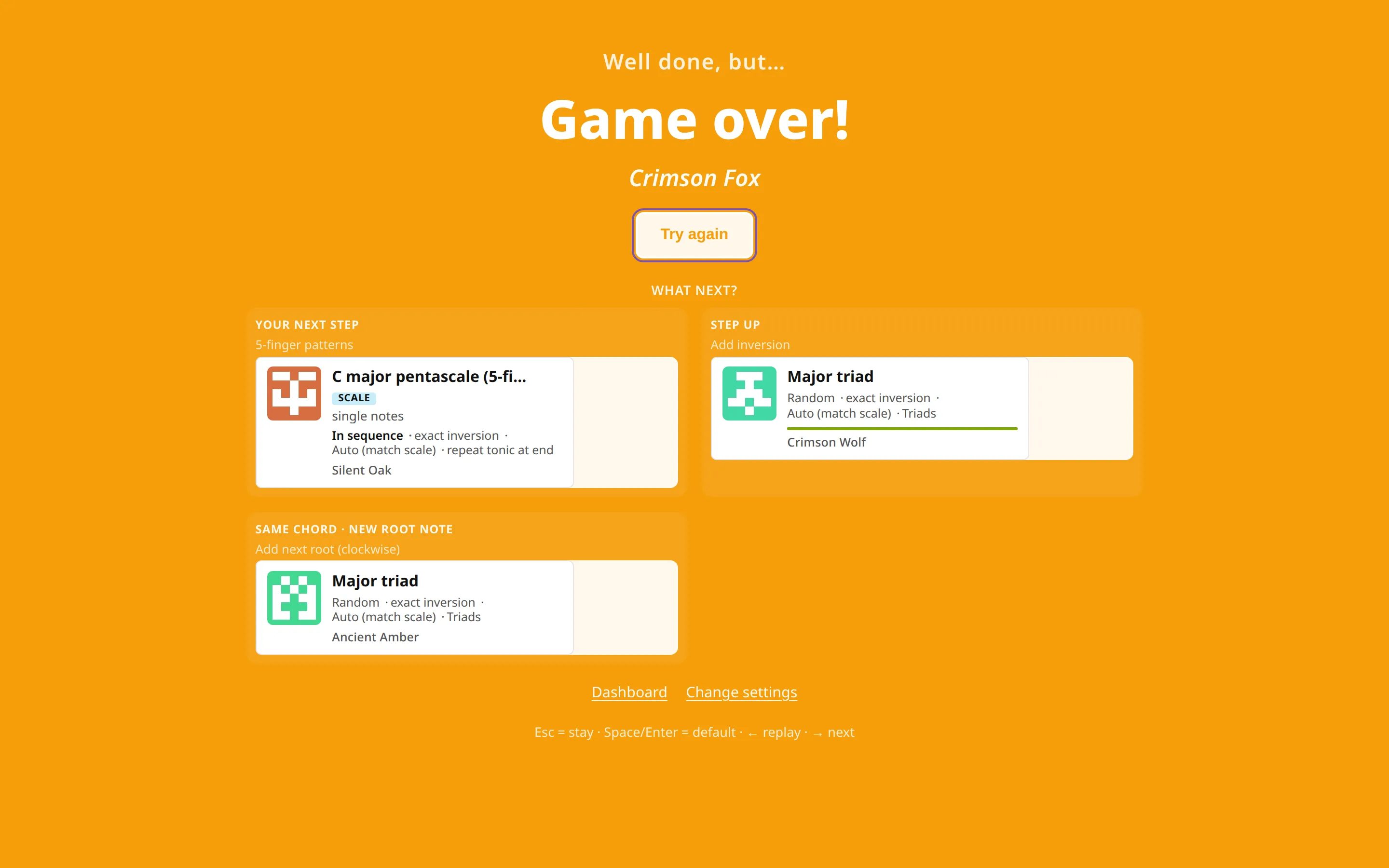 Practice that plays like a game Hearts you can lose, levels to clear and an accuracy score to beat. Turn on reward images and a right answer can earn you a cat photo.
- The Jumper game A runner, a row of obstacles and a metronome. Play the chord in time and the runner jumps over the next obstacle.
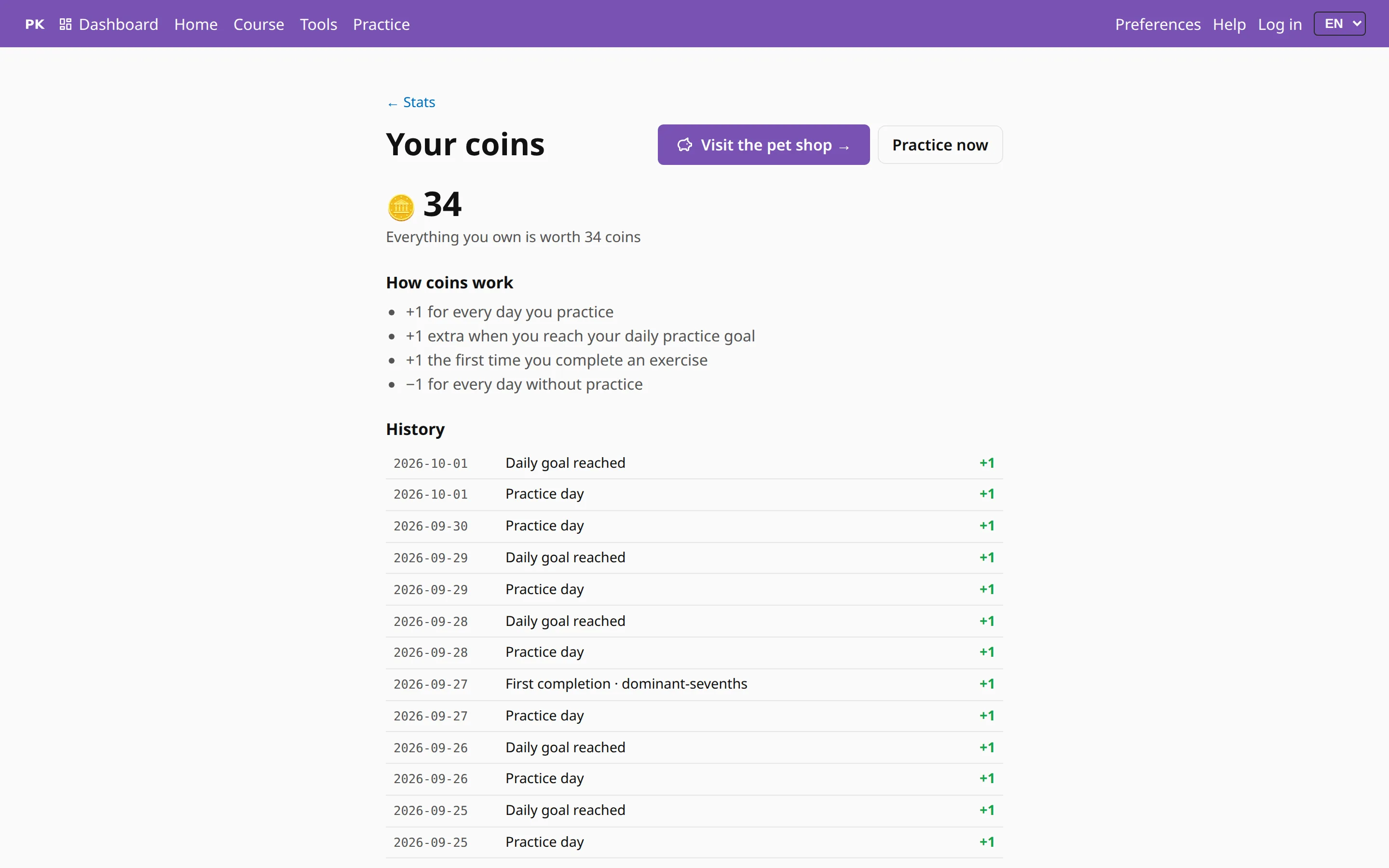 Coins You get a coin for every day you practice and another for reaching your daily goal, and you lose one for every day you skip.
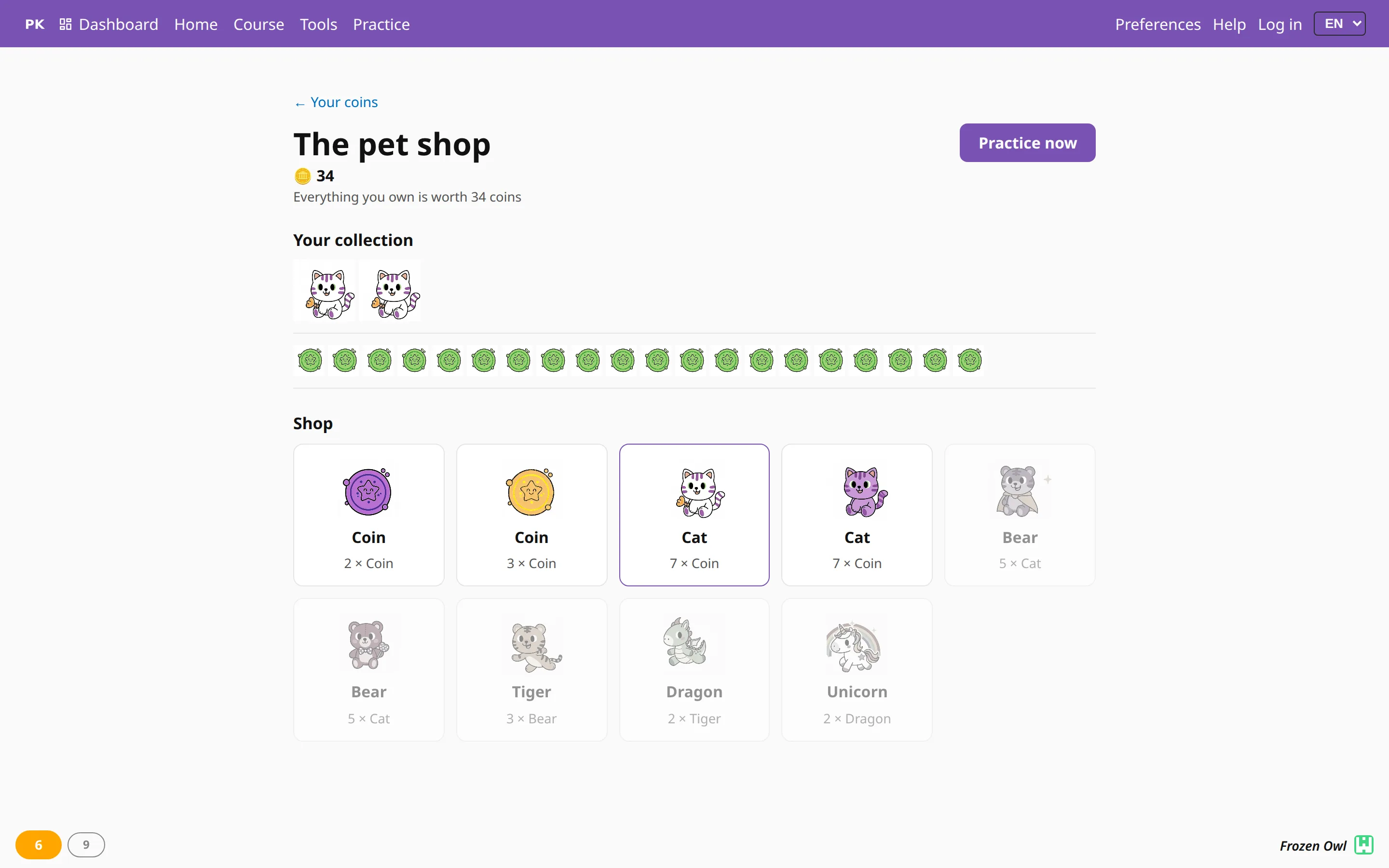 The pet shop Practice days buy cats, cats trade up to bears, bears to tigers, and so on up to a unicorn. Built with children in mind.
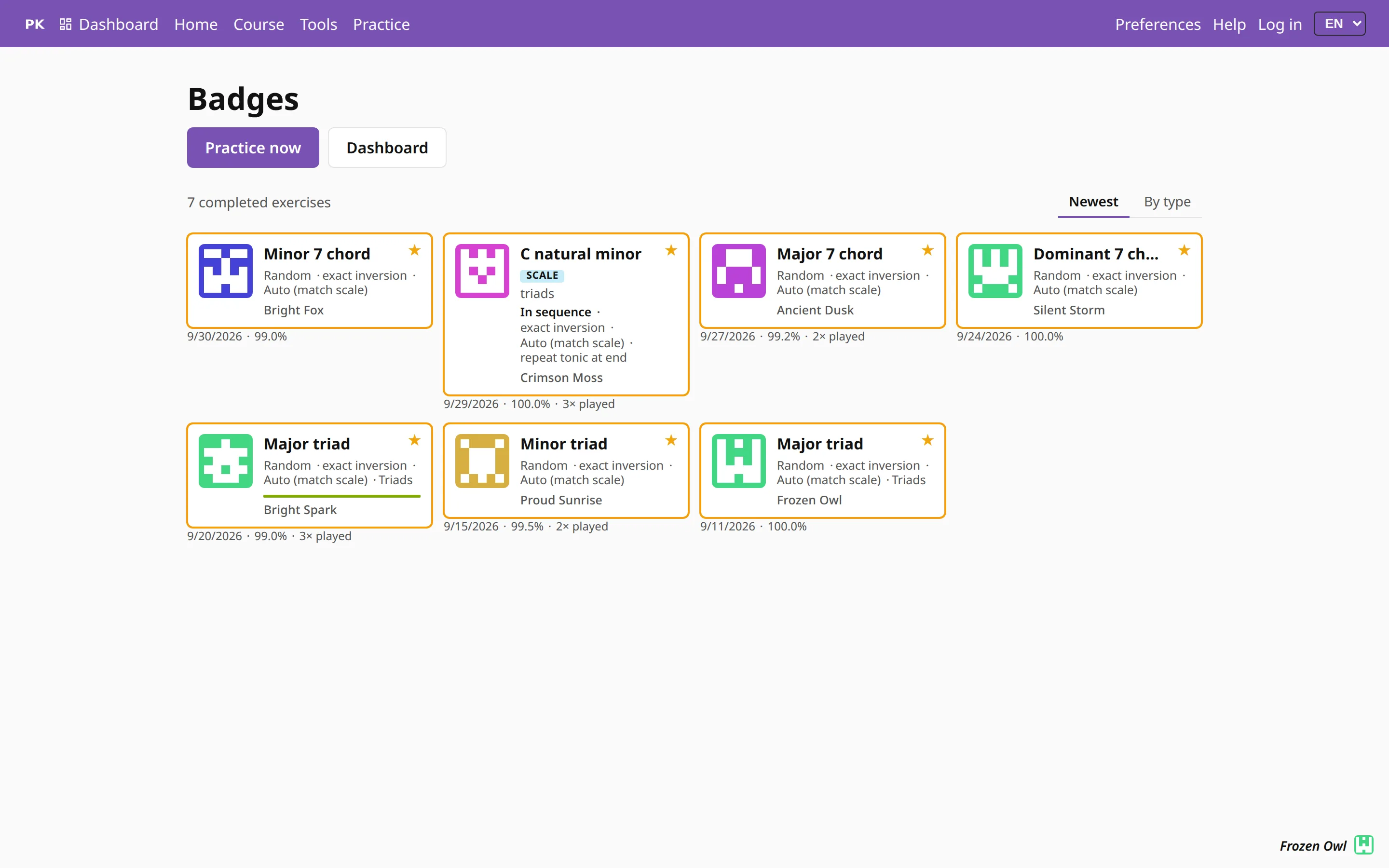 Badges Every exercise you complete at 99% accuracy or better becomes a badge, and the badges page collects them all.
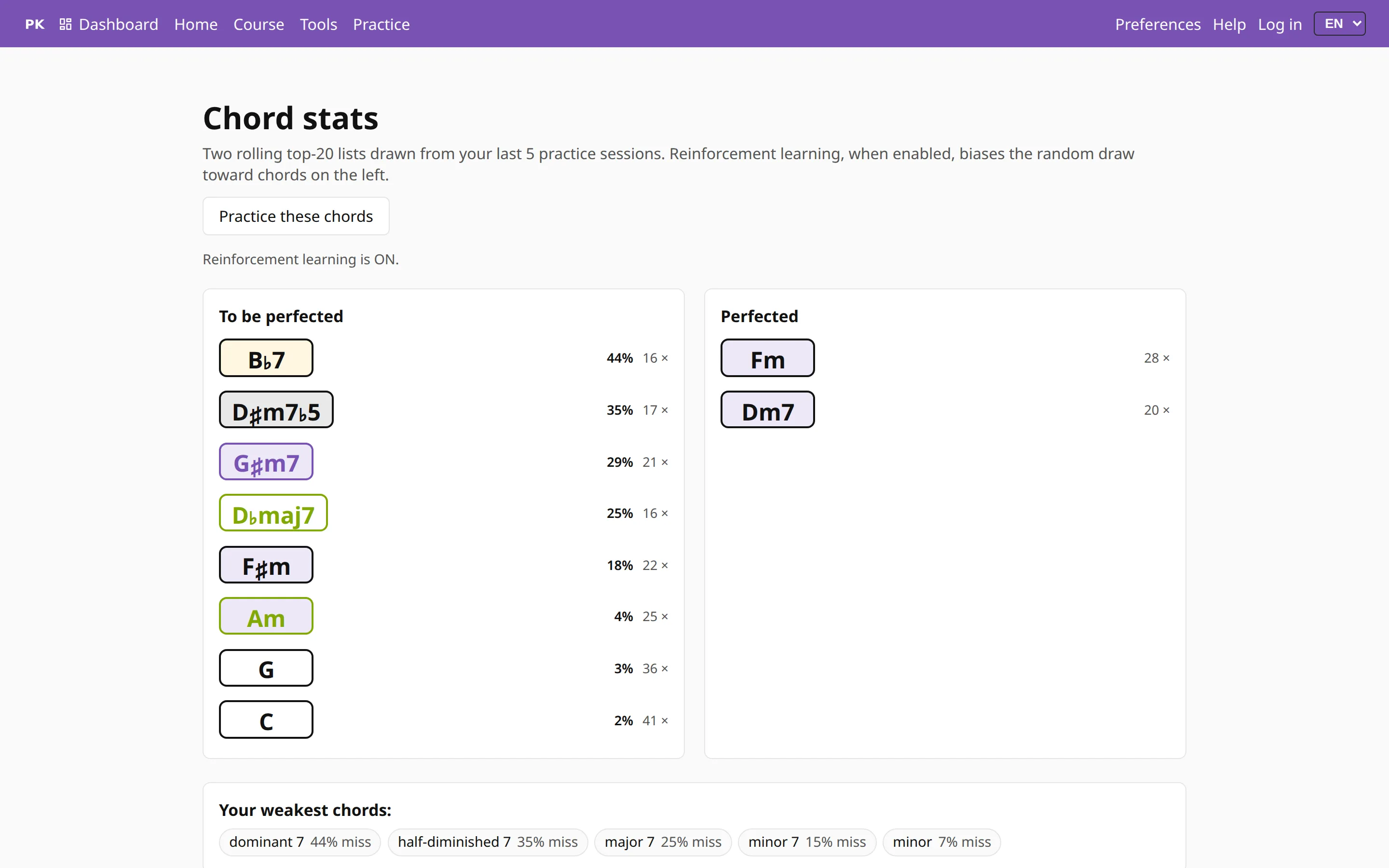 The chords you miss come up more often The random draw is weighted by your mistakes, and the chord stats page shows the ranking it uses.
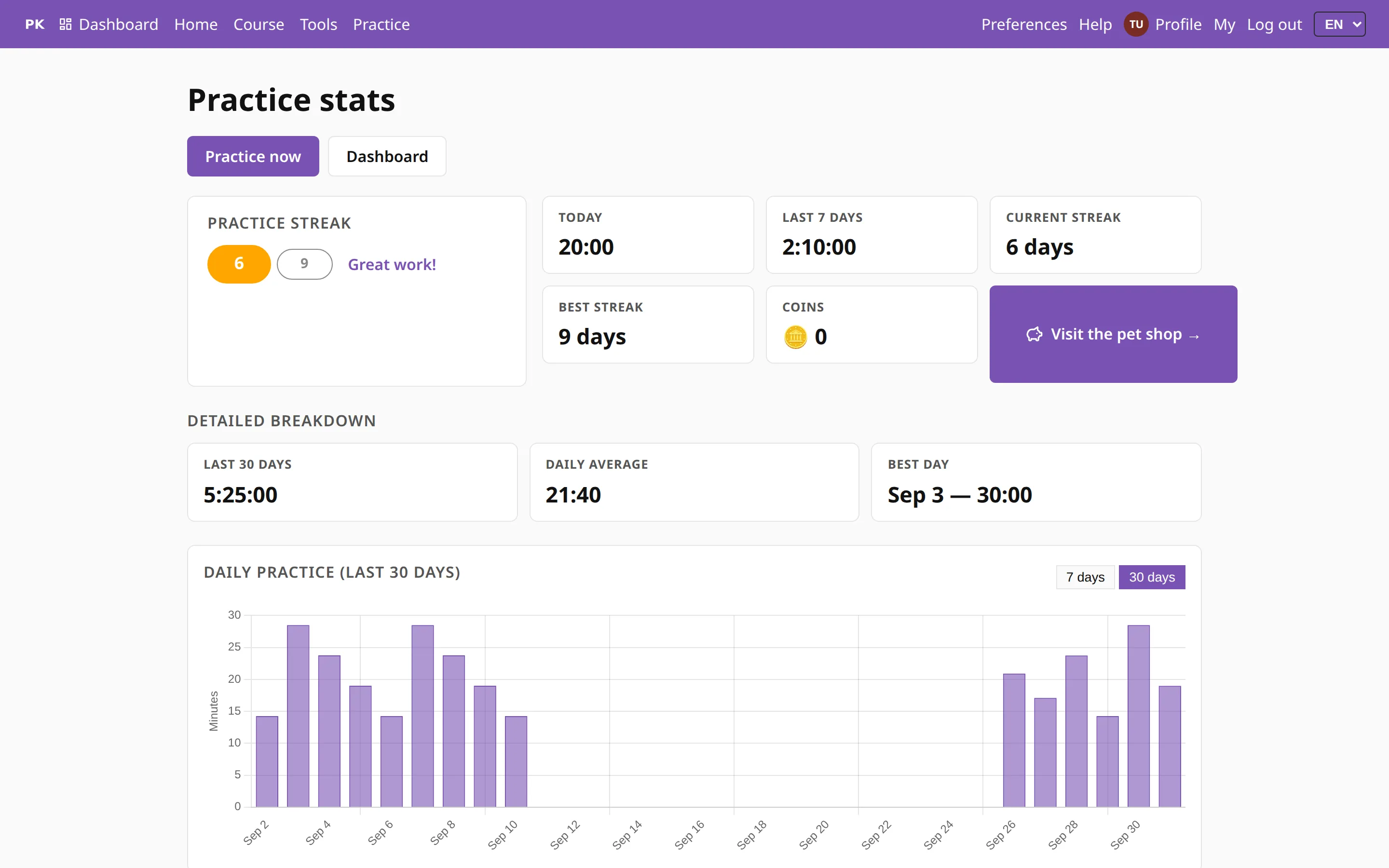 Daily streaks The app counts the days you practice in a row, can remind you at the hour you usually practice, and charts your practice time day by day.
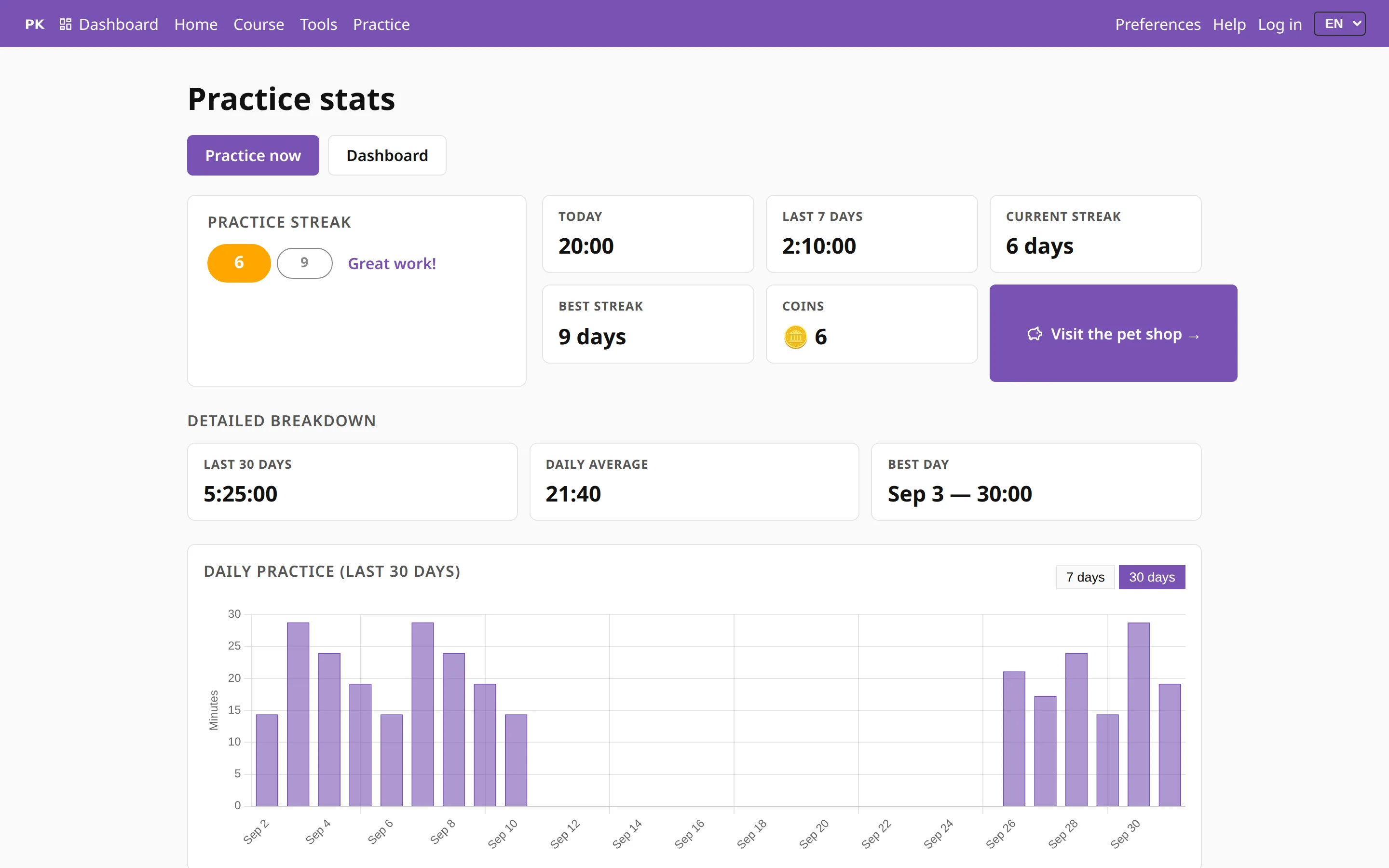 Minutes, and the daily goal The app times your practice while you play, adds it up for each day and checks it against the daily goal you set.
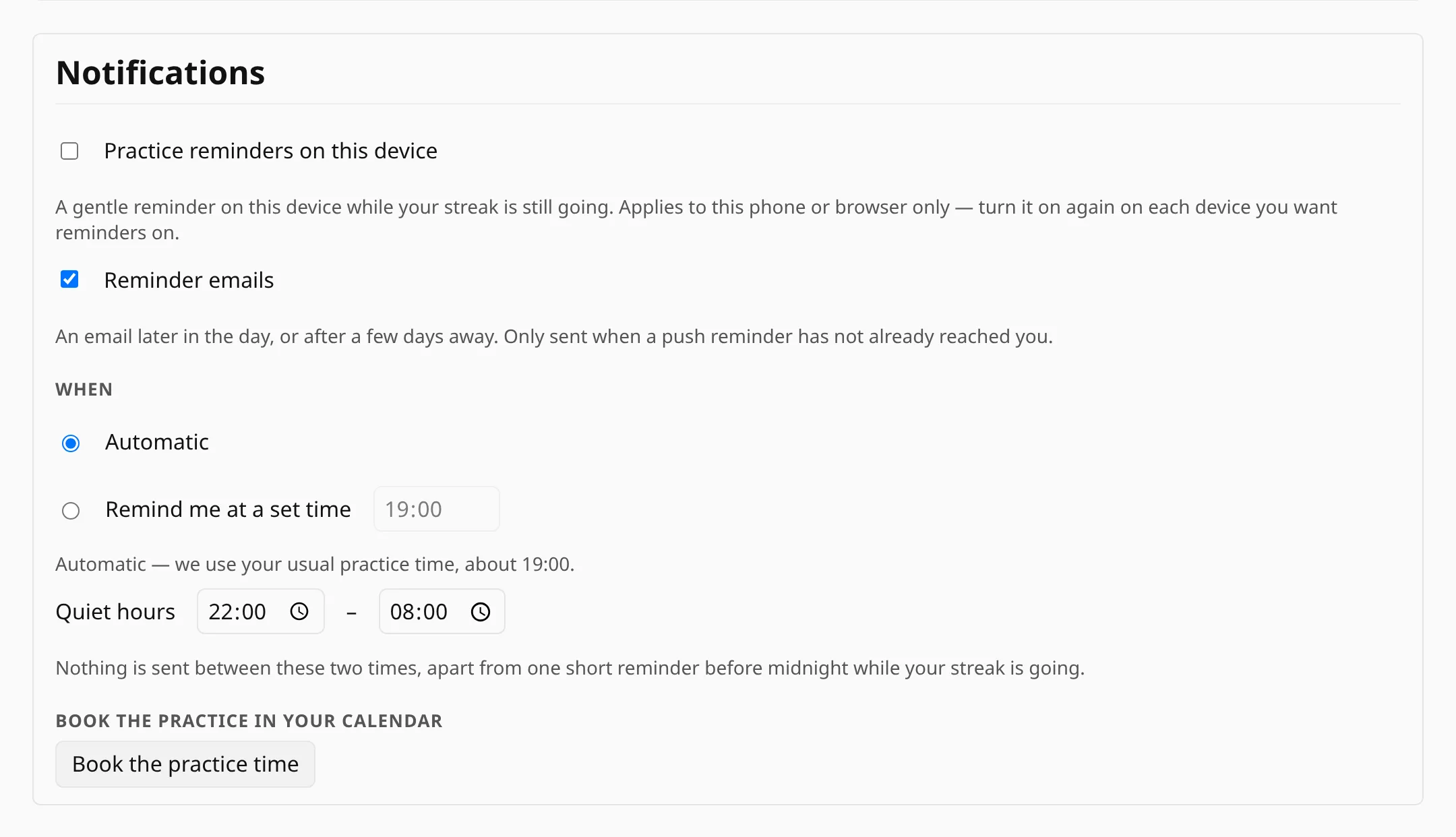 What the app tells you, and when Practice reminders while your streak runs, and a card when your teacher shares a lesson. You choose if they reach you on this device, by email or not at all.
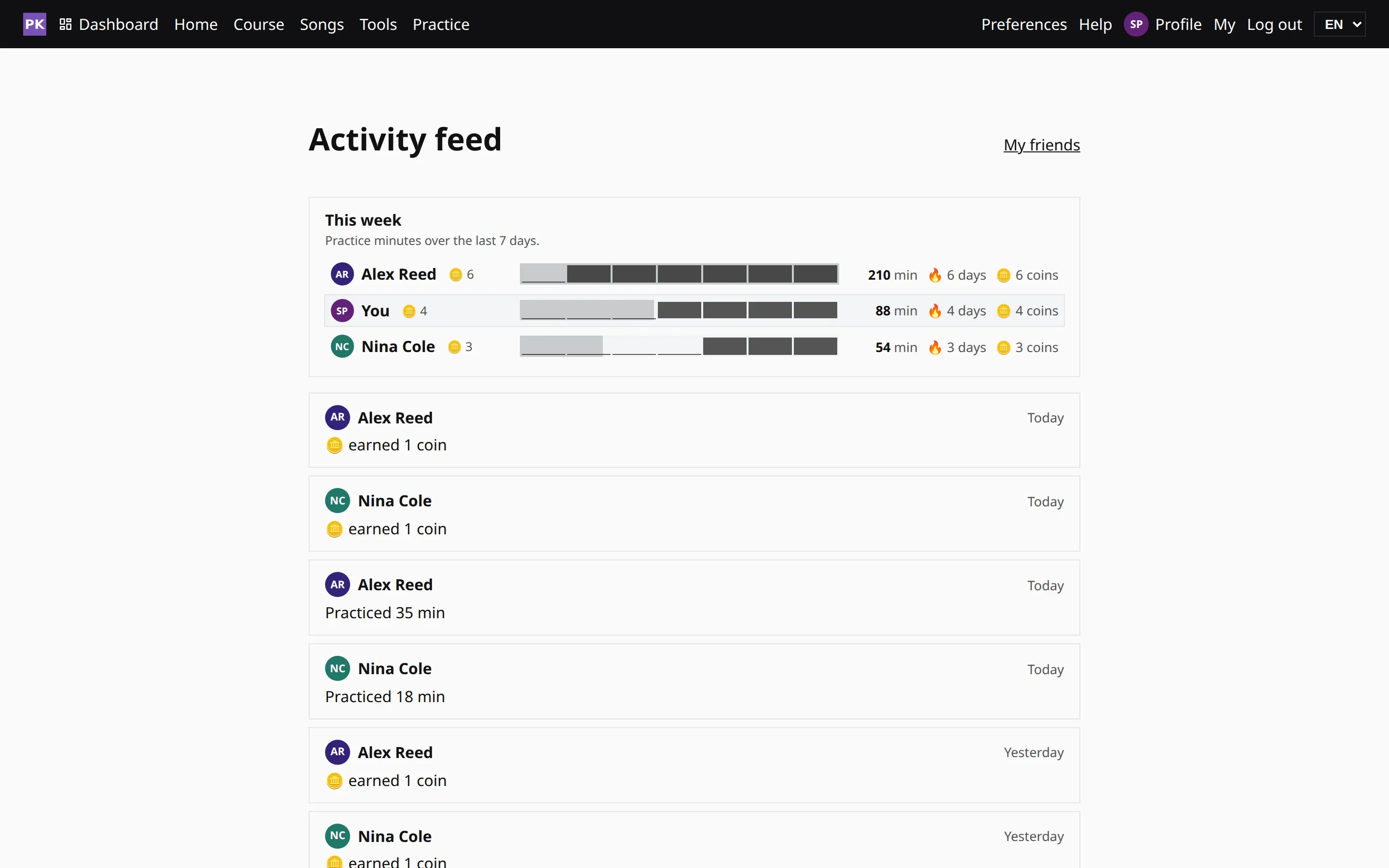 Friends and the activity feed See what the people you practice with played this week, and let them see your week too. Only your connections appear; there is no public leaderboard.
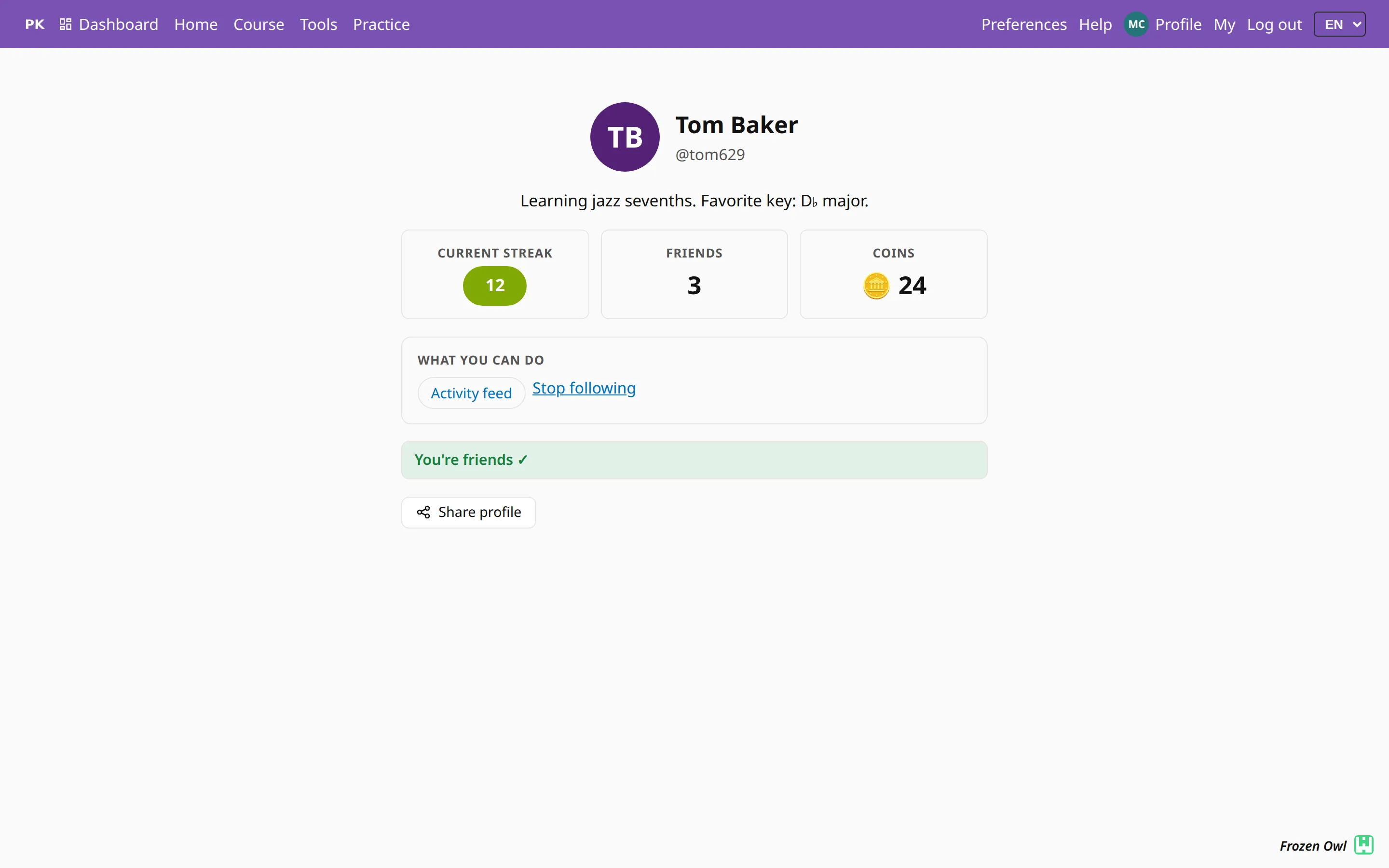 Your public profile A page with your name on it that shows your streak, your friends and the coins you have earned by practicing, plus a QR code that takes a friend straight to it.
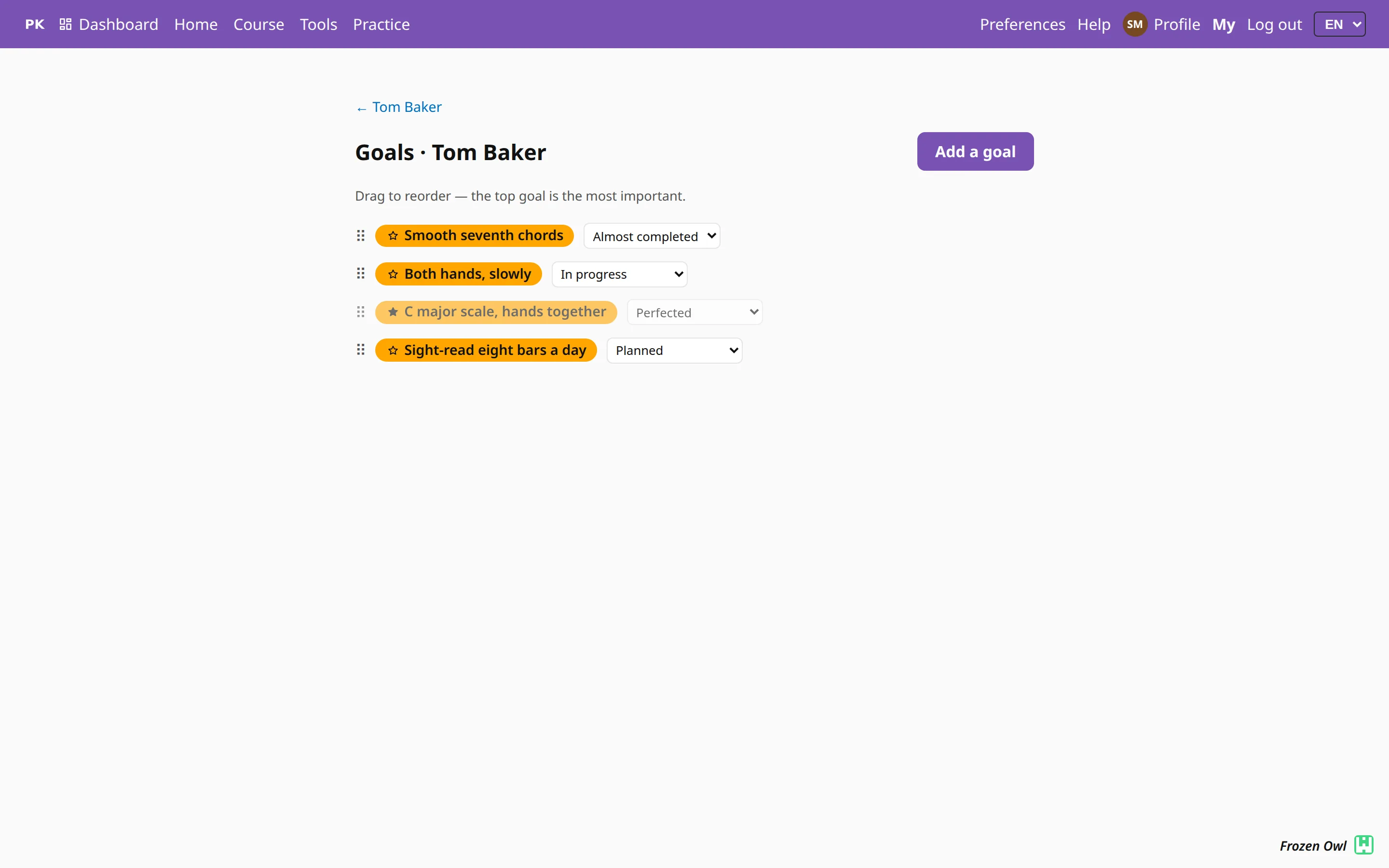 Goals The teacher sets each student's goals and moves them through four stages. The student and their parents see the same goals and stages.
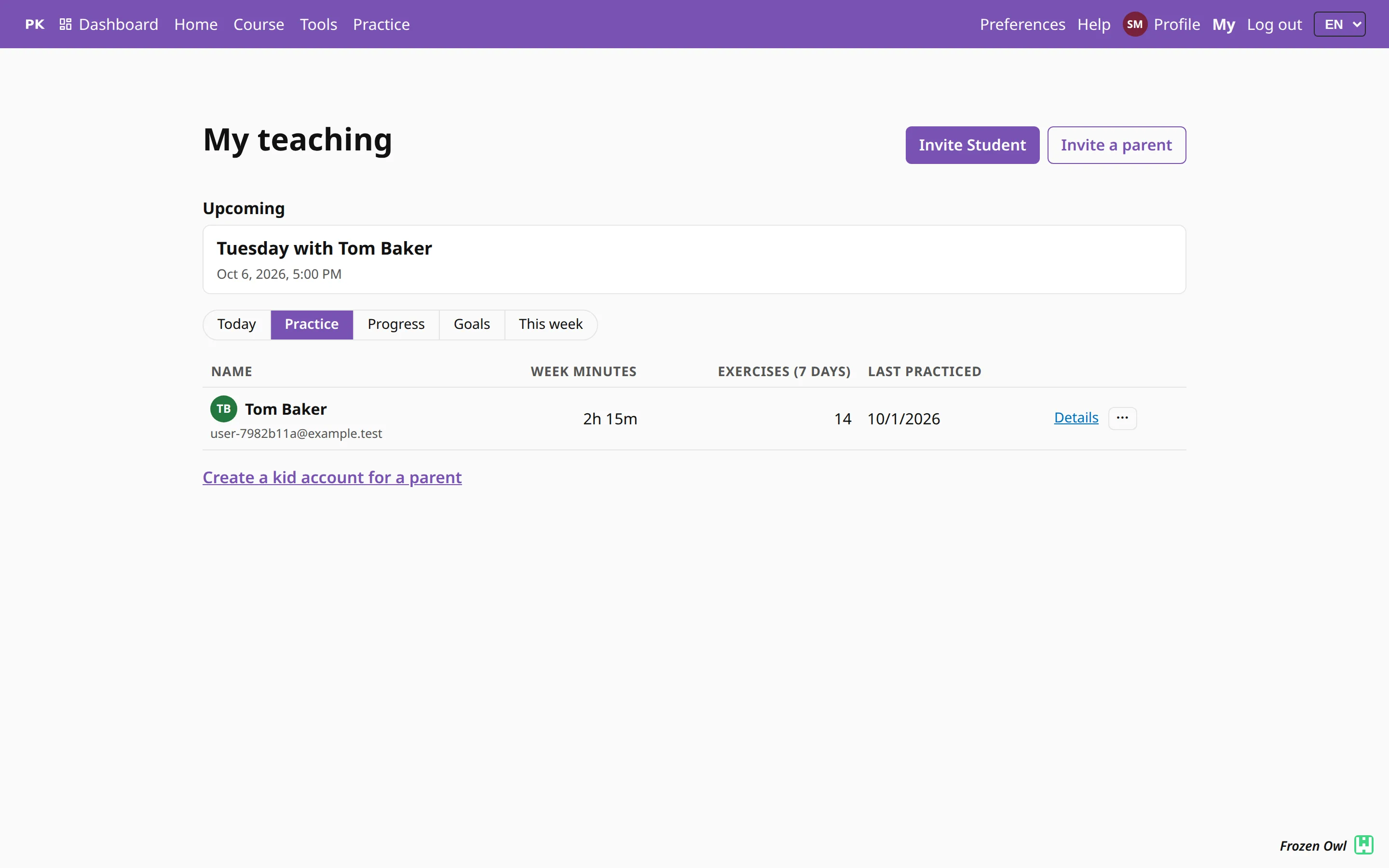 Planning a lesson Book the lesson, pick the goals it covers and attach the exercises. The student is invited as soon as the lesson is created.
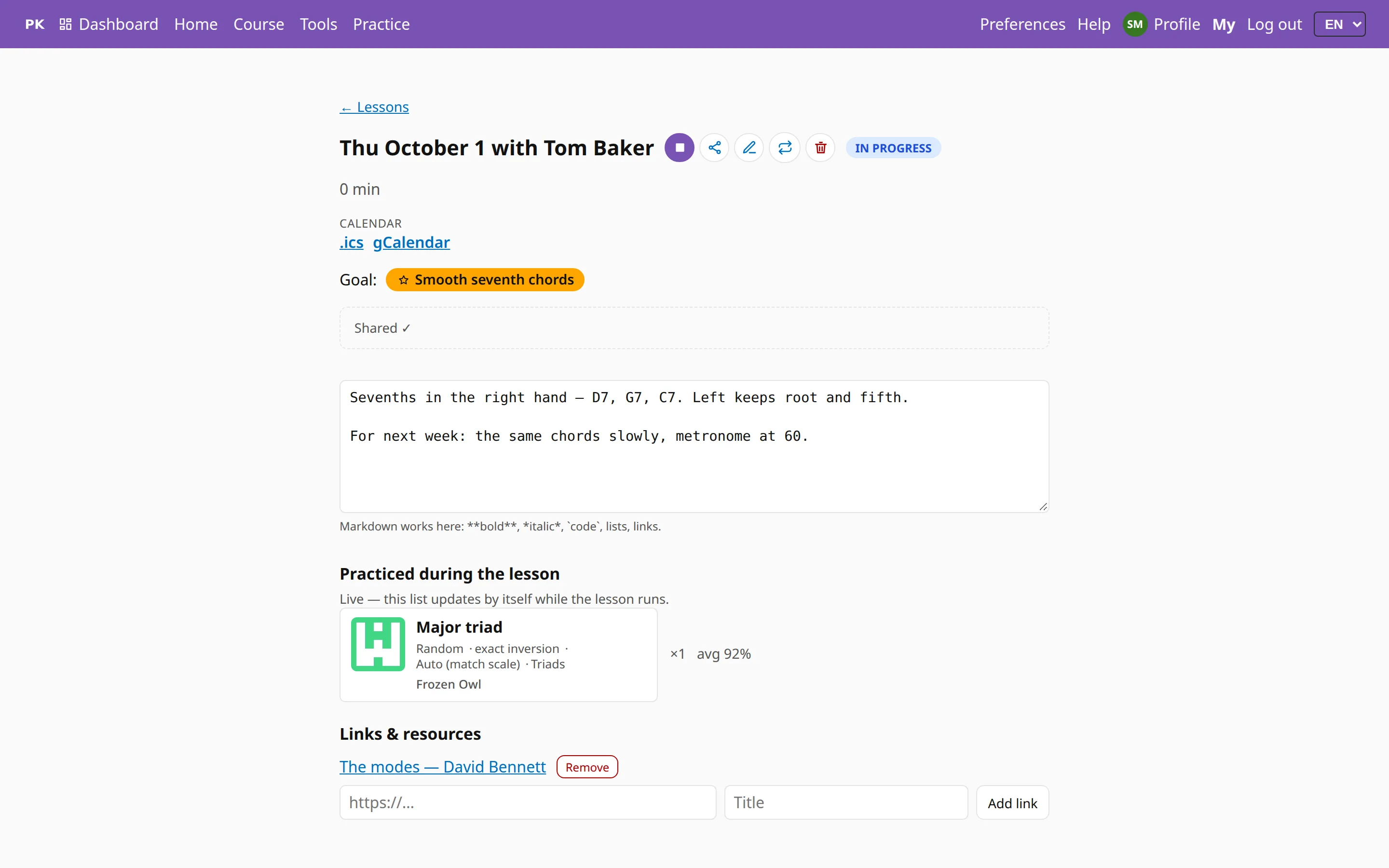 The lesson log Notes on what was said, a list of what was played and the plan for next week — written during the lesson and kept for teacher and student.
- Features for teachers Organize students into classes with a join code, see what they practiced, set goals and homework, plan lessons and send exercises.
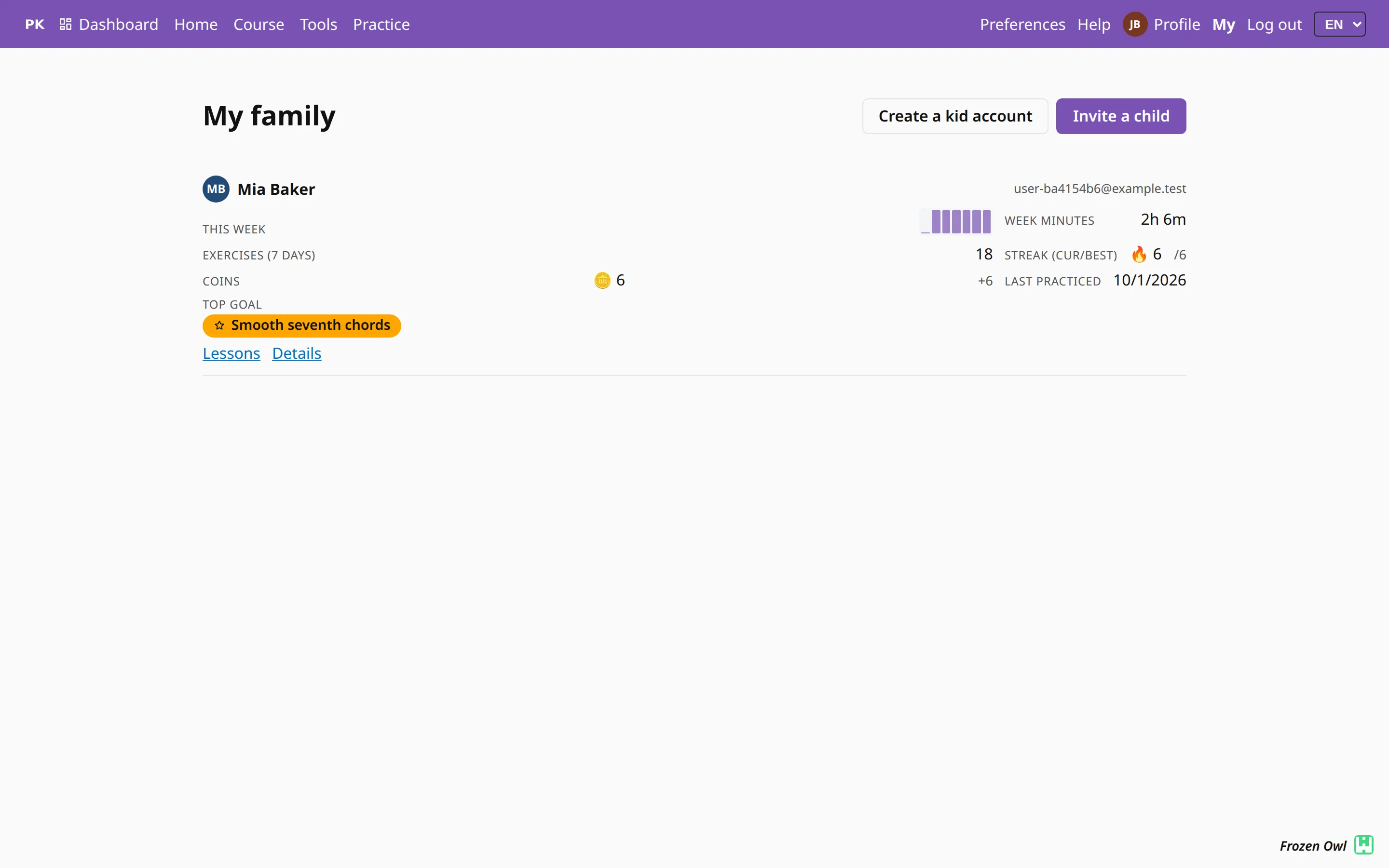 For parents How much your child practiced, what their teacher set, and a kid account that needs no email address.
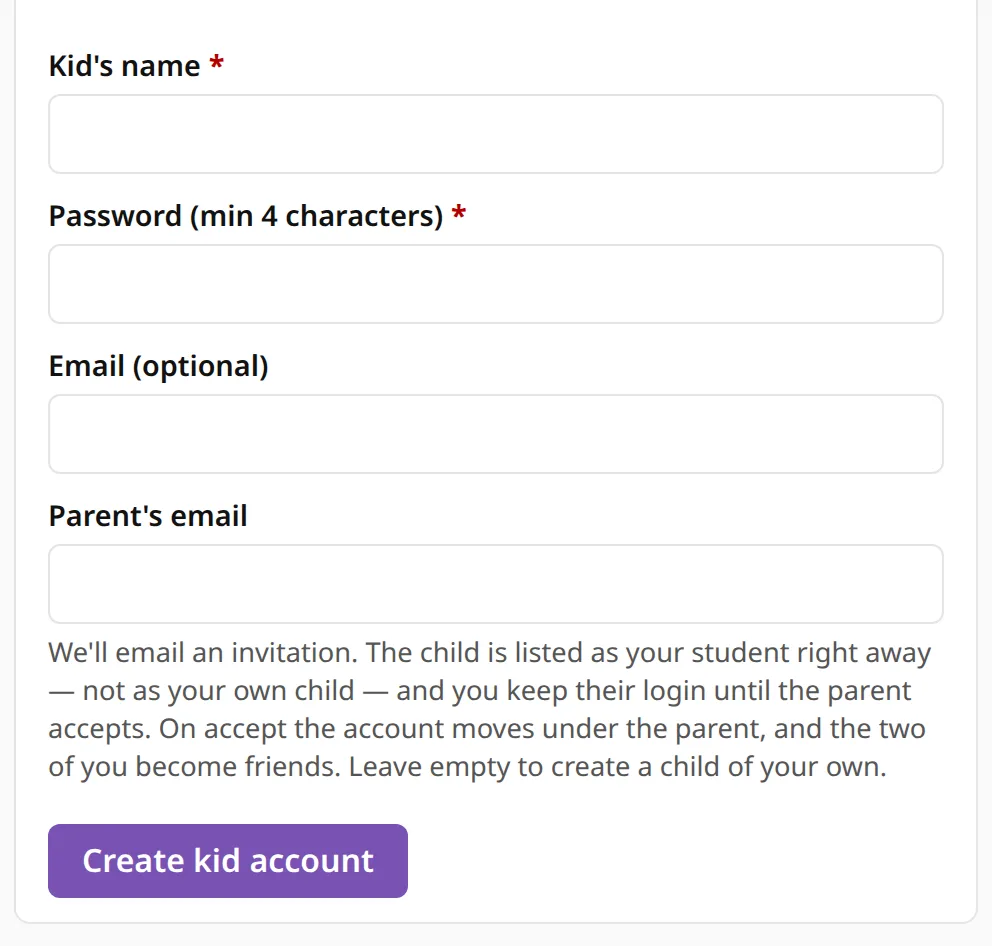 Getting started for parents From your account to your child’s first practice, step by step: sign up, add your child and check their progress.
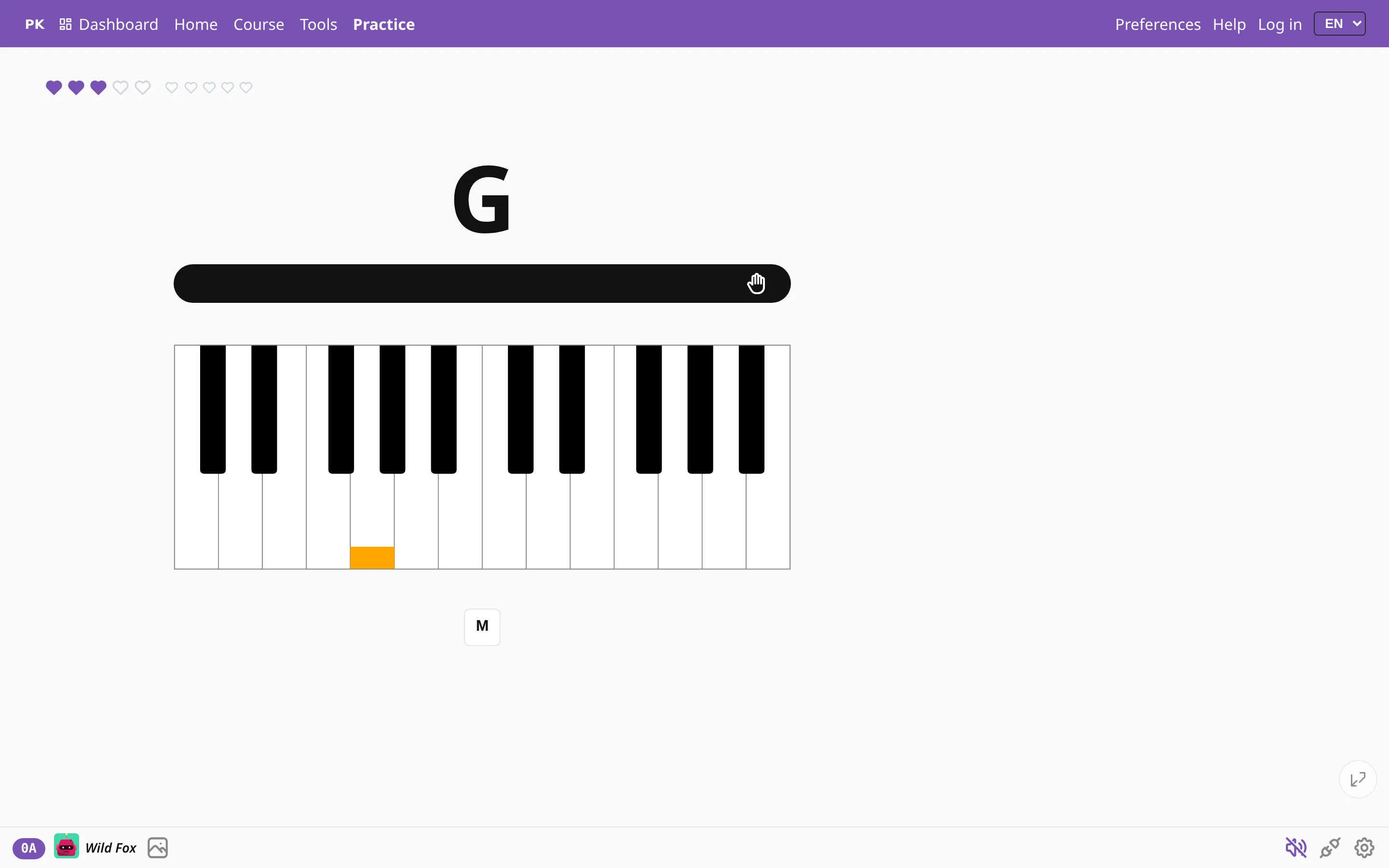 Baby mode One switch sets up the whole app so a five-year-old can use it alone, with single notes, big buttons, cats and confetti.