Lead sheets, PDFs and videos for your students
PianoKitty stores links, not files. Put a score, a PDF or a lead sheet in your own cloud drive, paste the link into a list, and your student opens it there.
Upload there, paste the link here
You cannot upload a file to PianoKitty. You keep the file where you already keep your files, share it with “anyone with the link”, and paste that link into a list item. The student opens the list and gets the material.
What the student sees depends on the link:
- a link to a picture (a photographed score page, a lead sheet, a chord chart) fills the practice screen;
- a YouTube or Vimeo link plays in place;
- a link to a PDF gets an Open file button that opens it in a new tab;
- any other link gets an Open link button;
- a link to a PianoKitty exercise is the drill itself.
An item shows its first link, so use one link per item.
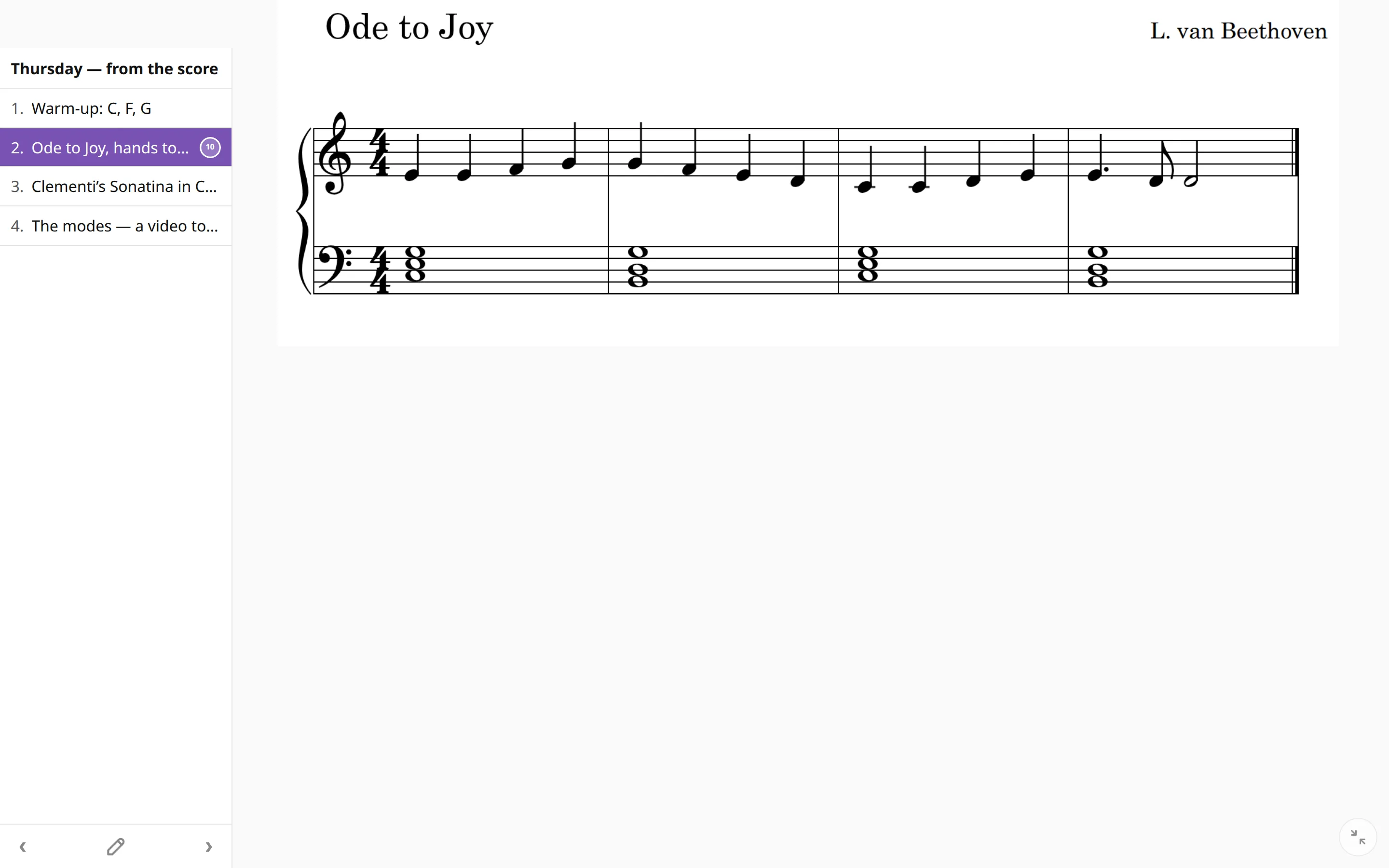
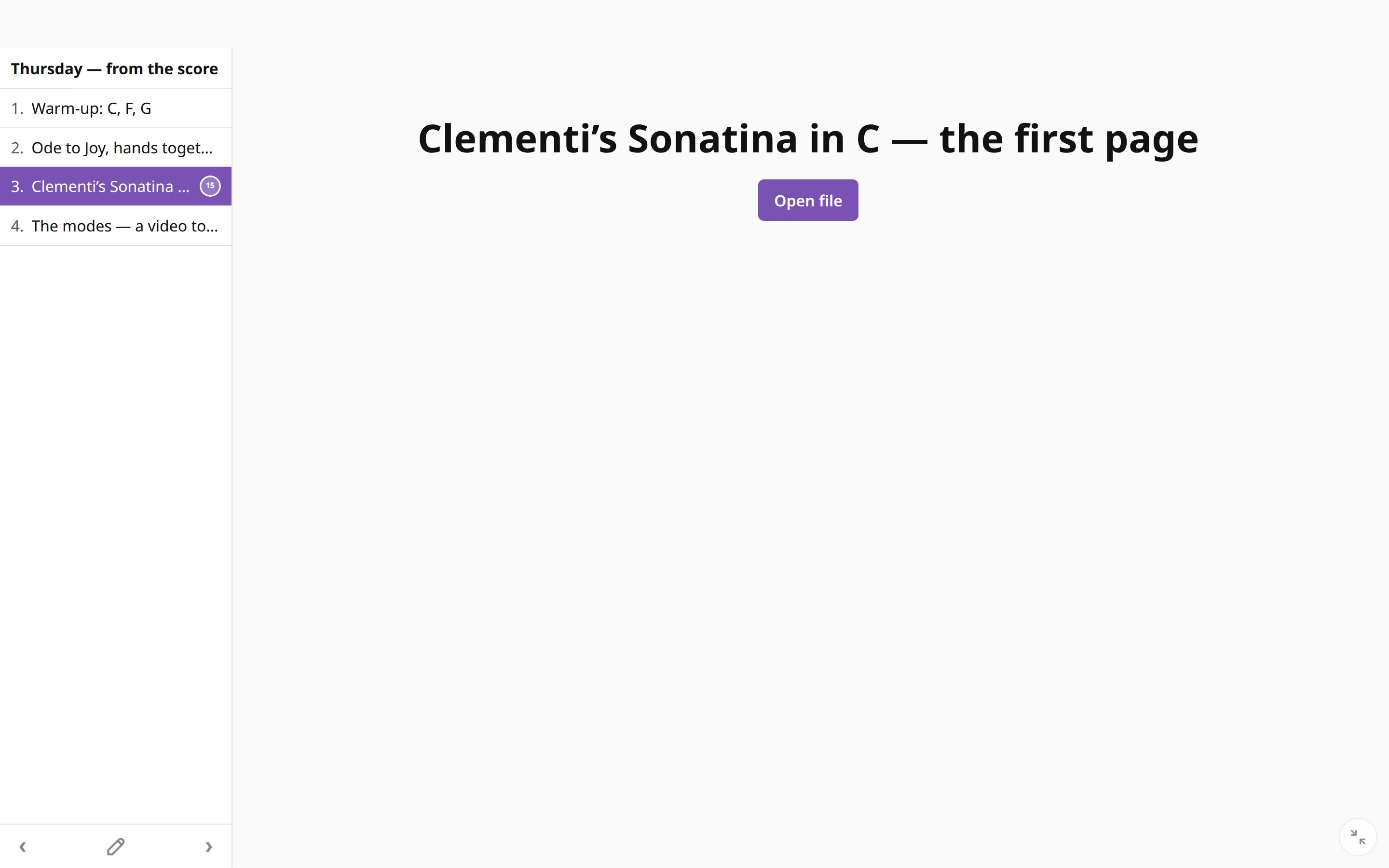
How a link is recognized
PianoKitty reads the end of the address. A link ending in .pdf is a file. A link ending in .jpg, .png, .webp, .gif or another picture format is an image. A YouTube or Vimeo address is a video. Everything else is a plain link.
This matters for cloud drives, because some of them give you a link to a page about the file, not to the file. That link opens fine, as a plain link.
Next to each link in the editor is a type menu. If a PDF is recognized as a plain link, set the menu to File and the button reads Open file.
Google Drive
- Upload the PDF or picture to Google Drive.
- Right-click it and choose Share.
- Under General access, change “Restricted” to Anyone with the link.
- Press Copy link and paste it into the list item.
A Drive link opens the file in the Drive viewer, so the student gets an Open link button. For a PDF you can set the type to File. A Drive picture does not appear on the practice screen. If you want it there, use a link that ends in .jpg or .png.
Dropbox
- Upload the file to Dropbox.
- Press Share and create a link that anyone with the link can view.
- Copy the link and paste it into the list item.
Dropbox links contain the file name, so a PDF is recognized as a file and gets Open file. A picture link ends with dl=0, and the practice screen shows a broken picture. Change it to raw=1 to get the picture itself.
OneDrive and other places
OneDrive works like Drive: upload, press Share, allow Anyone with the link, copy the link. Its share links have no file name at the end, so they open as a plain link.
You do not need a cloud drive at all for material that is already on the web. Paste the link to a free sheet-music library, a lead sheet image on your own site, or a video, and it works the same way.
Where to paste it
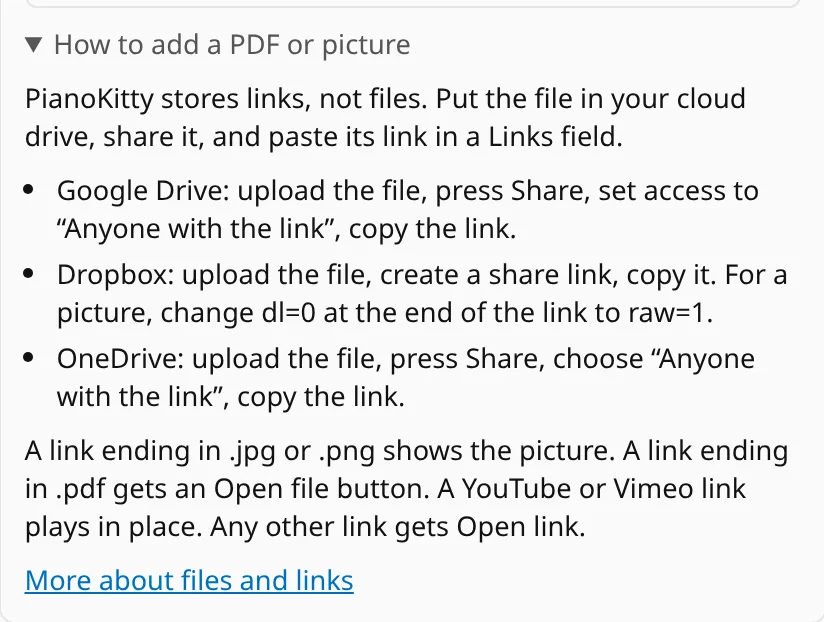
In the list editor, open an item and add a link under Links, or paste the whole link into Quick add (see Build an exercise list in a minute). The editor has a short “How to add a PDF or picture” box next to the link field with the same steps.
The list then goes to your student with Send to…, or you attach it to a lesson. See Exercise lists.
Or put it in a lesson
Every lesson has a Links & resources section. Enter the address and an optional title, press Add link, and the student opens it in a new tab. A lesson holds up to 24 links. This suits a one-off tutorial or a page from a book that the student needs only this week. See Planning a lesson.
Questions
Can I upload a PDF to PianoKitty?
No. PianoKitty stores links, not files. The file stays in your own drive, so you decide who can open it, and when you stop sharing it, the link stops working.
Which links work?
Any web address (http or https). Links ending in .pdf or a picture format, and YouTube or Vimeo videos, get their own display. Other links open as a plain link.
Does my student need an account to open the material?
The file itself opens for anyone who has the link, if you shared it that way. To open your list, the student signs in, and the list must not be private. They also need to be connected to you, or you send the list with Send to….
Why does my Google Drive picture not show on the practice screen?
A Drive share link opens a viewer page, not the picture, so PianoKitty shows it as a plain link. A link that ends in .jpg or .png shows the picture.
Can I share any sheet music?
Share only material you may share: your own arrangements, public domain scores and pieces that the publisher allows. When in doubt, link to the publisher or to a free library instead of copying the file.