Hints, and how much help you want
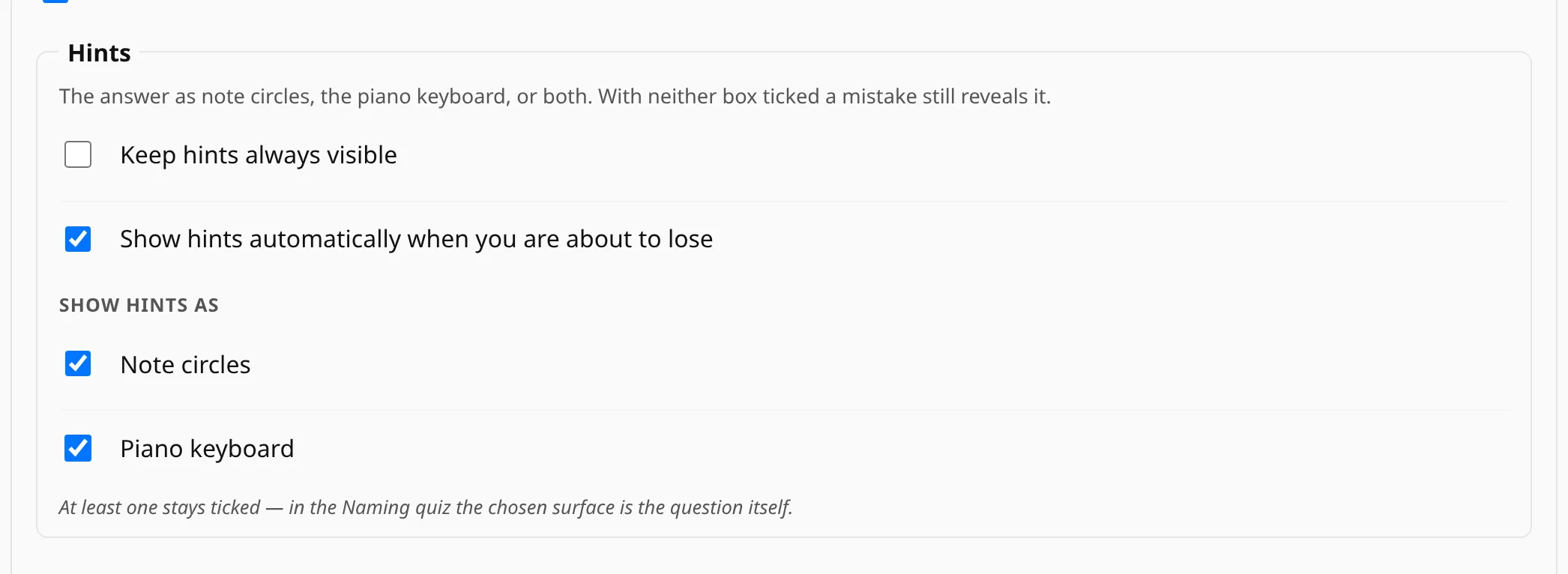
Choose the note names, the shape on the keyboard, both, or no hints at all, with an option to show them only when you are about to lose.
Two ways to be told the answer
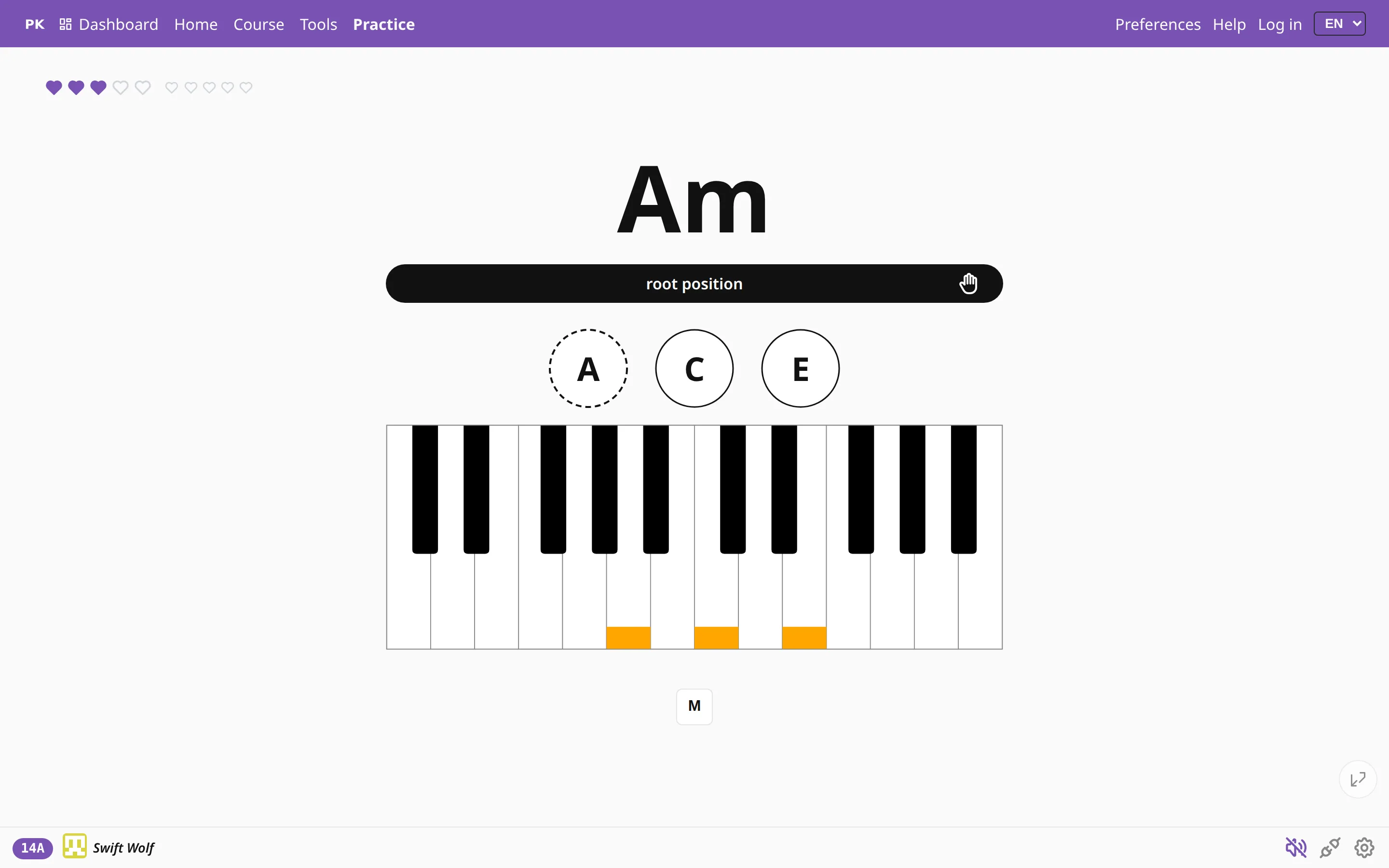
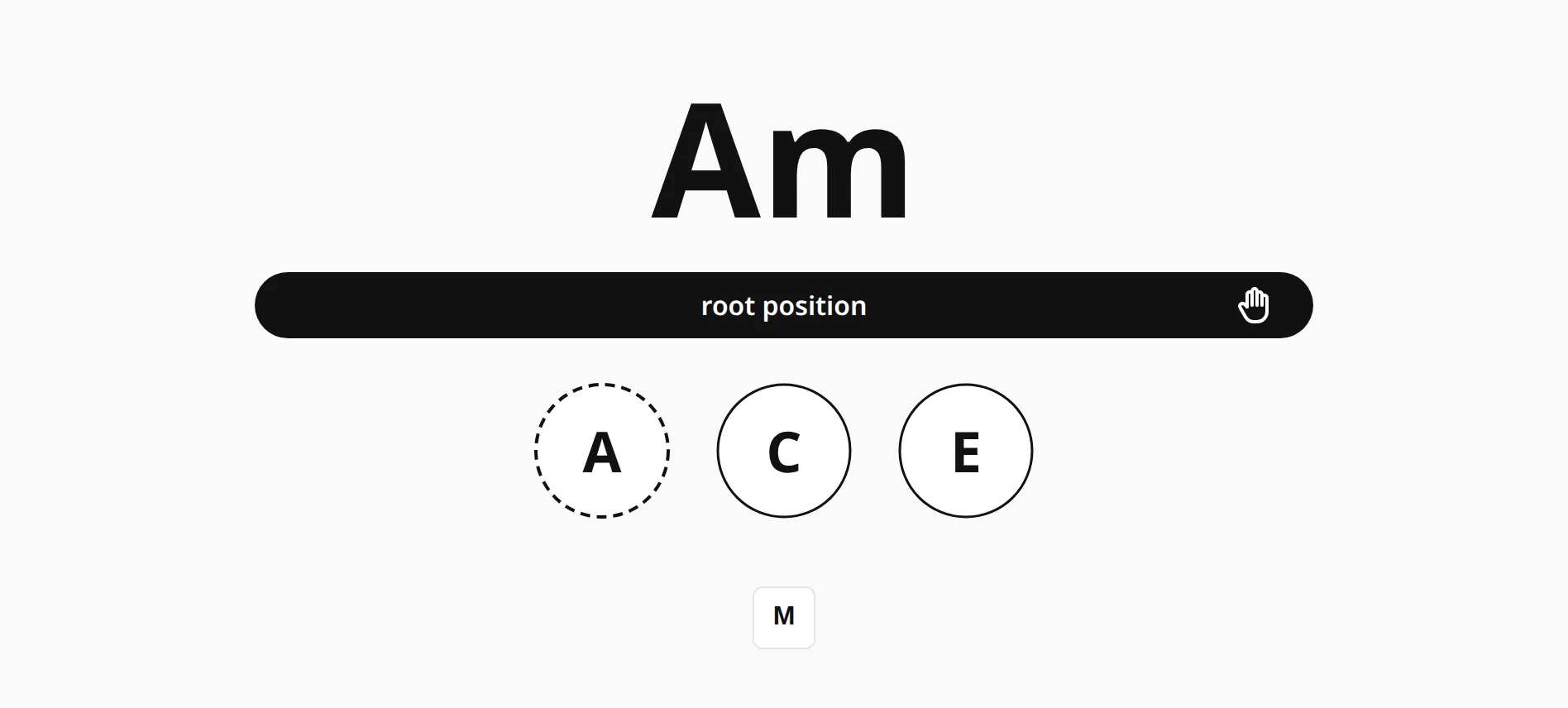
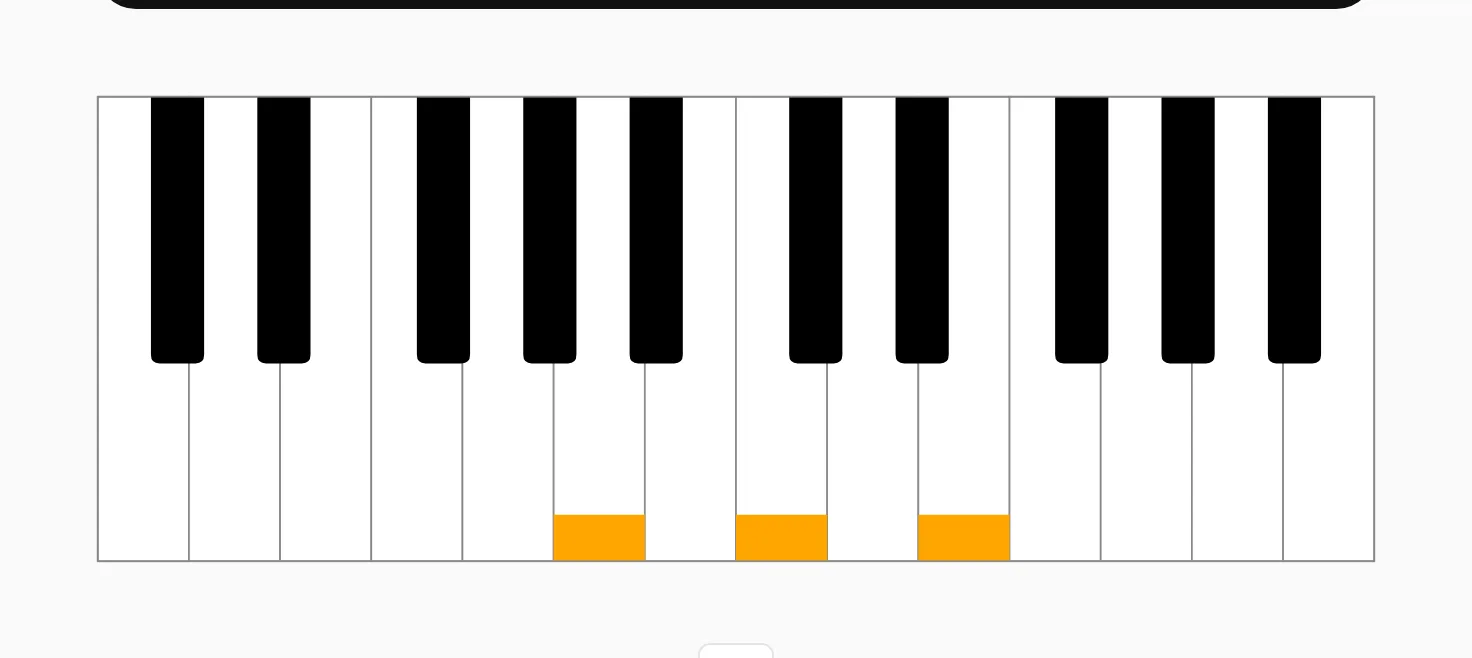
A hint shows you the answer in one of two ways. Note circles name the notes: the letters in order, with the bass marked. The keyboard shows the shape instead, as keys to press.
The names help you learn how the chord is built, and the shape helps you play it. You can have both on at once.
Always, on a mistake, or never
You can also choose when hints appear. Keep them always visible while a chord type is new. With that off, the answer still appears after a mistake, or when you press Space because you would rather look than guess.
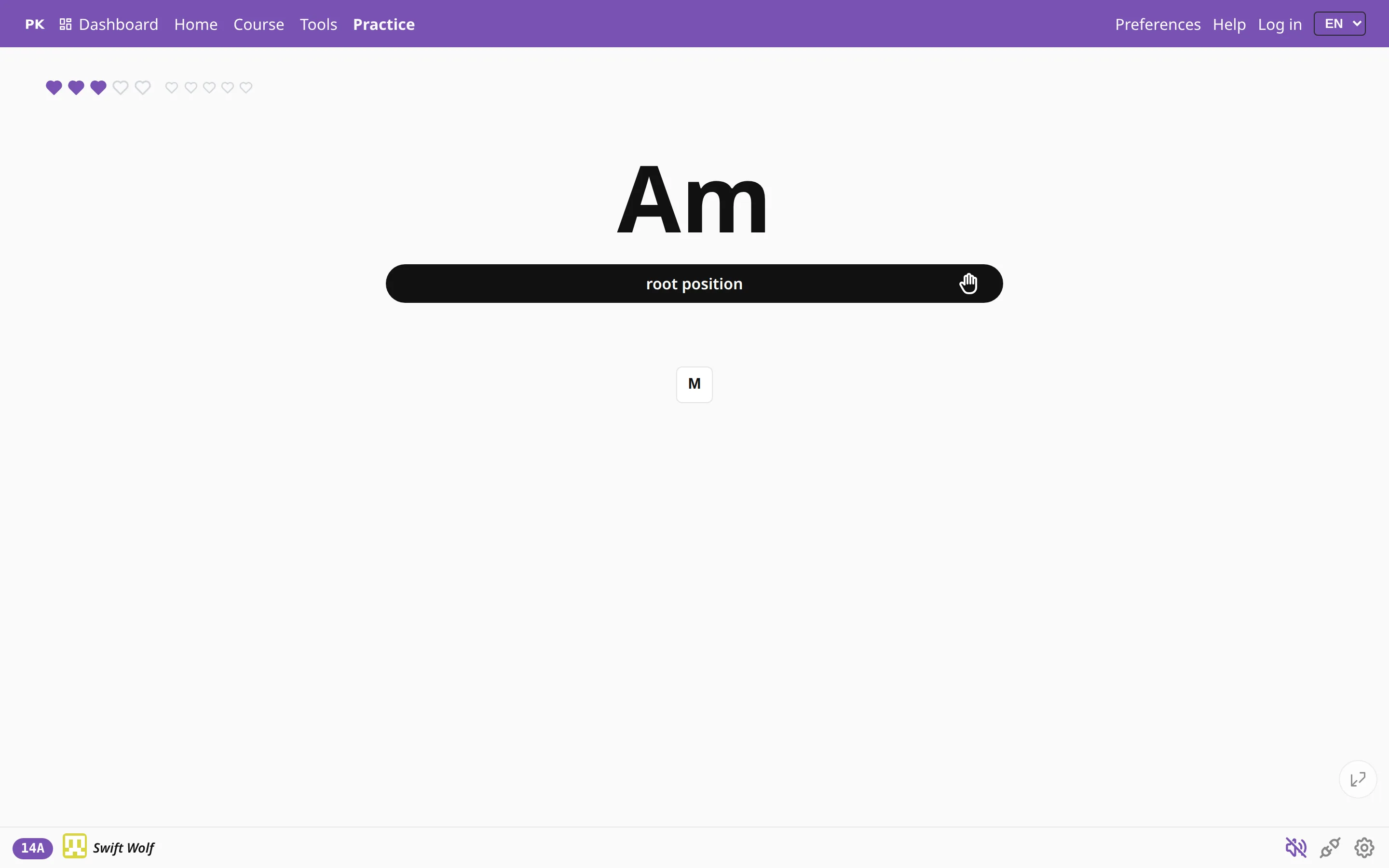
With every hint off, the screen shows only the chord name. That is the setting to work toward, because it shows whether you really know the chord.
Help when you are about to lose
There is also a middle setting: show hints automatically when you are about to lose. In game mode, when you are on your last heart, the answer appears by itself before you play rather than after a mistake.
Once you are past that point, the hints go away again, so a hard session is less likely to end in a lost game.
| H | Keep hints visible on or off |
| B | Note circles on or off |
| K | Keyboard hint on or off |
| Space | Reveal the answer for this chord |
Related help
Two related aids are fingering numbers over the keys for scale practice, and root highlighting, which colors the root note red so you can build the chord from it. Both are next to the hint switches in Preferences.
On a phone both hints start switched off, because there is no room to show the answer beside the question; it would sit under your thumb and give the chord away. Once you change either switch, your choice stays for every exercise.