Build an exercise list in a minute
Paste one line per exercise, with a link, a tempo and a time if you like, and the list is ready. Then send it to a student or attach it to a lesson.
Paste your plan, one line per exercise
The fastest way to a list is to type or paste it.
- Open New list and give it a name.
- Press Quick add.
- Paste one exercise per line. A homework list copied from an email works as it is.
- Press the button under the box. It counts the lines, for example “Add 3 exercises”.
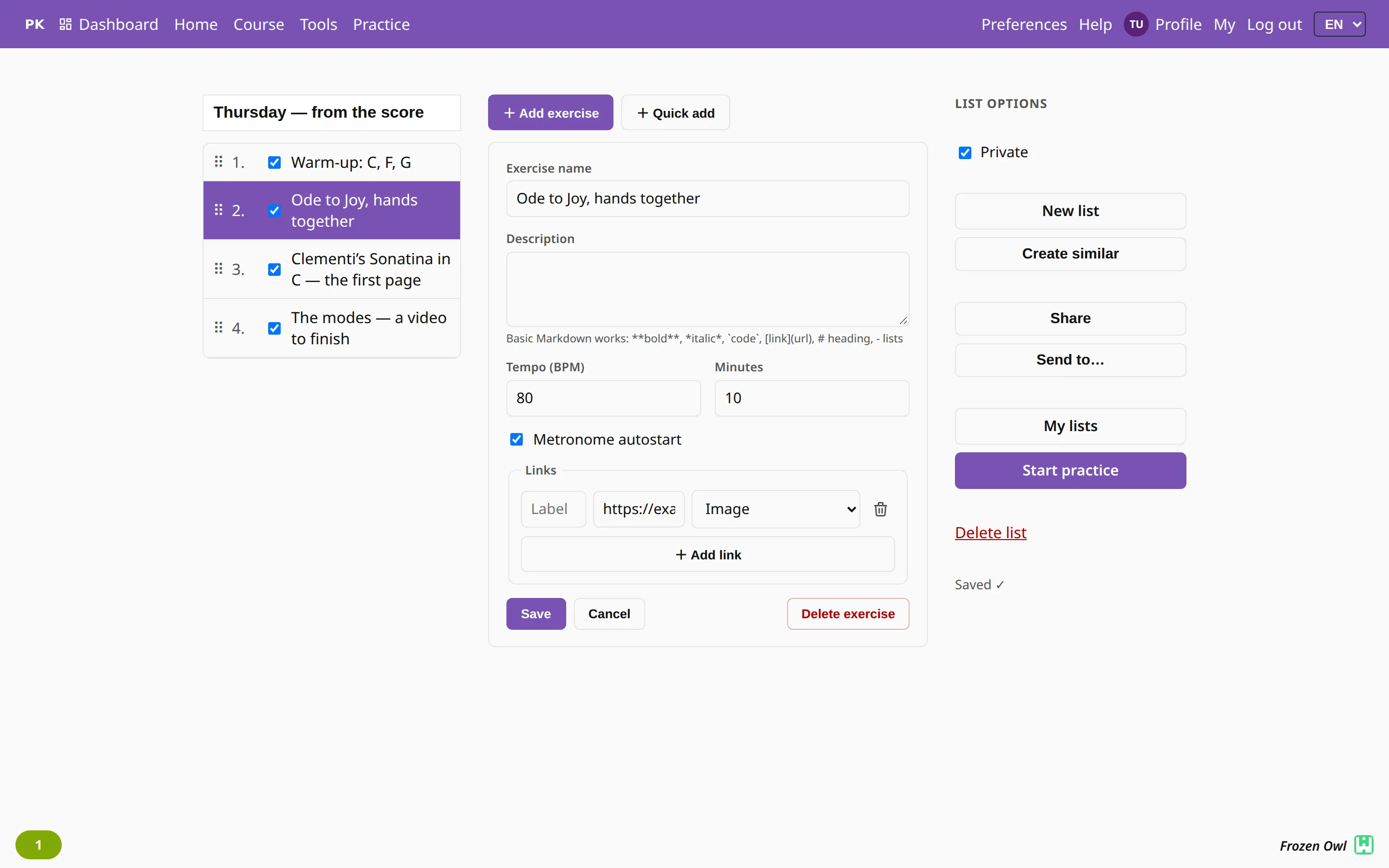
Each line becomes an item. The list saves itself as you go.
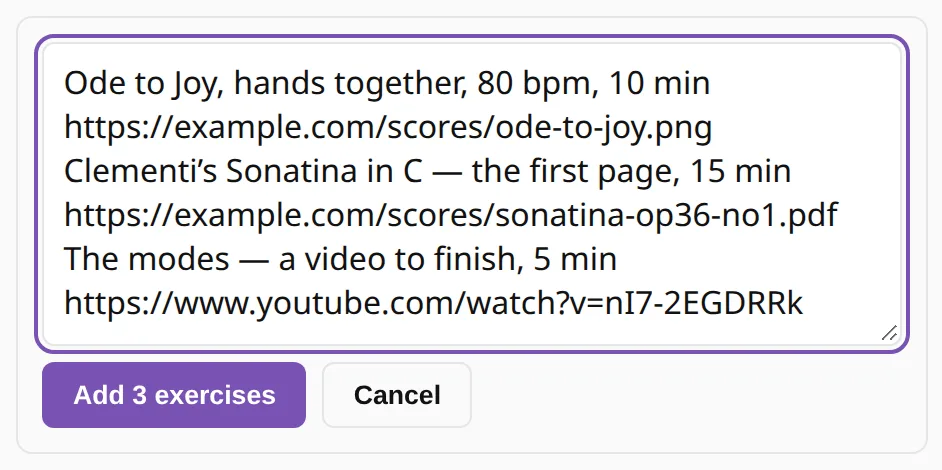
What a line can say
PianoKitty reads each line and picks out the parts it knows:
- A link. A web address starting with http or https becomes the item’s material. If a line has several links, all are kept, and the first one is shown.
- A tempo. “80 bpm” or “tempo: 80” sets the tempo, from 20 to 300, and switches the metronome on for that item.
- A time. “10 min”, “10 minutes” or “10m” gives the item a ten-minute countdown, up to 600.
- A list marker. A “1.”, “1)”, “-” or “•” at the start of the line is dropped.
- The rest. The text up to the first full stop is the name. What follows is the description.
So the line “Ode to Joy, hands together. Left hand softer. 80 bpm, 10 min” becomes one item named “Ode to Joy, hands together”, with a description, a tempo and a timer.
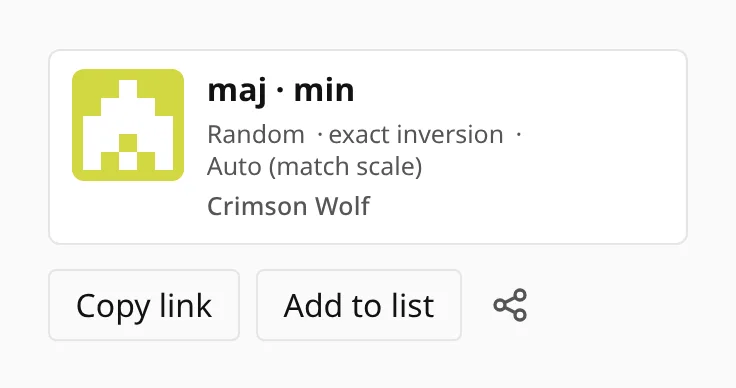
A short exercise link is stored as a plain link. Press Copy link in the share box on the practice screen with Shift held to get the long form, which Quick add recognizes as an exercise.
From the exercise you just set up
Set up the drill on the practice screen, then open Preferences and press Add to list under the exercise card. It goes into the list you edited last, or into a new one, and the editor opens with the new item selected.
A new list made this way is private until you untick Private.
From a page on the web
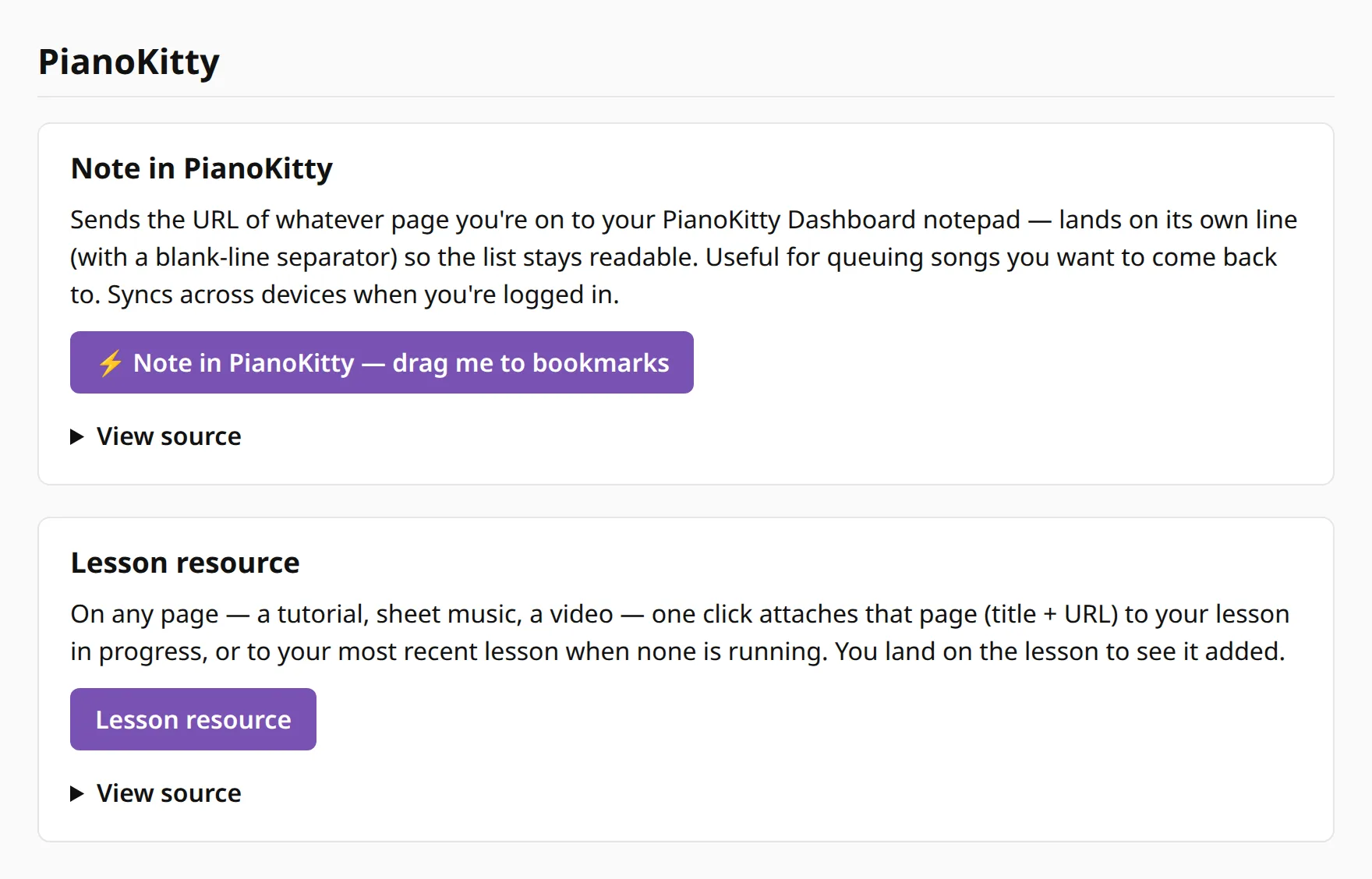
Found a tutorial, a score or a video? The bookmarklets on Bookmarklets save it for you, but none of them adds to a list directly. Which one you use decides where the link lands:
- Note in PianoKitty adds the page’s title and address to your notepad on the dashboard. Copy the address from there into Quick add.
- Lesson resource adds the page to a lesson, so the student sees it in the lesson’s Links & resources.
Chord pages from Ultimate Guitar and Chordify have their own bookmarklets, which send the chords to the chord editor. See Send to PianoKitty.
Then send it
A new list is private. Untick Private and press Send to… to send the list to a student. They find it under Shared with me, and you see in My shared links whether it was opened. Or pick the list when you create a lesson, and it is attached to the lesson. More on sharing and lesson planning.
Questions
Can I paste homework from an email?
Yes. Put one task on each line, with a link, a tempo like “80 bpm” or a time like “10 min” where you have them. Lines without any of these become items with just a name.
Can a chatbot make my list?
Yes. Ask it for one link and open that link after you log in. For example:
Make a piano practice list for a beginner, 20 minutes a day, 5 days. One exercise per line, with a time like “10 min” and a tempo like “60 bpm”. Use a full stop only to start a description, never inside a title. Give me one https link to pianokitty.com/list/create?add= followed by the whole text, percent-encoded. Do not invent web addresses.
Check the text and press the button under the box. Nothing is saved before that. If the chatbot can read web pages, add “Read pianokitty.com/help/lists.md first”. If it answers with plain text instead of a link, paste that text into Quick add as it is. More is on For AI agents.
What line formats does Quick add understand?
One line is one item. In each line Quick add reads:
- a list marker at the start (“-”, “*”, “•”, “1.” or “1)”), which it drops;
- every link that starts with http or https. YouTube and Vimeo links are videos, links ending in .jpg, .png or another picture format are images, .pdf is a file, a link to a PianoKitty exercise becomes an exercise, and any other link stays a plain link;
- a tempo: “80 bpm”, “tempo: 80” or “tempo 80”, from 20 to 300. It also switches the metronome on for that item;
- a time: “10 min”, “10 minutes” or “10m”, up to 600;
- the rest: the text up to the first full stop is the name, and the text after it is the description.
Because of the first full stop, write “Op 28”, not “Op. 28”, in a name.
Does the bookmarklet work on a phone?
Bookmarklets are made for the bookmarks bar of a desktop browser. On a phone, copy the link and paste it into Quick add instead.
Can I change an item after Quick add?
Yes. Open the item in the editor to change the name, description, tempo, time and links. You can also drag items into a new order and untick one to skip it.