Split the keyboard
Grade only one side of the keyboard and leave the other free for a bass line, a melody, or a teacher playing along.
One keyboard, two jobs
Normally every note you play is part of your answer, so a stray bass note counts against you. With a split, only one side of the keyboard is marked. The other side still sounds, but the app leaves it out of the grading.
- A teacher at the same instrument plays the accompaniment low down while the student answers higher up.
- Your left hand keeps a steady bass or a boom-chick pattern going while the right hand does the drill.
- Or the other way round: the left hand is graded while the right plays a melody.
Three keys to set it up
Press / on the practice screen. The app asks you to play the split point — any key on your MIDI keyboard. Then it asks you to play a key in the part to grade: a key above the split to grade the right side, or below it to grade the left.
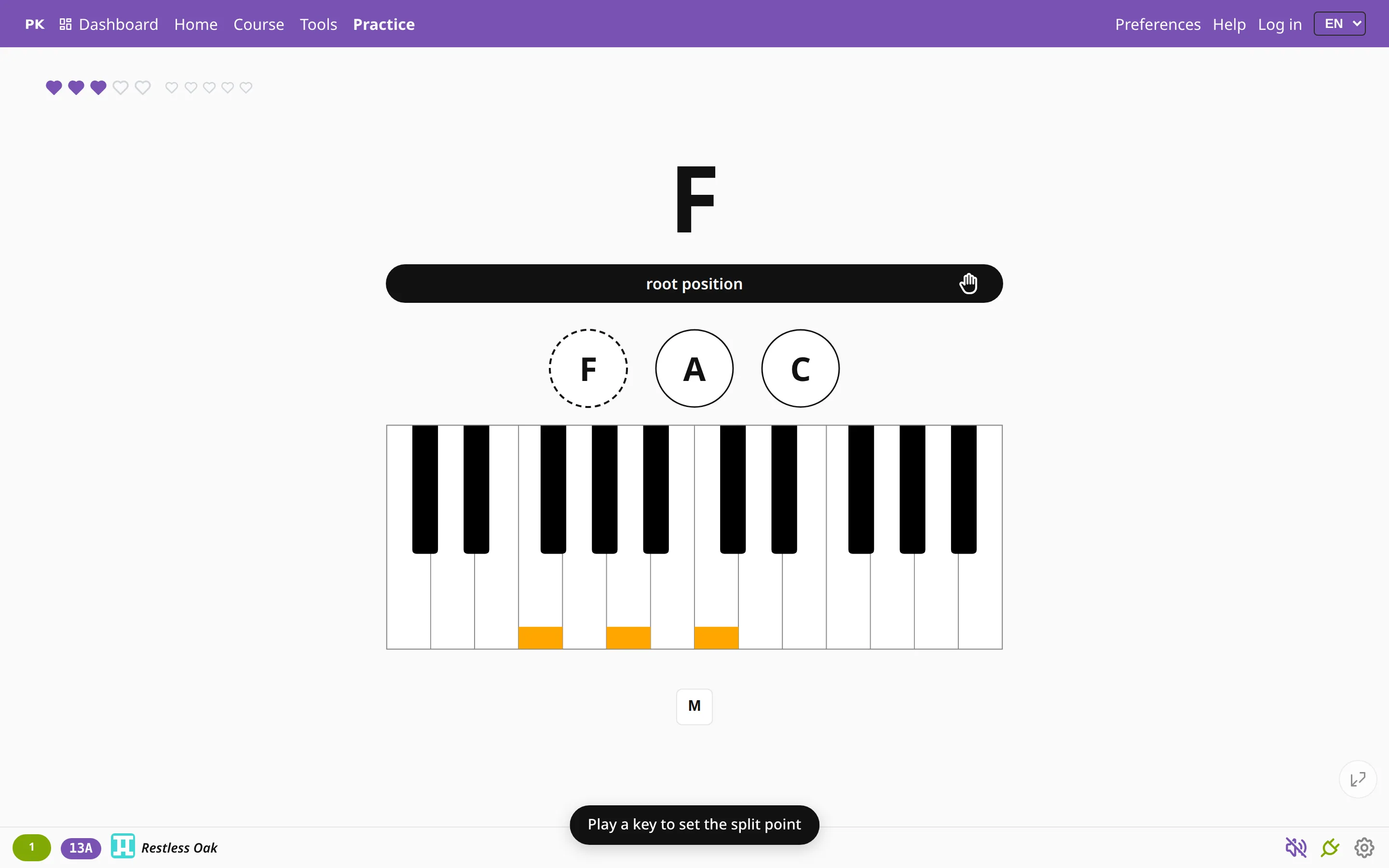
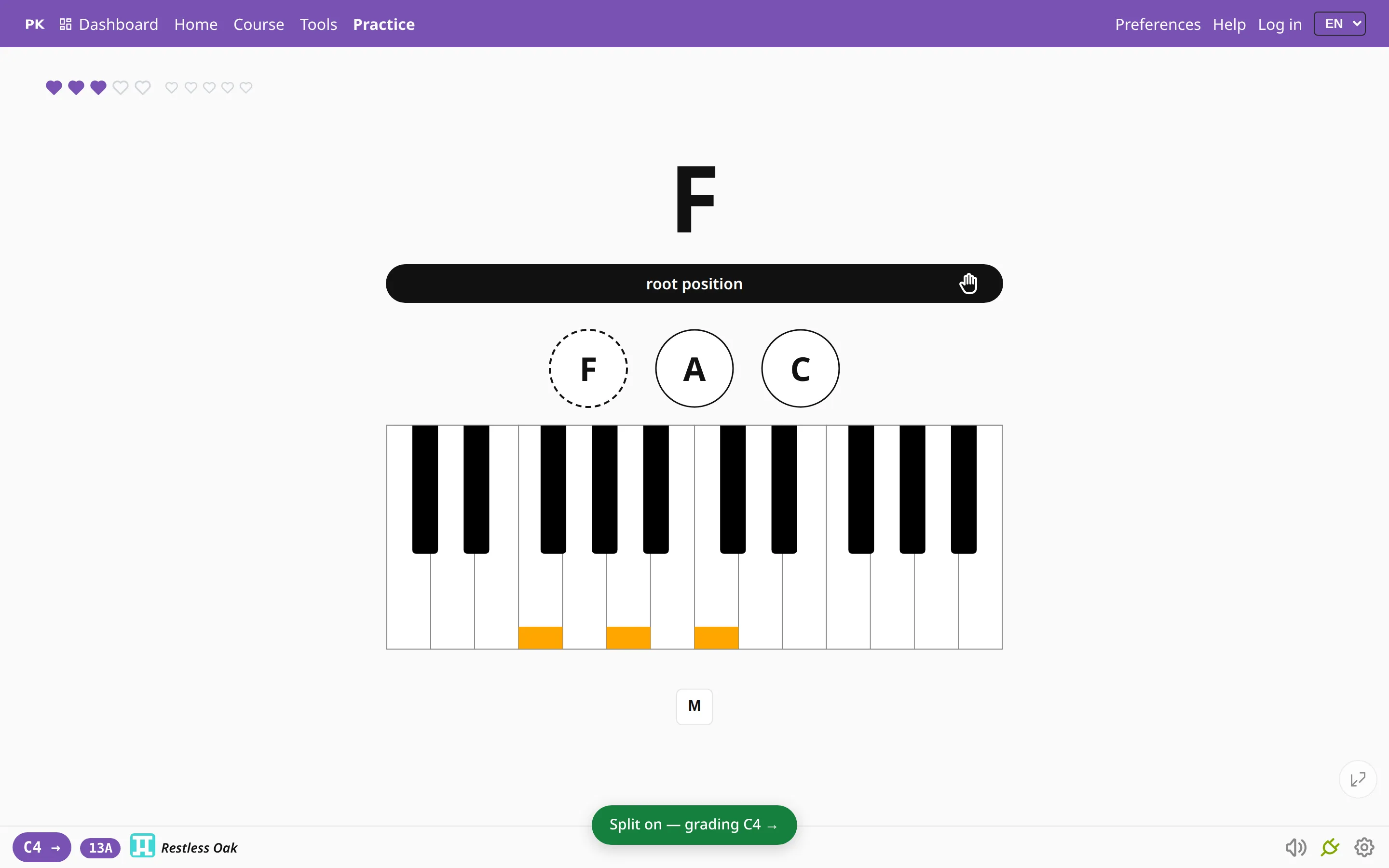
| / | Set a split, or turn the current one off |
| Esc | Cancel while picking |
Always visible, until you turn it off
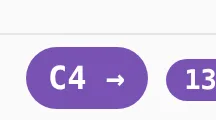
While the split is on, the bottom bar shows it: C4 → means the right side from C4 up is being graded, and ← C4 means the left. The split stays on between sessions, so a teacher and student sharing one instrument only set it once. Press / again to grade the whole keyboard.
A split needs a MIDI keyboard, because it depends on which physical key you press. It is also a personal setting: an exercise you share never includes it, so the person you send it to plays on their whole keyboard.
Split or “left hand plays”?
A split ignores one side of the keyboard. Left hand plays grades both hands and gives the left its own part: the root, octaves or fifths. Use the split when the other hand is free to play anything, and left-hand mode when that hand is part of the exercise.