Classes and homework for piano teachers
Make a class, share a join code, let kids sign up without an email, then set homework for everyone and see who practiced before the next lesson.
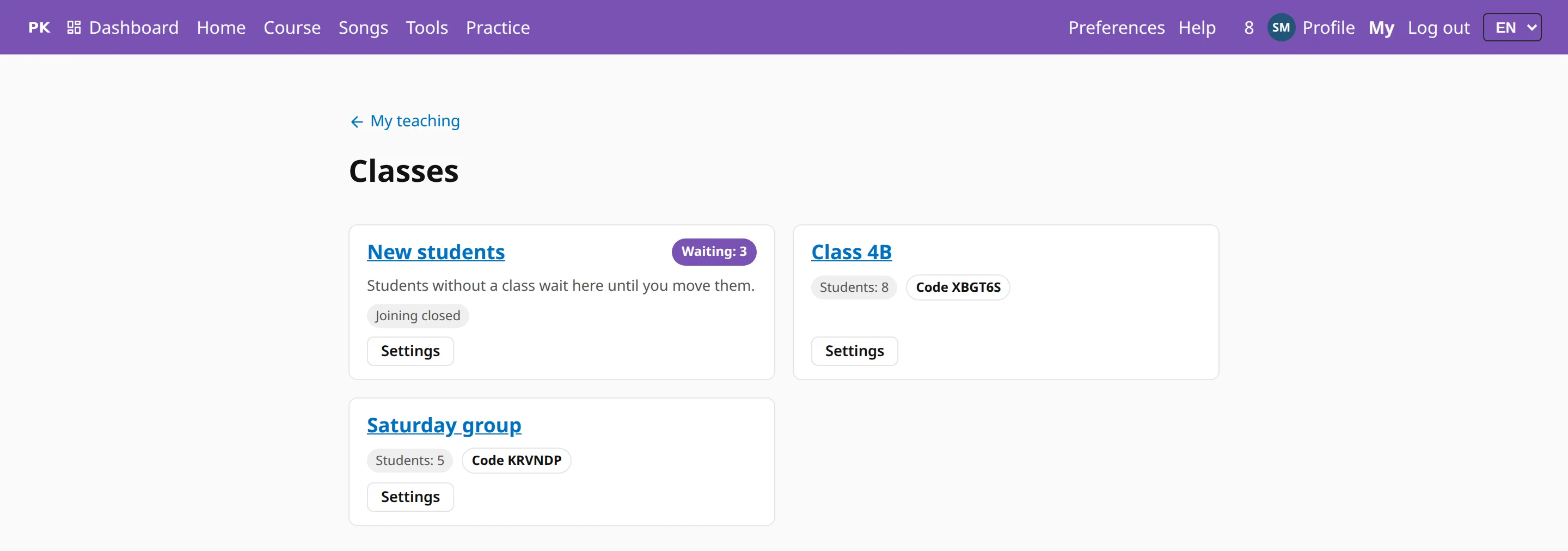
Make a class and share its code
A class is a group of students who join with one code. You can run up to 20 of them: a Tuesday group, a school club, a summer course.
- Sign in and open Classes from My teaching.
- Press Create class, type the Class name and save.
- Open the class. In the class settings, under Class code, you find a six-character code and a QR code.
- Write the code on the board, or show the QR code on your screen or on a printout.
If a code leaks, press New code. The old one stops working. Close joining stops new students until you open it again.
Kids join without an email address
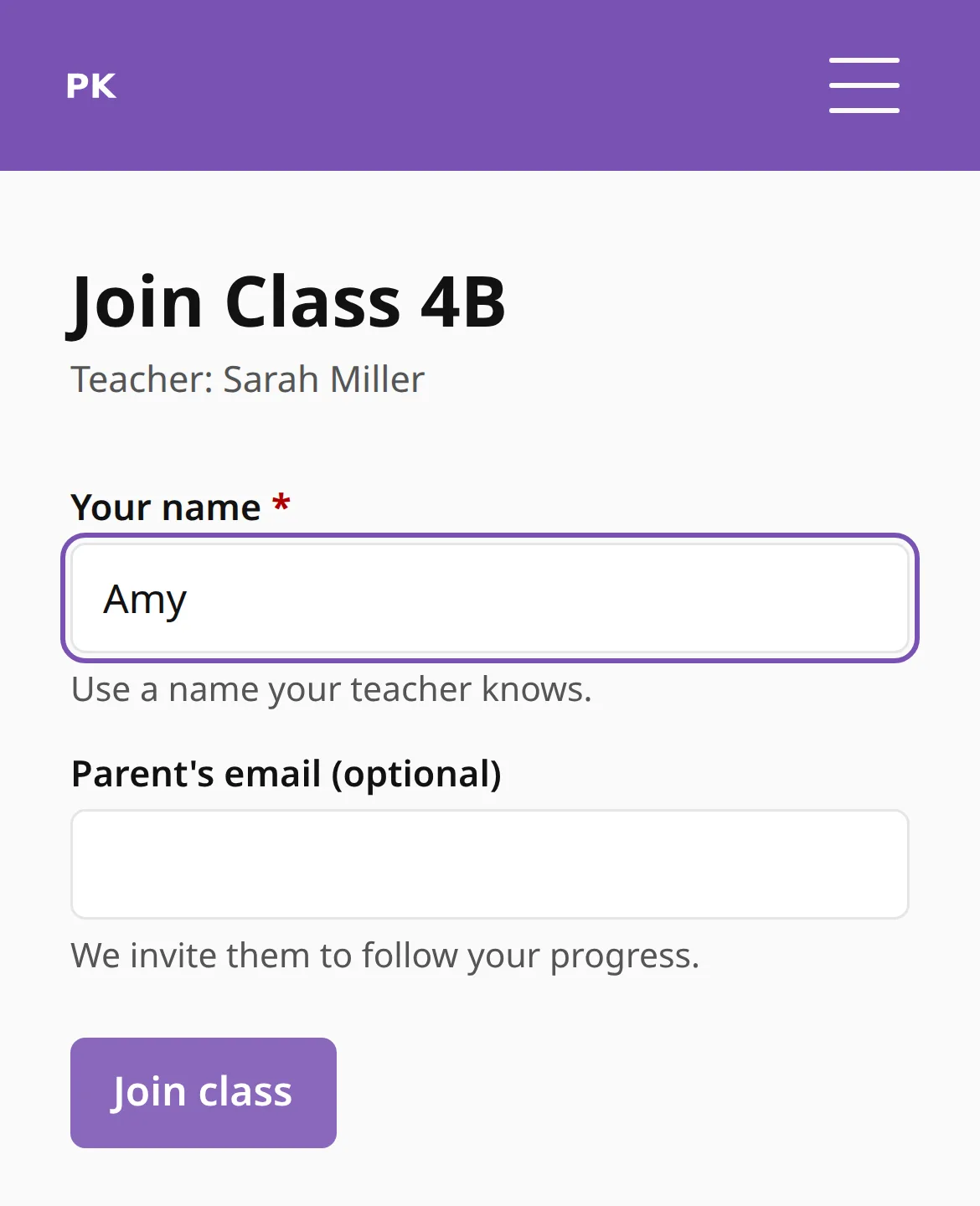
A student scans the QR code or opens the class link, types a first name and presses Join class. A parent’s email is optional.
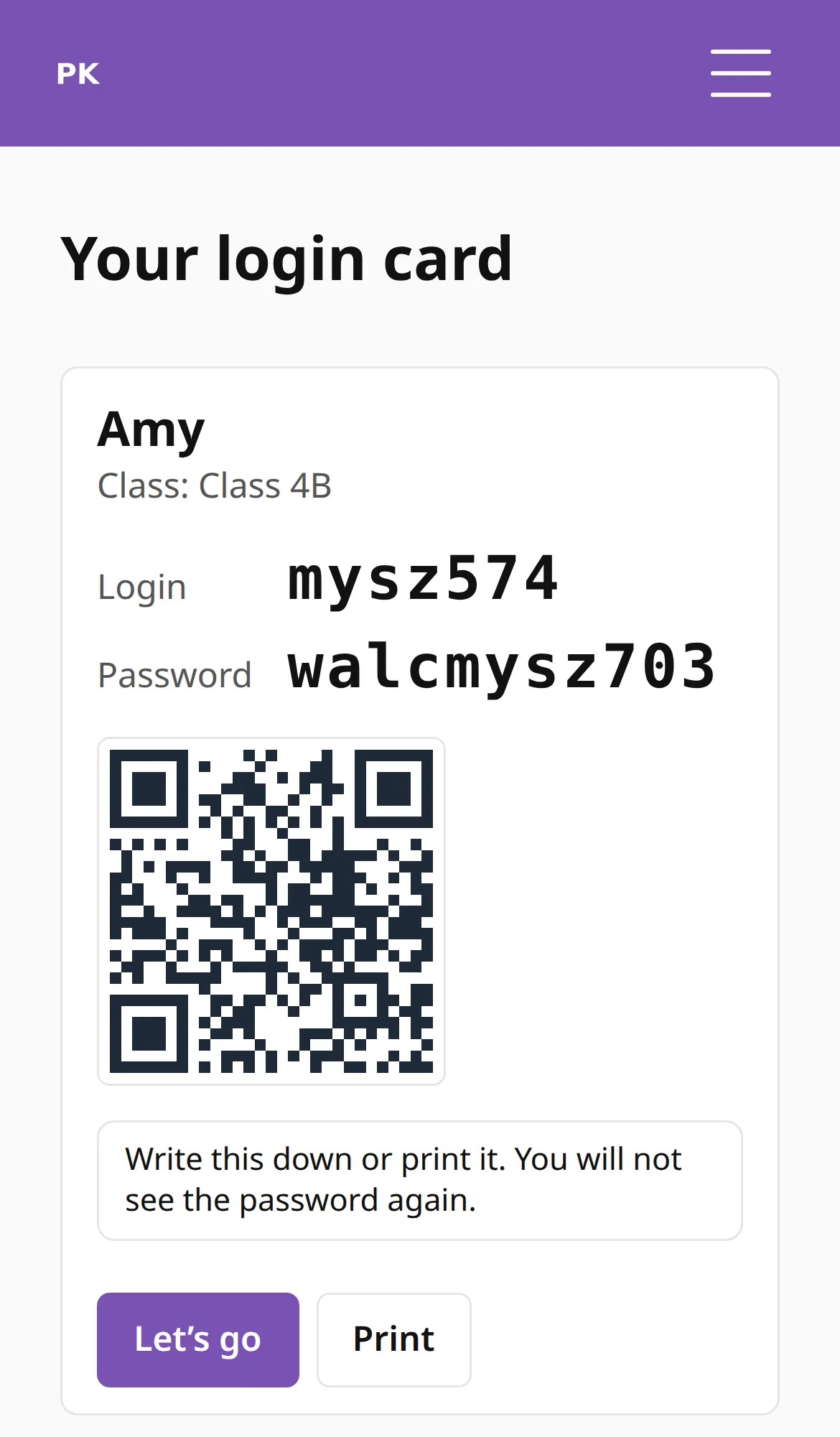
Each student gets a separate account with no email. The login card shows the login ID and the password, once. Have the student write it down or print it. If a card gets lost, Reset password makes a new one, and Reset passwords & print cards does the whole class at once.
Everyone starts in New students
Students who become yours without a class land in a class called New students. It is always there. The class list shows how many are waiting. Tick one student or several, choose Move to… and pick the class.
See who practiced
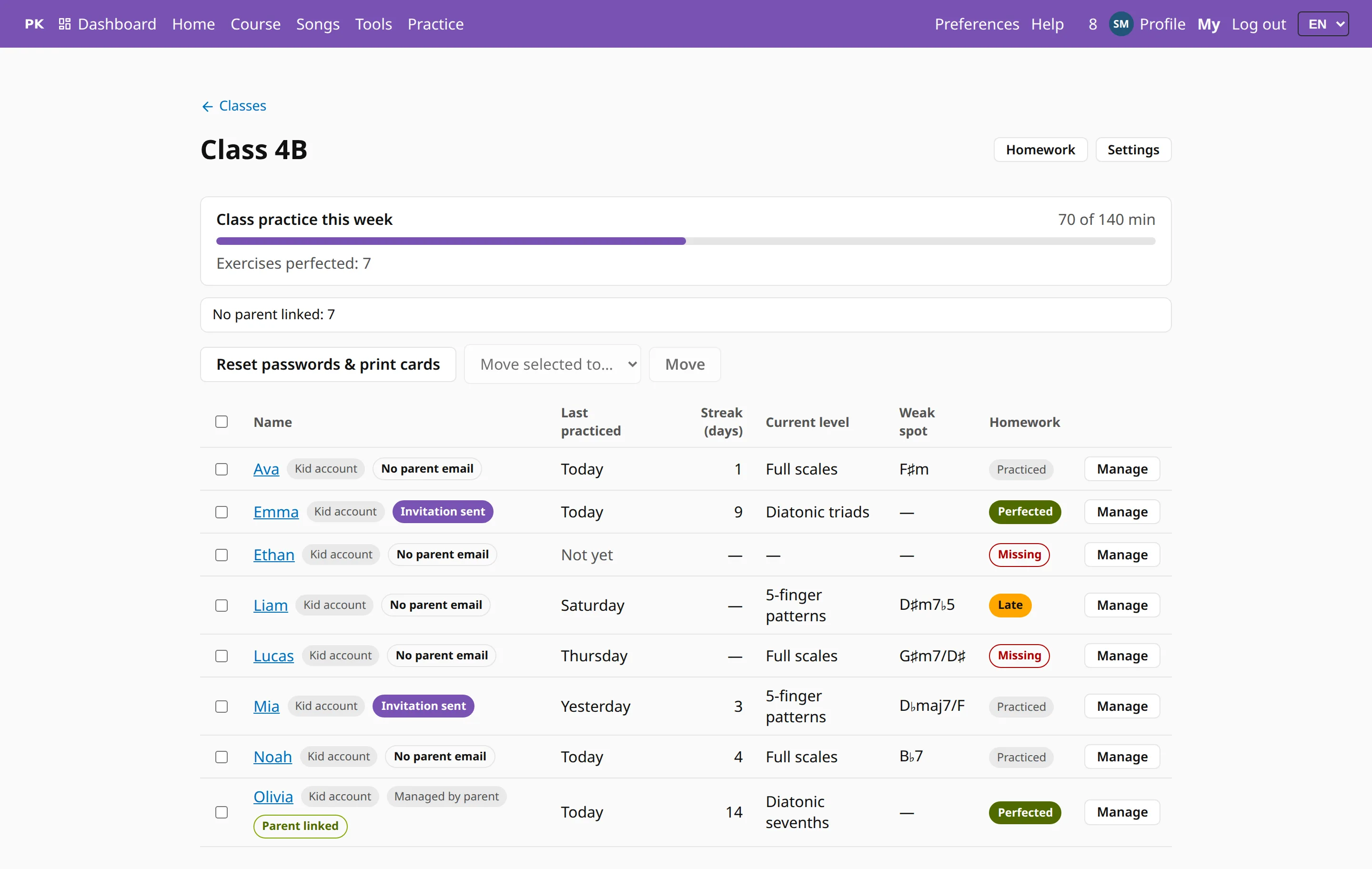
Open a class and you get its board, one row per student: last practice, streak, level, weak spot, whether a parent is linked, and the status of the latest homework. Above the rows are the class’s minutes this week against a goal you set in Weekly goal (minutes).
Students see only the class totals, never names or a ranking.
Set homework for the whole class
Every class has its own Homework page, so two classes can get two different tasks.
- Open the class and press Homework.
- In Exercise, search your saved exercises, or paste an exercise link.
- Pick a Due date. Practice after that day counts as late.
- Add a note for the students if you like, and press Assign.
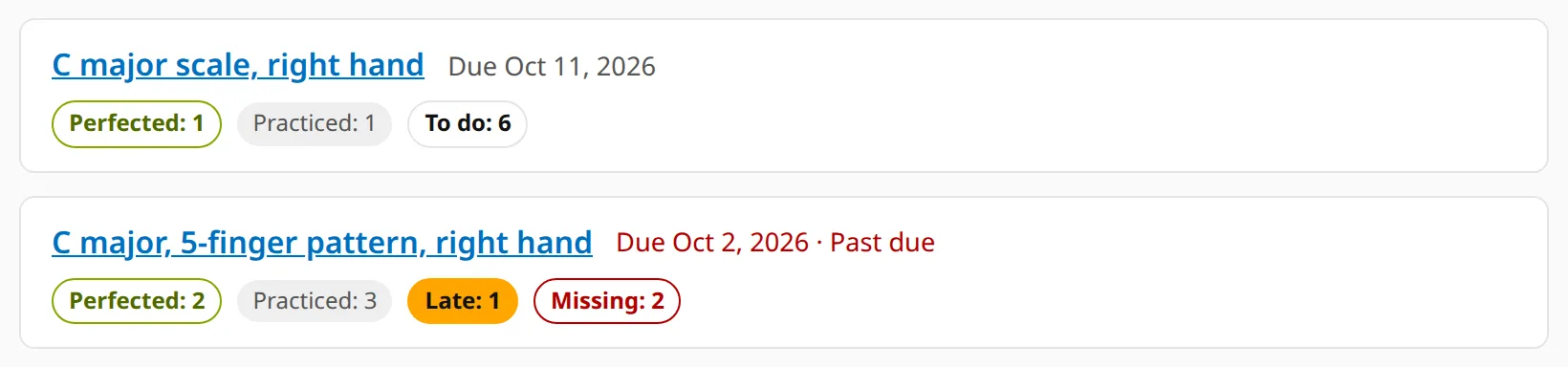
Each homework shows four counts: perfected (played at 99% or better), practiced (played on time), late and missing. At 17:00 the day before the due date, students who have not played it yet get a push notification.
A summary in your inbox on Monday
Every Monday at 08:00 in your time zone you get one email. It says who practiced, who did not, who hit the goal and who is missing homework. Switch it off for a class with Monday summary email in the class settings.
Questions teachers ask
How do students join my class?
With the class code or the QR code. They type a first name and press join. Nobody needs an invitation email, and you do not enter the students yourself.
What about kids who have no email address?
They join the same way. The account is made without an email, and the child signs in with the login ID and password from the login card. You can reset passwords and print new cards for the whole class.
How do I see who practiced this week?
Open the class board. It shows the last practice and the streak of each student, and the minutes of the whole class against the weekly goal. On Monday the same picture arrives by email.
Can I give different homework to different classes?
Yes. Homework belongs to one class, and each class has its own Homework page with its own due dates and counts.
What does a parent see?
A parent’s email is optional when the child joins. Until a parent is linked, the child’s profile is private. When the parent accepts the invitation, they take over the account and follow the progress. More on For parents.