Works in your browser, no installation needed
Open the site and play. PianoKitty runs in the browser on a computer, a tablet or a phone — and hears your MIDI keyboard in Chrome, Edge and Firefox.
Open the page and start
There is nothing to download or install. PianoKitty is a website: open it, pick an exercise and play. Your progress is saved in the browser, and if you create a free account it follows you from one device to another.
A MIDI keyboard needs a Web MIDI browser
To hear your keyboard, the browser must support Web MIDI — the standard that lets a web page read a MIDI instrument.
- Chrome works best, with no extra steps. Edge and Opera, which are built on the same engine, work the same way.
- Firefox on a computer supports Web MIDI too. The first time, it asks you to install a small permission add-on.
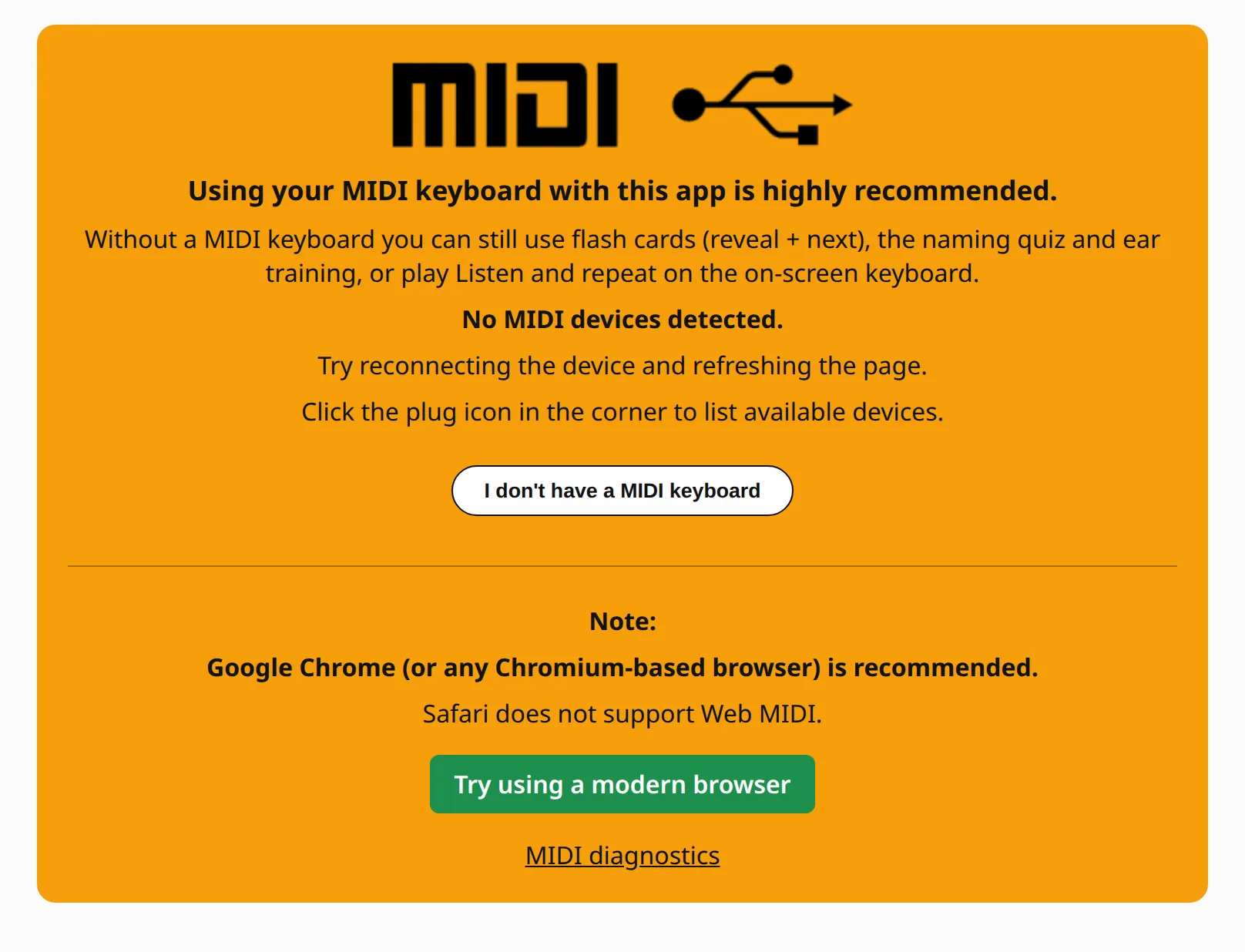
- Safari does not support it, on a Mac or anywhere else.
- On Android, Chrome and Samsung Internet support it.
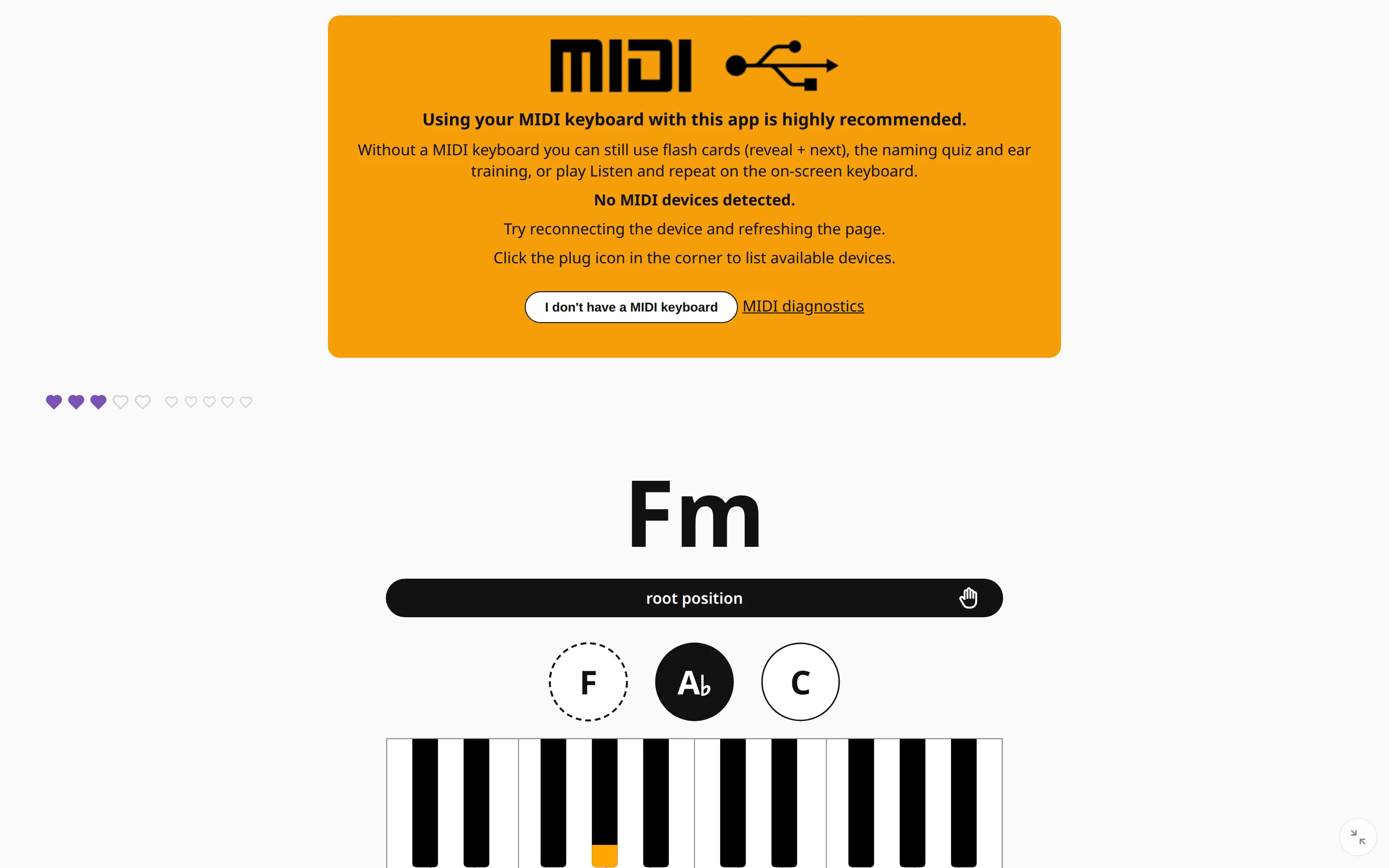
If the app cannot see your keyboard, it says so and suggests what to try. The MIDI diagnostics page lists every device the browser can see.
On an iPad
Every browser on iPhone and iPad is built on Safari’s engine, so none of them supports Web MIDI — Chrome for iPad included. There are three ways around it:
- Use a browser app with MIDI built in. A few App Store apps are web browsers that add MIDI support, for example MIDIWeb Browser or Web MIDI Browser. We have not tested them with PianoKitty, so treat them as an experiment. Connect the keyboard over Bluetooth MIDI, or by cable through a USB adapter for the iPad.
- Practice without a keyboard. On an iPad, the naming quizzes and ear training need no MIDI at all, and in Listen and repeat you play the melody back on an on-screen keyboard by touch.
- Use a computer or an Android tablet for the sessions at the keyboard.
A companion on your phone
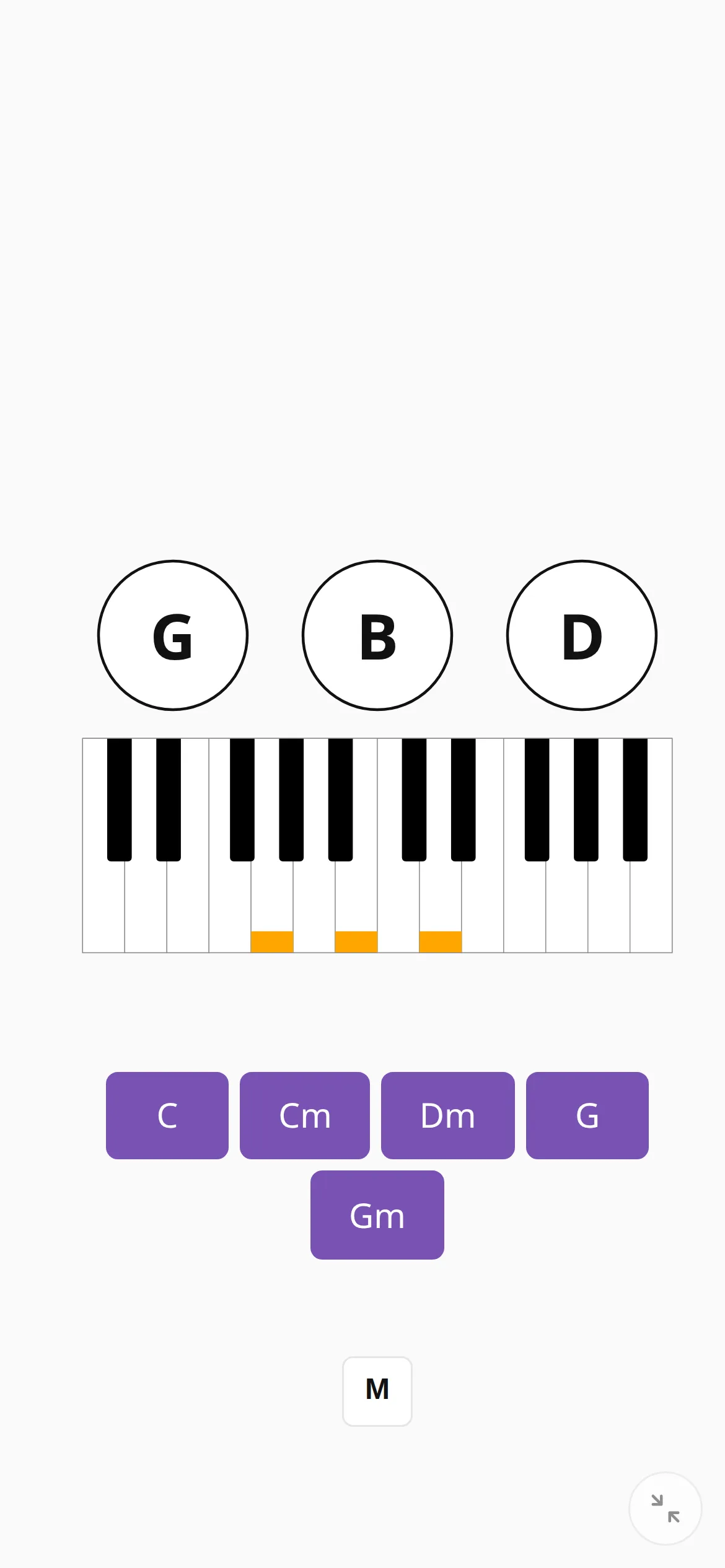
The phone is a good partner for practice at the piano. Keep your MIDI sessions for the computer, and use the phone for a quick naming quiz on the bus, a few minutes of ear training, or keeping your daily streak alive on a day away from the instrument. With an account, the streak and the statistics are the same on both.
Put it on your home screen
You can add PianoKitty to your phone’s home screen, where it opens full screen like any other app and can send practice reminders.
- On Android, in Chrome, open the ⋮ menu and choose Add to Home screen (or Install app).
- On iPhone and iPad, in Safari, tap Share, then Add to Home Screen, and open PianoKitty from the new icon. Reminders on iOS work only in the installed app.
Step-by-step instructions, with the details for each system, are in the mobile help.