For parents
How much your child practiced, what their teacher set, and a kid account that needs no email address.
Did they practice this week?
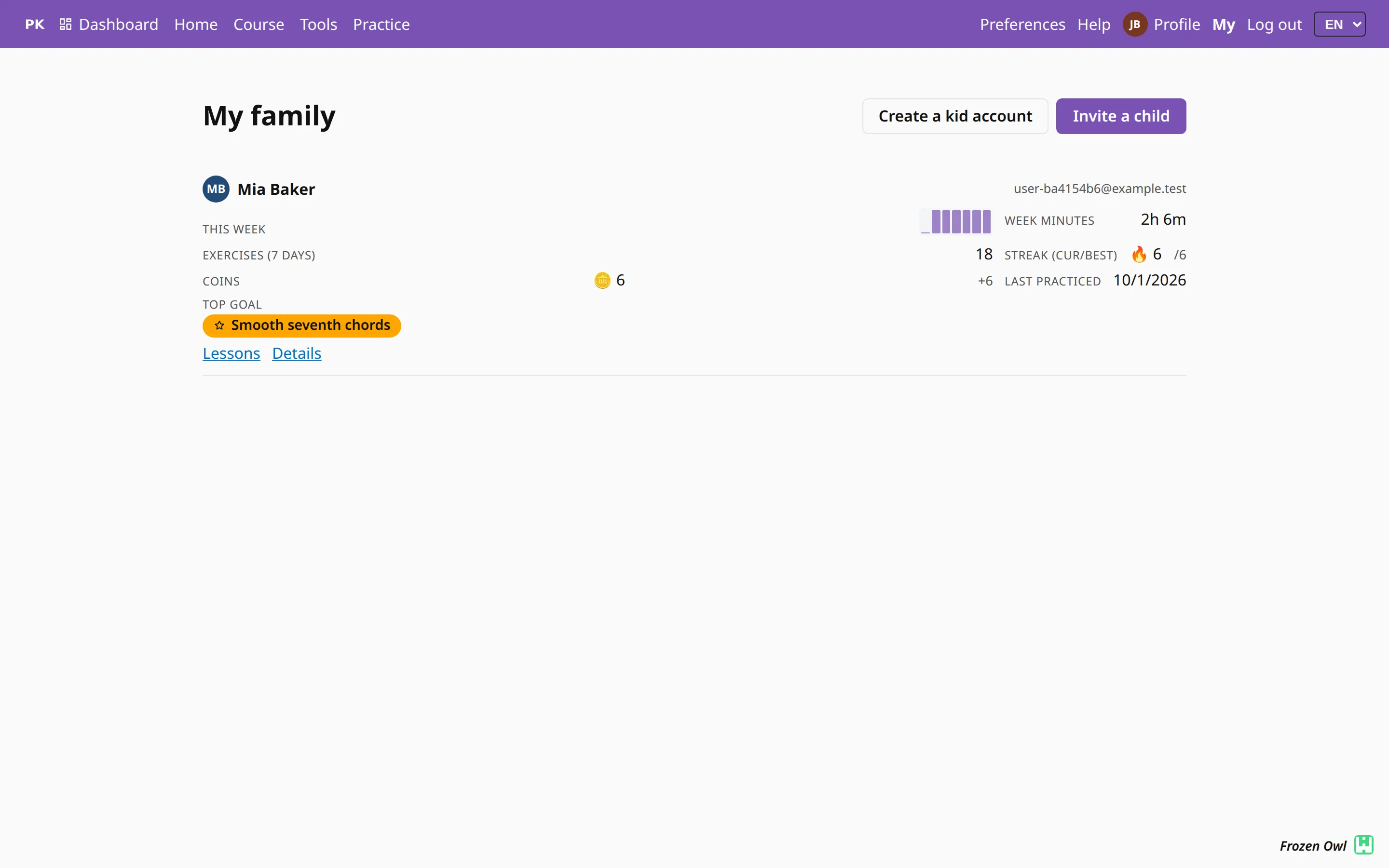
My family answers that without you having to ask your child. It lists your children with the week’s minutes as a bar per day, how many exercises they finished, the day streak, when they last practiced, and the goal their teacher put at the top.
You see the same practice numbers your child sees about themselves: minutes and exercises.
One child, in detail
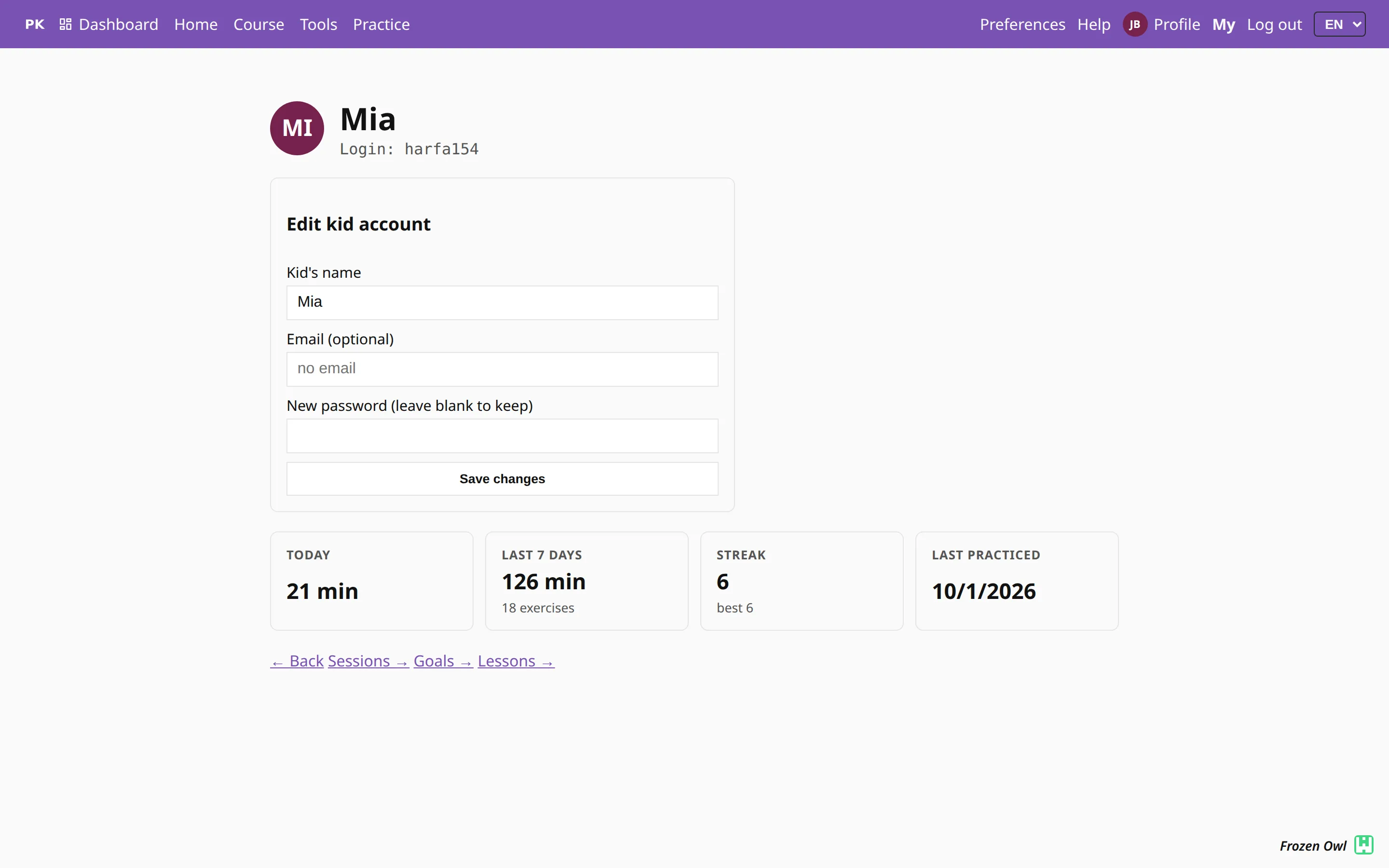
Open a child’s page for more detail: today, the last seven days, the streak and when they last played. From there you can see their goals and the stage each one is at, the lessons their teacher shared, and each practice session, day by day, with what was played in it.
If you created the kid account, you manage it here too: change the name, set a new password, or add an email address later.
If your child has a teacher, you see the same lesson logs the teacher does: the notes, the resources, and what was practiced during the lesson.
An account with no email address
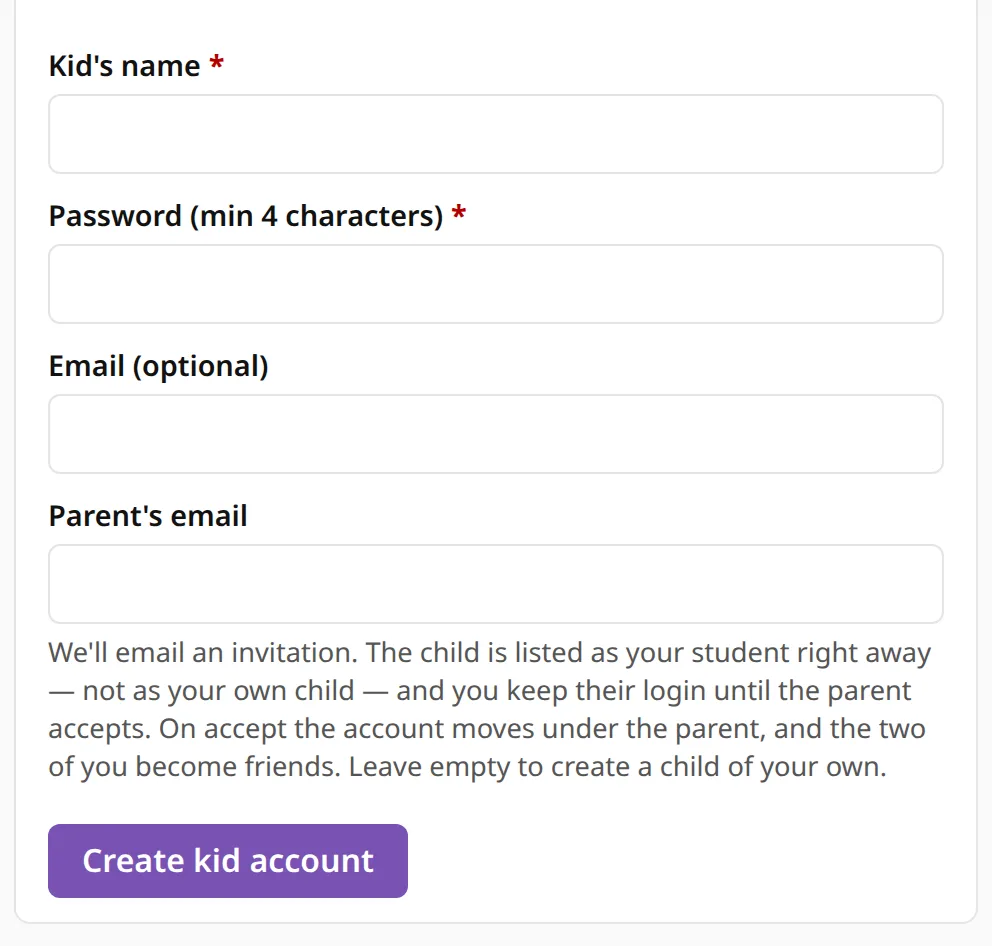
A young child should not need an inbox to practice. A kid account signs in with a name and a password you choose, with no email address, and it belongs to your family. The streak, the coins and the cats are the child’s own.
You can have up to five kid accounts. A teacher you already work with can also create one during a lesson; the account then passes to you, and the teacher goes on teaching the child.
Practicing with a very young child? Baby mode hides the settings and leaves big buttons and frequent rewards.
A teenager with their own account
An older child can keep their own account, and you see only what they agreed to share. The permissions are listed row by row in Who sees what on People: practice stats, weekly summary, goals, lessons. The app uses the same table to decide what to show you.
Set it up
New here? Getting started for parents goes step by step.