A practice screen you can strip down
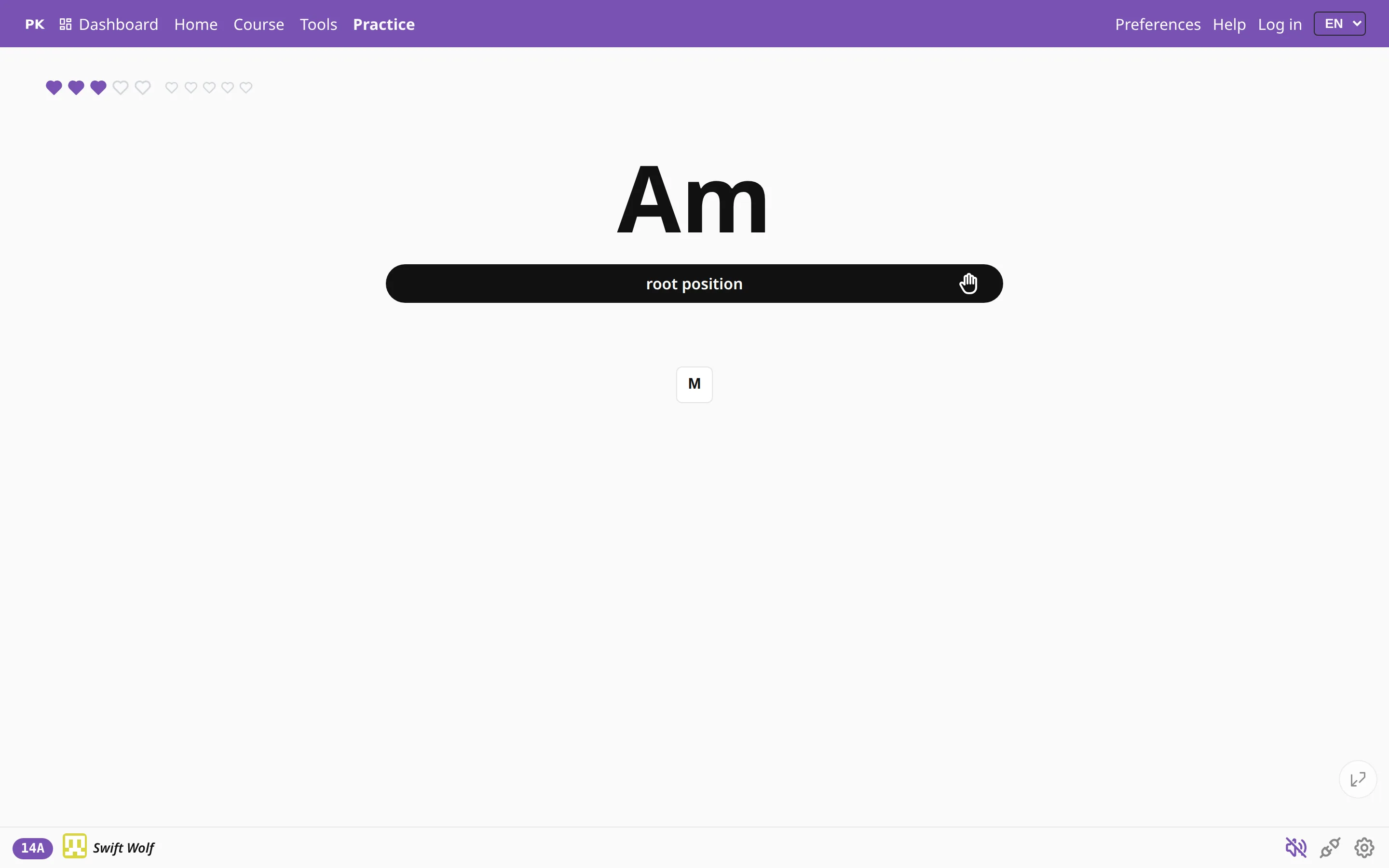
Press and hold any element on the practice screen to hide it: chord name, hints, inversion bar, chart, chord info or hearts. Preferences brings each one back.
Press and hold to hide
If something on the practice screen is in your way, press and hold it for about half a second. With a mouse, use the left button; on a phone or tablet, one finger. A question appears, “Hide this element?”, and if you confirm, it disappears at once.
Move the pointer before the half second is up, or let go, and nothing happens, so an ordinary tap or scroll never hides anything by accident.
What you can hide
- The chord name above the question.
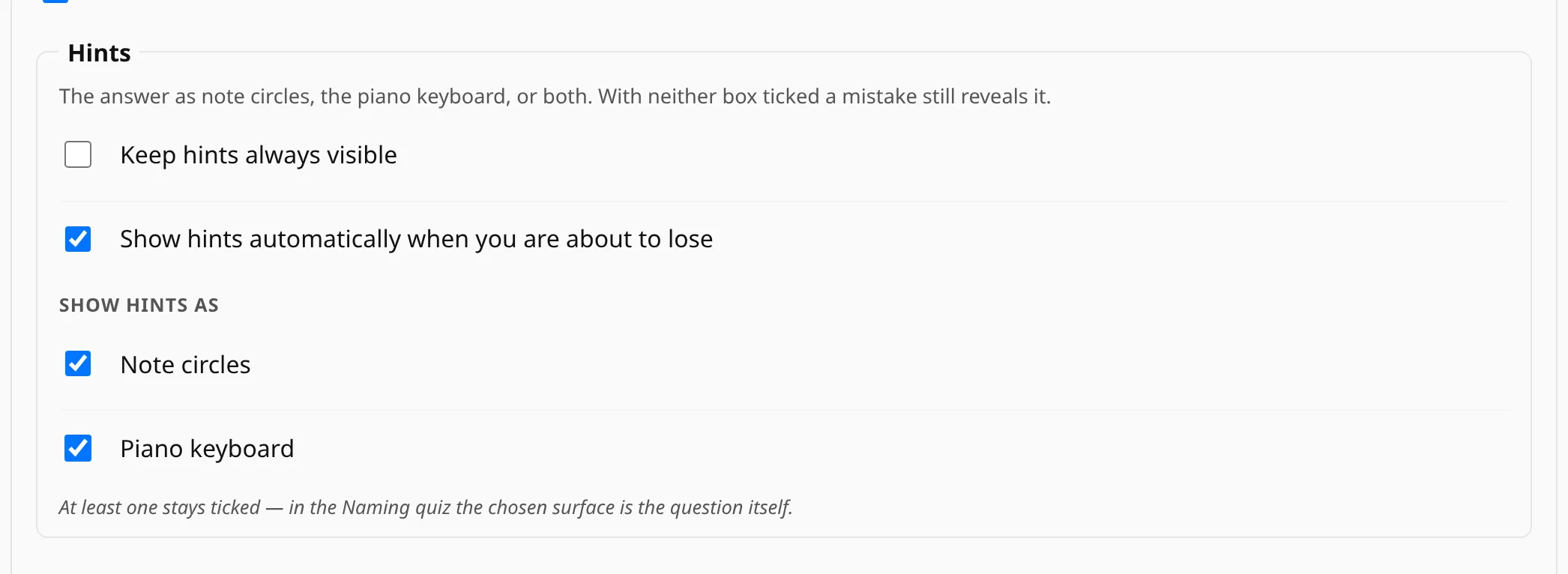
- The note circles and the keyboard hint in the answer panel. Hide both and the hints switch off; a wrong answer still shows the chord.
- The inversion bar with the hand icons, in chords, progressions and scales.
- The chord chart, the row of every chord in the cycle, in scales, progressions and songs.
- The chord-info panel, if you have switched it on.
- The hearts. This turns off game mode, so you no longer lose hearts. On a phone the hearts sit in the top bar, and you hold them there.
Getting it back
Everything you hide can be switched on again in Preferences. Most of it sits in the section What you see: show chord name, the two hint types (note circles and piano keyboard), show chord chart, show inversion bar and the extended chord-info panel. Game mode has its own switch next to the Start button.
Type the name of the setting into the search box at the top of the page, and only that switch stays on screen.
| B | Note circles on or off |
| K | Keyboard hint on or off |
| G | Game mode on or off |
Last resort: reset your settings
If you have hidden so much that you no longer know where to look, the Reset user settings button puts everything back. You will find it at the bottom of Preferences, just above the Advanced section.
It restores all of your own settings to their defaults: theme, sound, notation, hints, naming and fireworks, along with everything you hid. It asks first, and it cannot be undone. The exercise you are building stays as it is, because that is a separate button.

Use the reset only when the individual switches are not enough. Your theme and sound go back to the defaults too. More about what is set where is on the Preferences page.