The dashboard
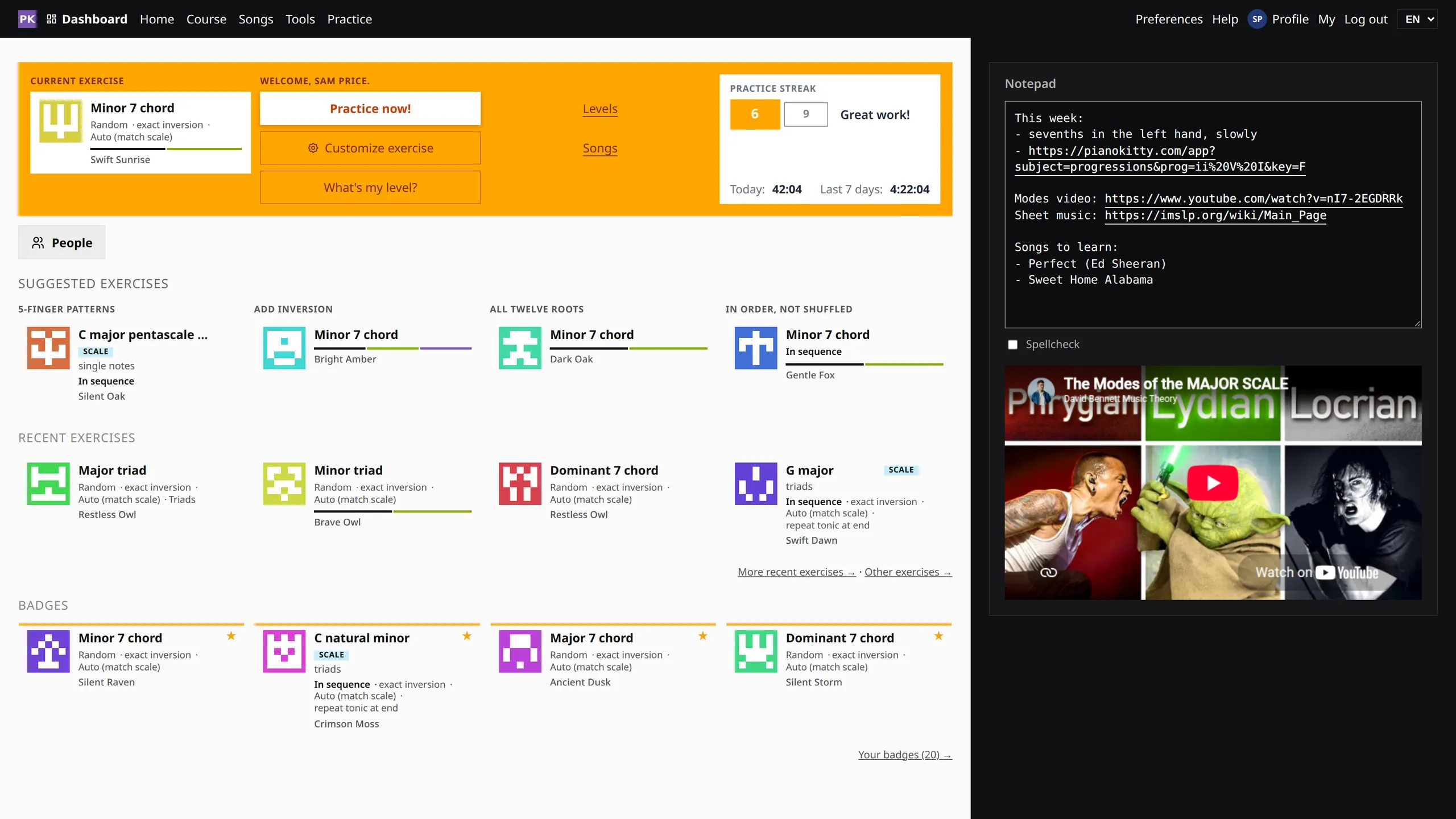
One screen for deciding what to practice today: your current exercise, your streak, suggestions for what to try next, and a notepad for your links.
Where a practice session starts
The dashboard is the first thing you see when you open the app. The main button on it is Practice now, and the rest of the page shows where you left off and what you could try next.
What is on it
- Current exercise — the drill you were last working on, shown as a card. One click resumes it.
- Practice now / Customize exercise / What's my level? — start practicing, change the settings, or let the app work out your level.
- Practice streak — how many days in a row you have practiced, how long you practiced today, and the last seven days.
- Suggested exercises — four next steps based on what you just played: the same chord on a new root, a step up, a different challenge, or the same thing slower.
- Recent exercises — what you have played lately, each as a card you can open again.
- Badges — the exercises you have finished with at least 99% accuracy.
- Notepad — notes that sync with your account, such as song ideas, a teacher's remark or a link. Paste a YouTube link and the video plays inside the notepad.
If you teach, the dashboard also has a My students tab, and each student's page shows the same cards.
And then you play
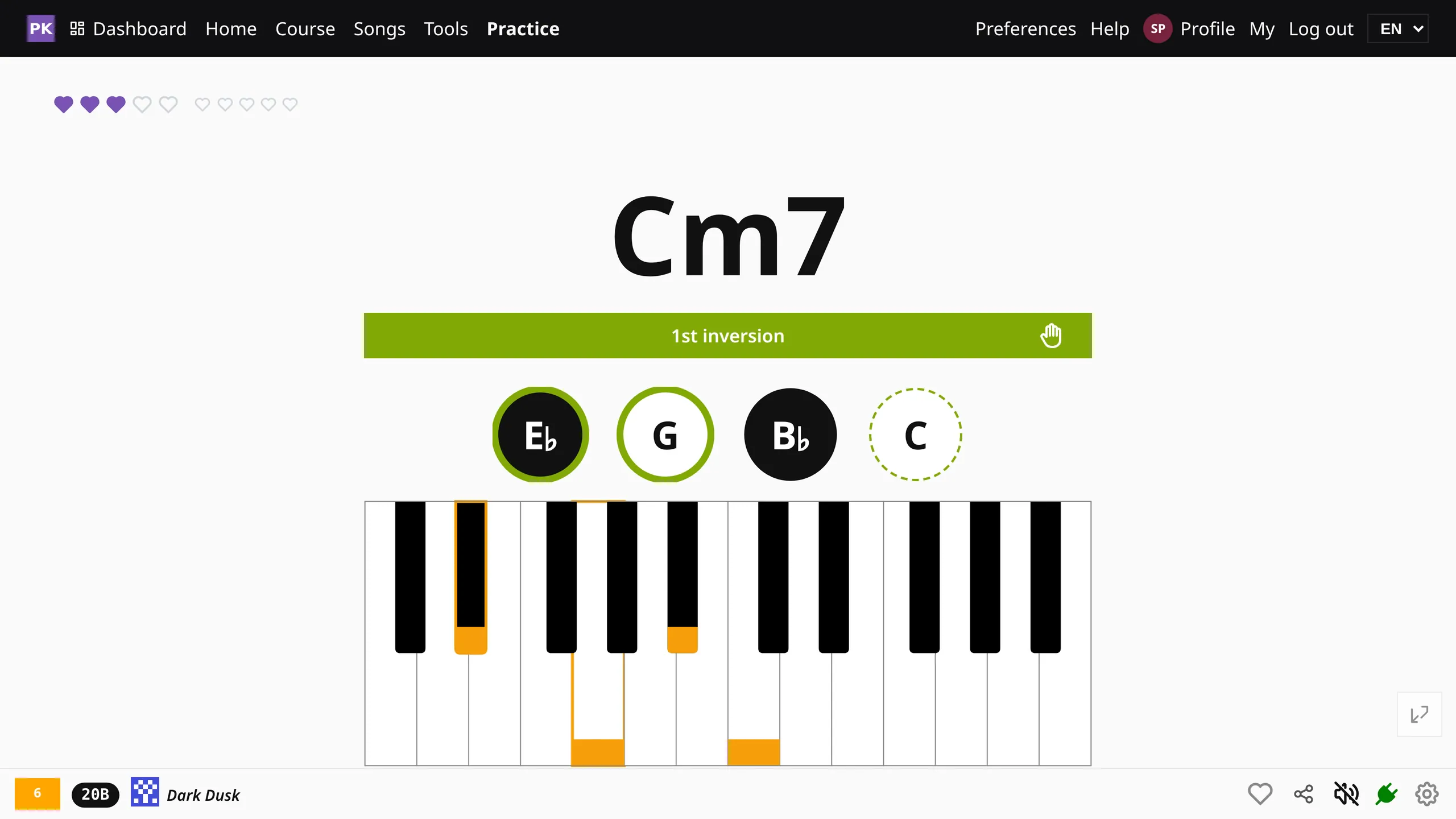
The practice screen shows one task at a time. You do not have to configure anything mid-session, and when you do want to change a setting, it is one keystroke away.
Go and see
Open the dashboard Your current exercise, your streak and suggestions for what to try next. Try it →Just practice Major and minor triads in every key, with nothing to set up. Try it →Browse the levels The levels the dashboard measures your progress against. Try it →What's my level? A short assessment that picks a starting point for you. Try it →