Exercise lists
Put a practice session in order, with drills, a page of the score and the video to learn from, then play through it one item at a time.
A practice plan, ready to start
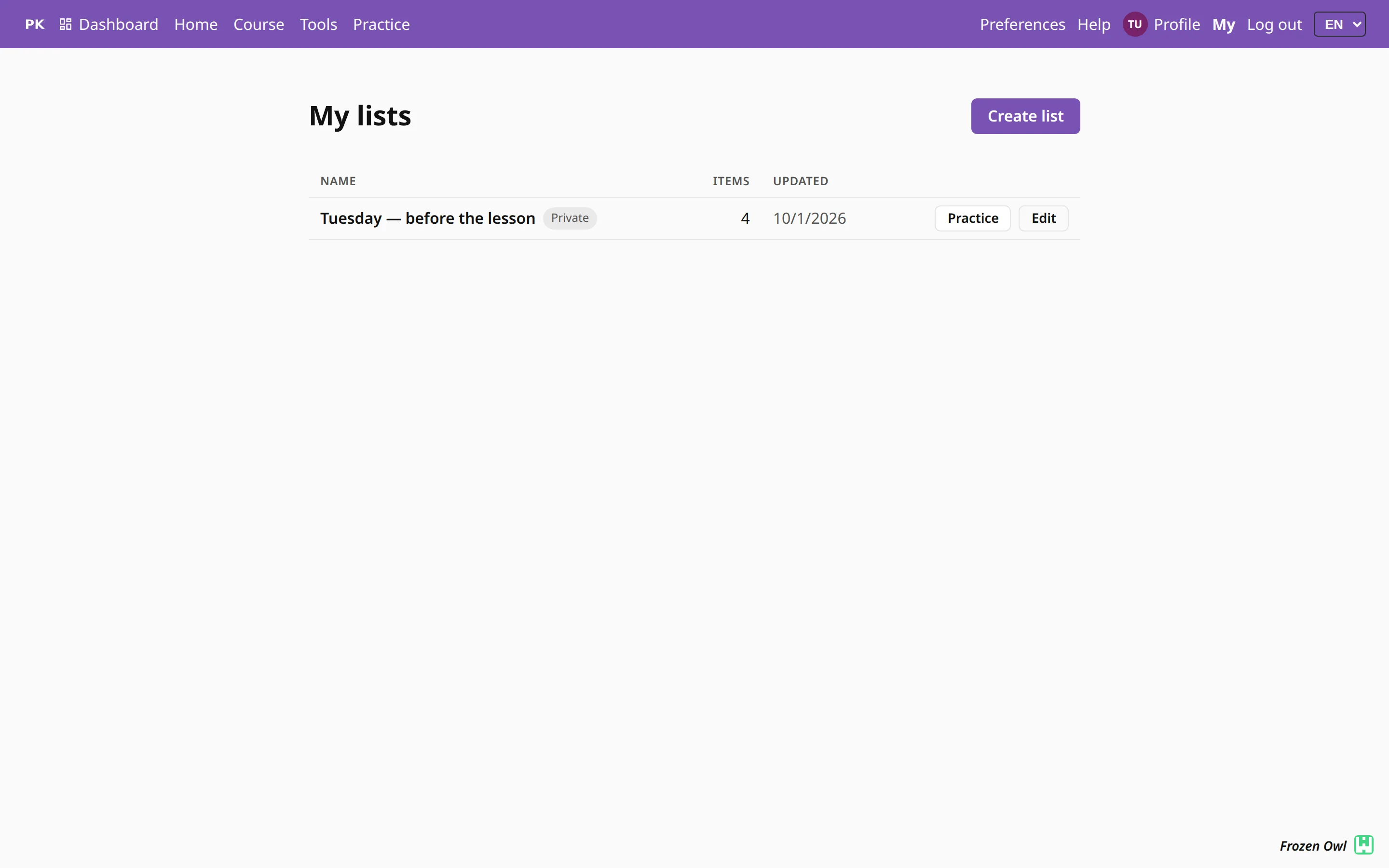
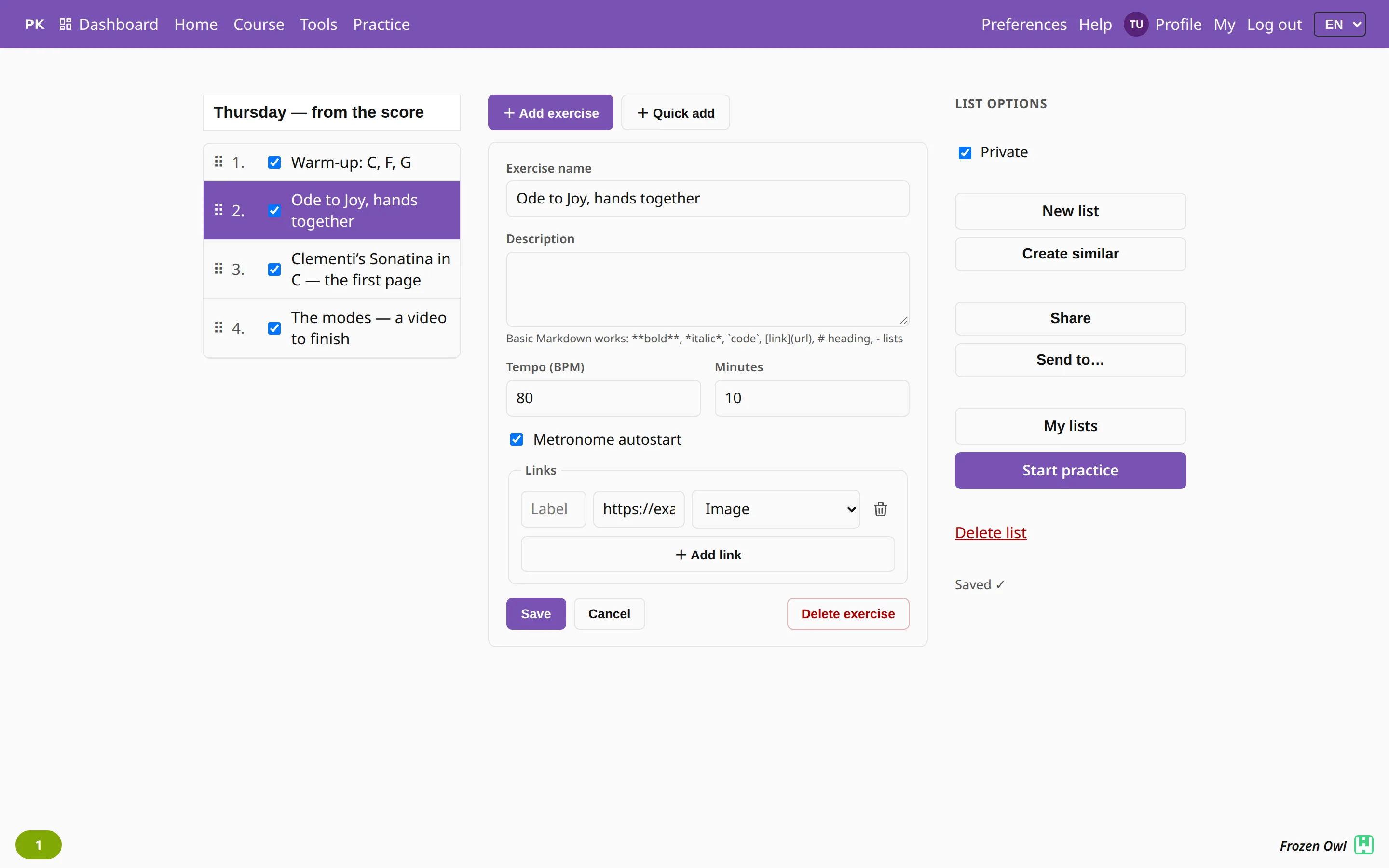
A practice session often follows a plan: a warm-up, then the hard piece, then something you enjoy to finish. A list saves that plan. Name it, add the items and press Start practice. The practice screen shows the list down the side, and when one item is done, the next one opens.
Adding the exercise you are playing
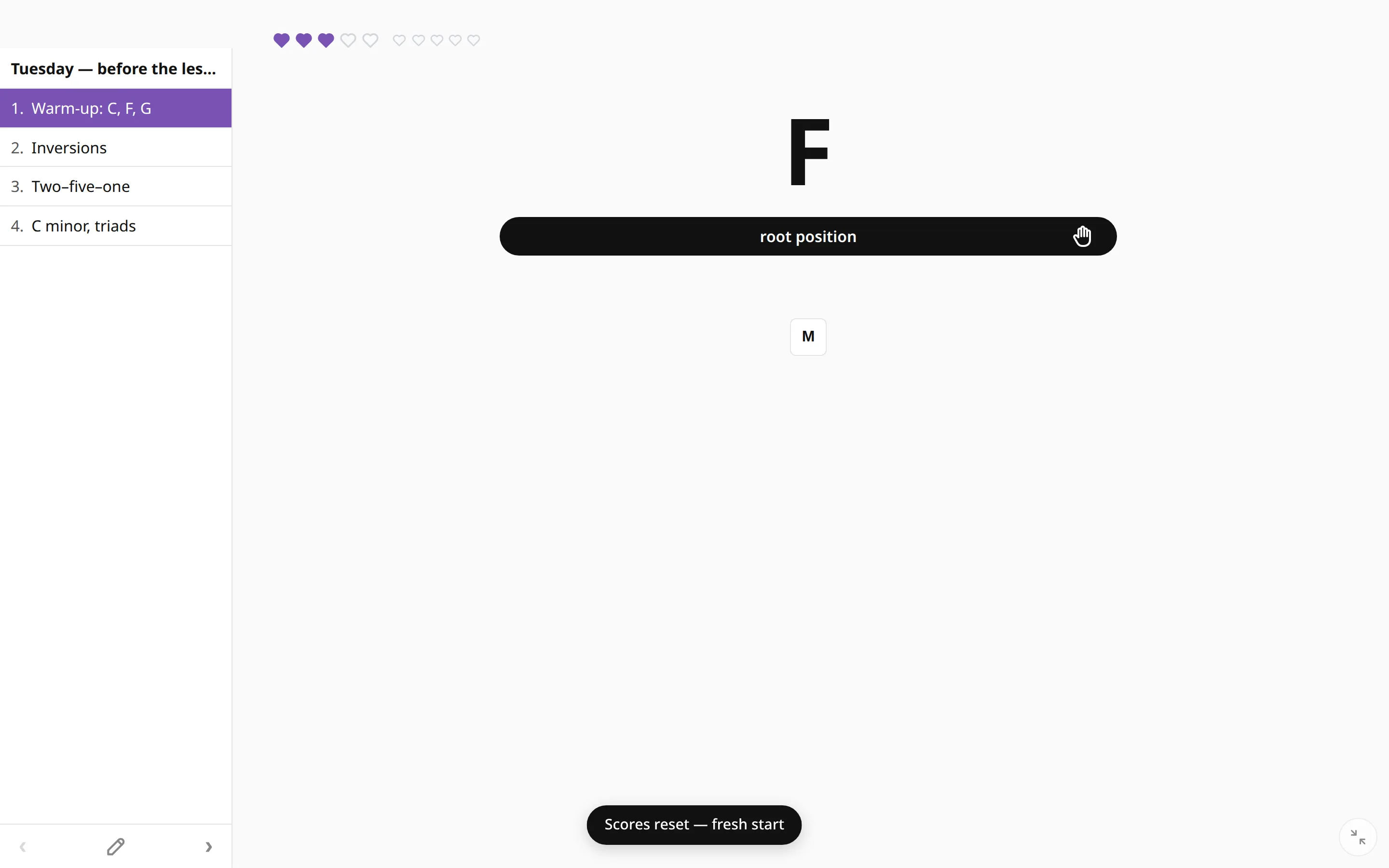
To keep the current exercise, press Add to list next to the exercise card in Preferences. It goes into the list you edited last, or into a new list if you have none. The editor then opens with the new item selected, so you can give it a better name than the default one.
Quick add: one line per item
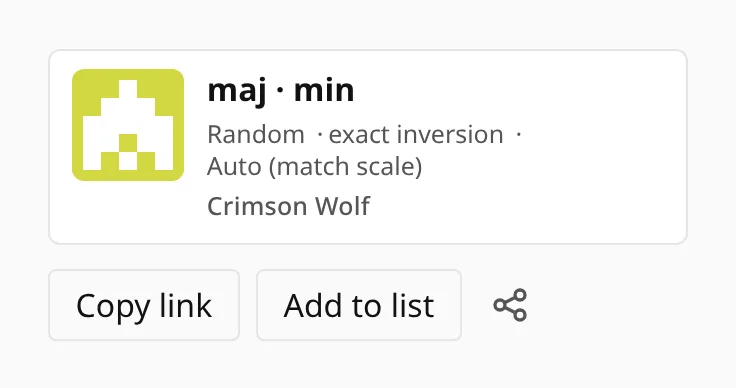
For everything else, use Quick add in the list editor. Paste or type one item per line (a homework list copied from an email works as it is), and the app picks out what each line contains:
- a link becomes the item’s material, and the app recognizes its kind: a picture, a PDF, a YouTube or Vimeo video, or a PianoKitty exercise;
- “80 bpm” or “tempo: 80” sets the tempo and starts the metronome automatically;
- “10 min” gives the item a countdown;
- the rest becomes the name, and anything after the first sentence becomes the description.
The score on the practice screen
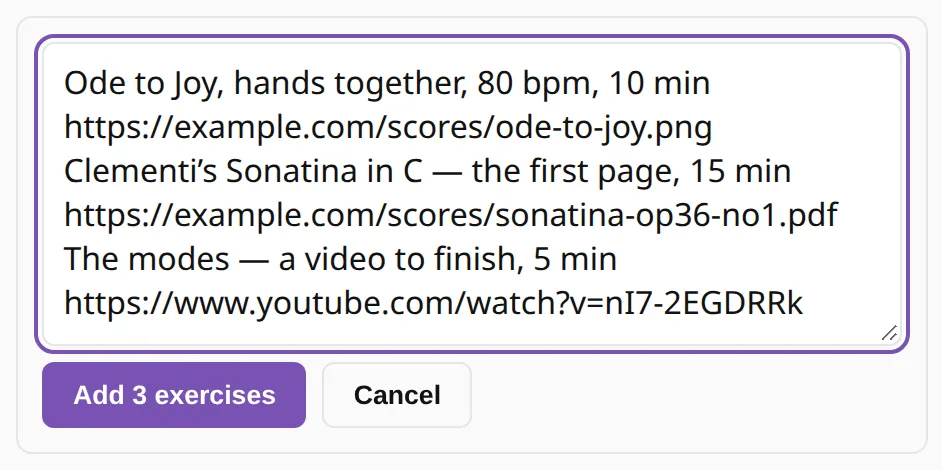
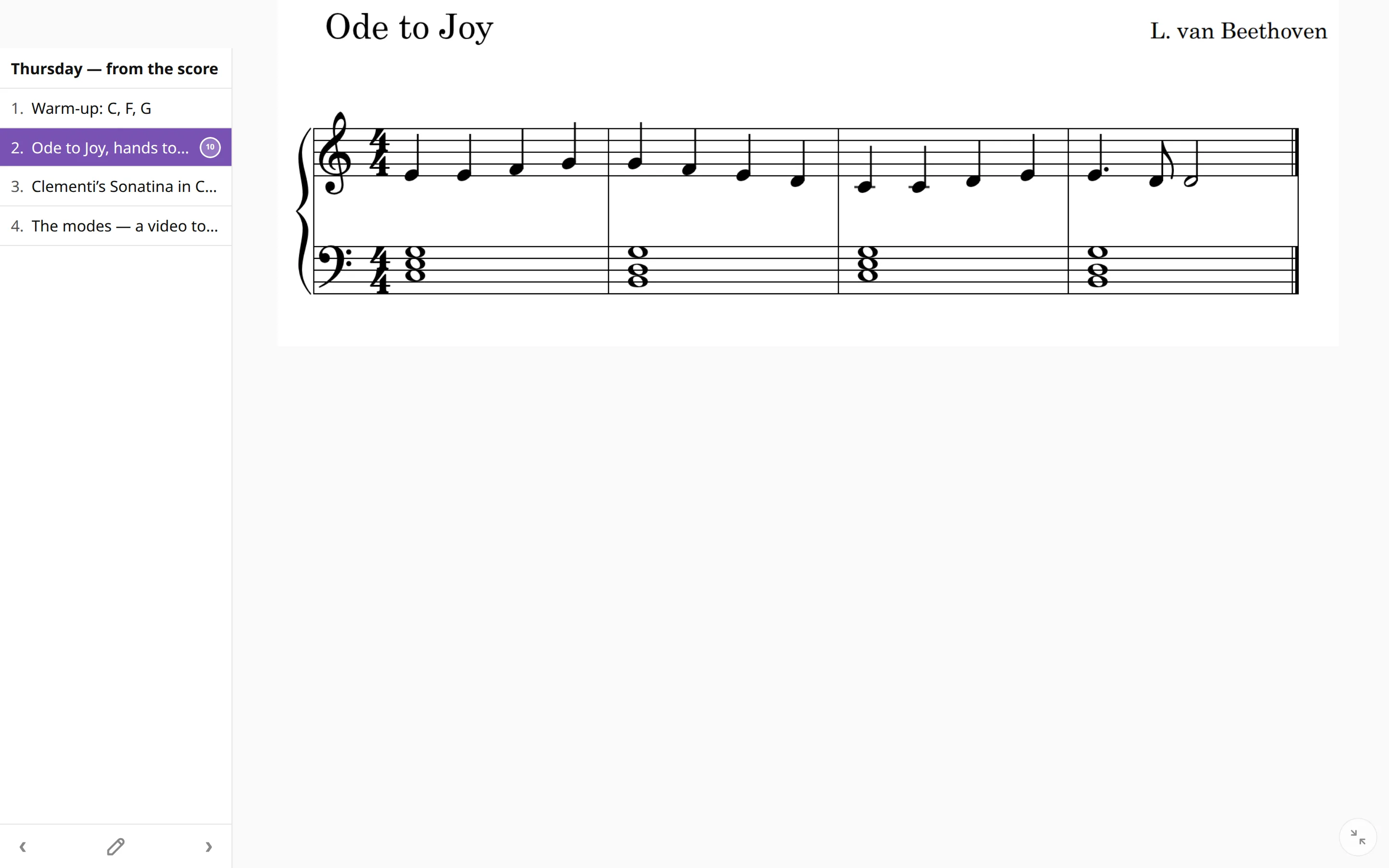
A list can hold more than drills. Each item shows its material in the middle of the practice screen, depending on what it is:
- a picture, such as a photographed page of the score, a lead sheet or a chord chart, fills the screen so you can read from it while you play;
- a YouTube or Vimeo video plays in place;
- a PDF gets an Open file button under the item’s name and notes, which opens it in a new tab;
- an exercise is the drill itself, with its own tempo.
The link only has to be public, for example a score from a free sheet-music library or a “share with anyone” link from your cloud drive.
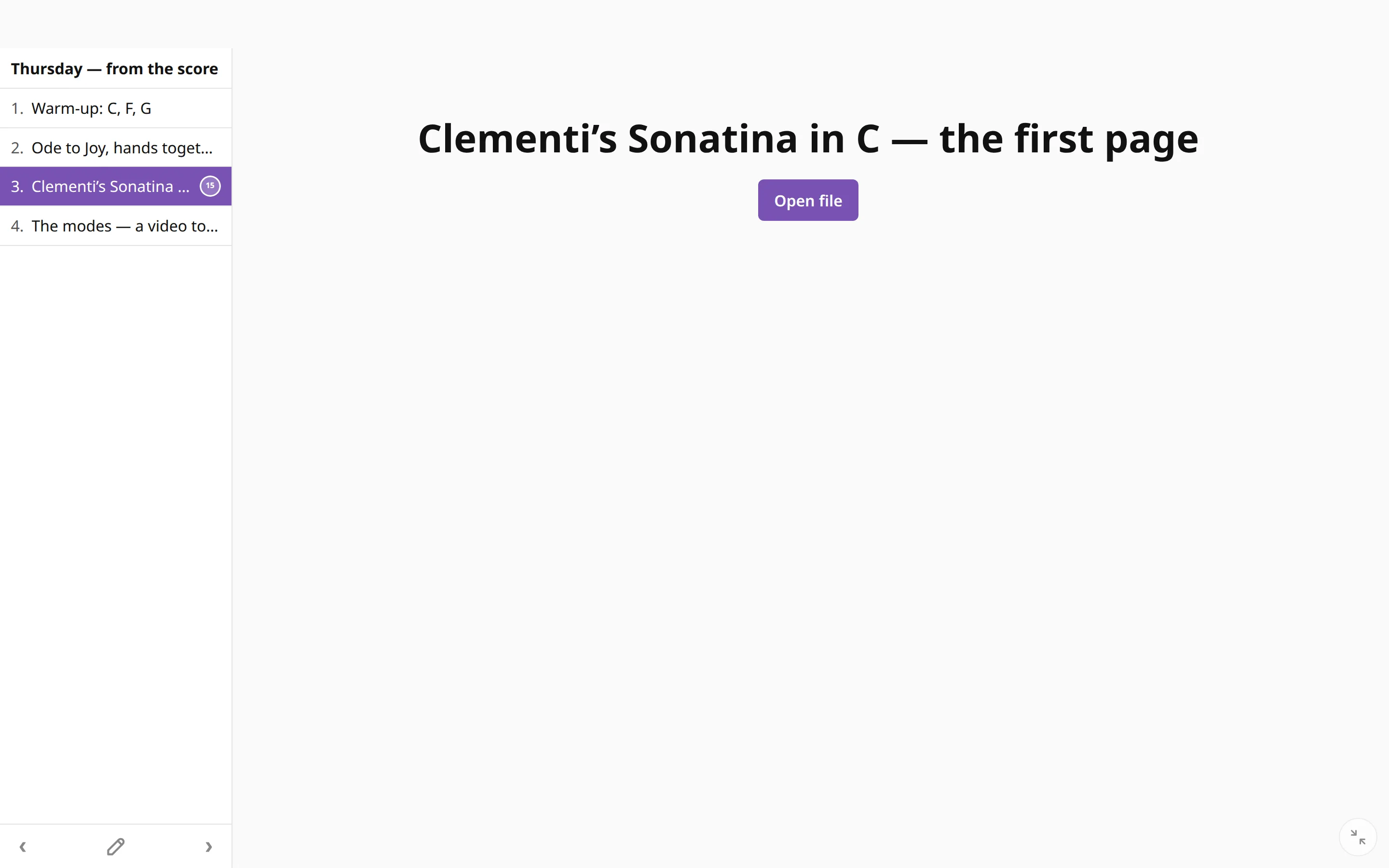
If you give an item minutes, a gong sounds when the countdown runs out and the next item opens by itself. You can spend ten minutes on the score, then five on the video, without watching the clock.
| →↓ | Next item in the list |
| ←↑ | Previous item |
Editing the list
Drag the items into the order you want to practice them. Untick an item to skip it this week without deleting it. The description accepts simple formatting (bold, lists, links) for instructions that do not fit in a name, like “left hand alone first” or “bars 5 to 8 only”.
Private until you share it
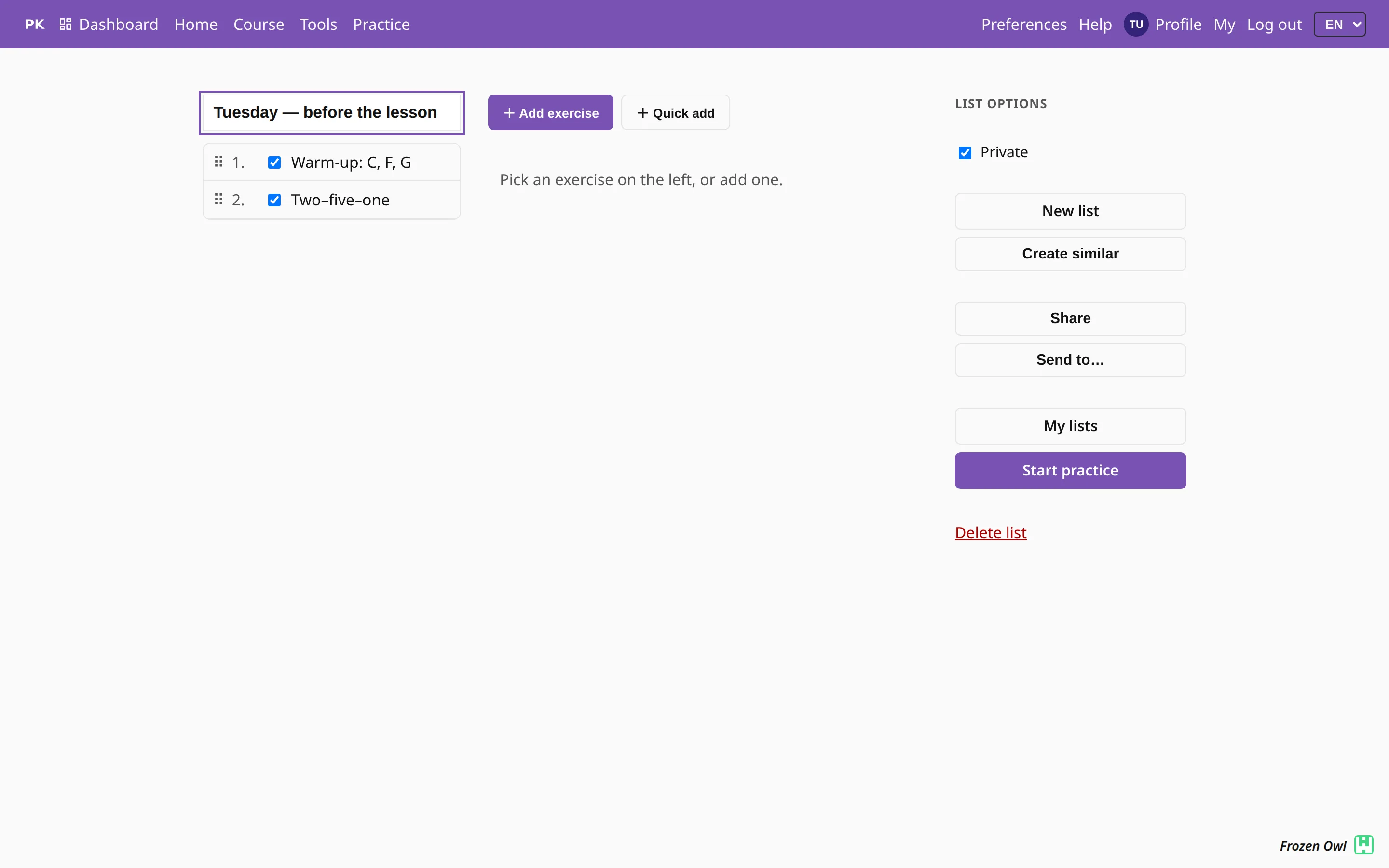
New lists are private. Untick Private and send the list to a student, a friend or a parent, and they can practice from your plan (see sharing). Teachers attach lists to lessons, so the homework is one click away from the lesson log.