Planning a lesson
Book the lesson, pick the goals it covers and attach the exercises. The student is invited as soon as the lesson is created.
One short form
You create a lesson from the student’s row. Choose the goals it covers and, if you like, an exercise list to work through. Then press Start now if you are teaching right away, or pick a time and press Start later.
Because each lesson is tied to its goals, the log is still easy to follow a month later.
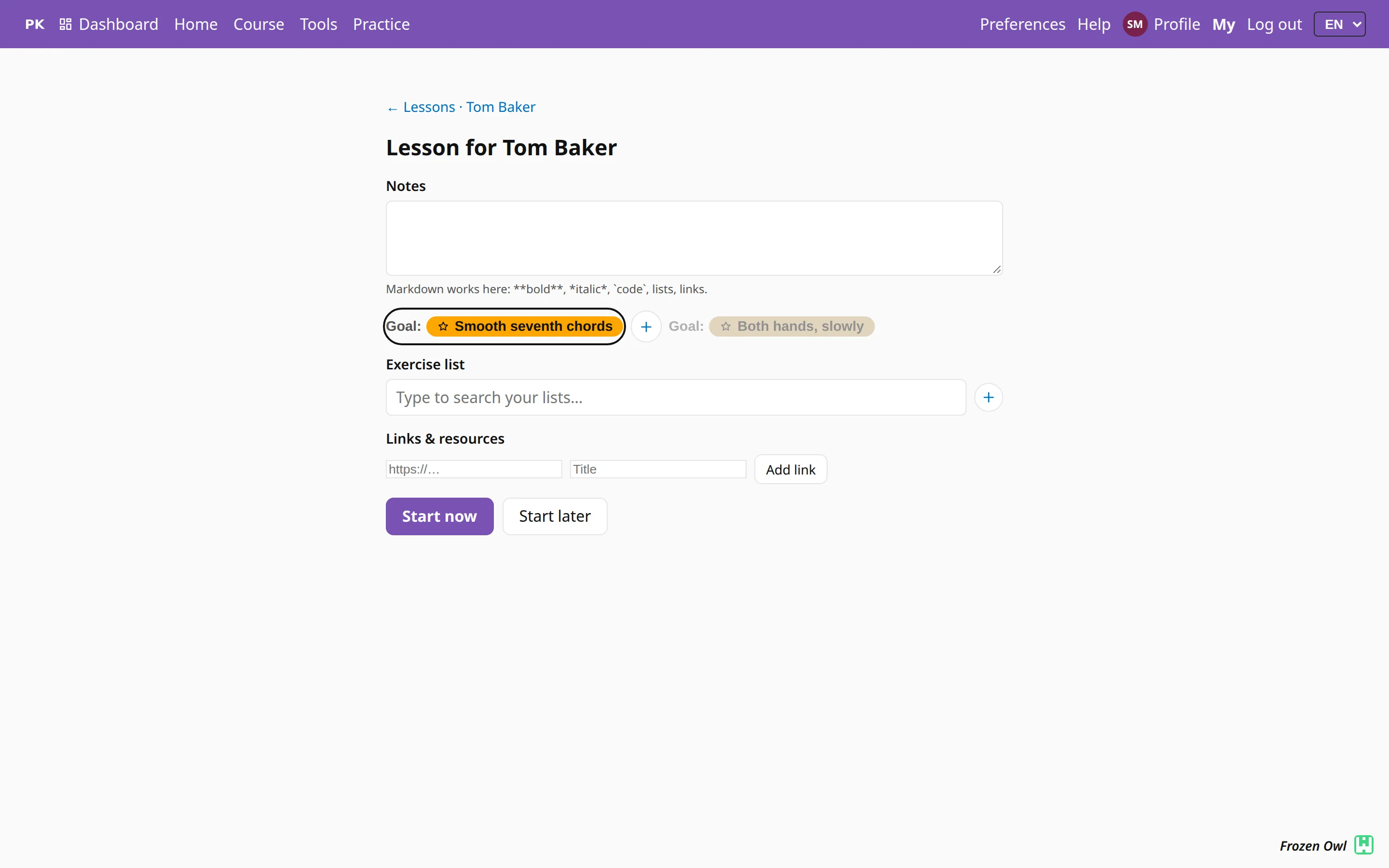
Creating it invites the student
You do not need a separate button to send the invitation. As soon as a lesson is created, it is shared: the student and their parents get a notification, the lesson appears in their My learning, and a planned lesson can be added to a calendar as an .ics file or straight to Google Calendar.
A lesson you start right away is shared too, but without a notification, since you are in the room together and the dashboard already shows that the lesson is running.
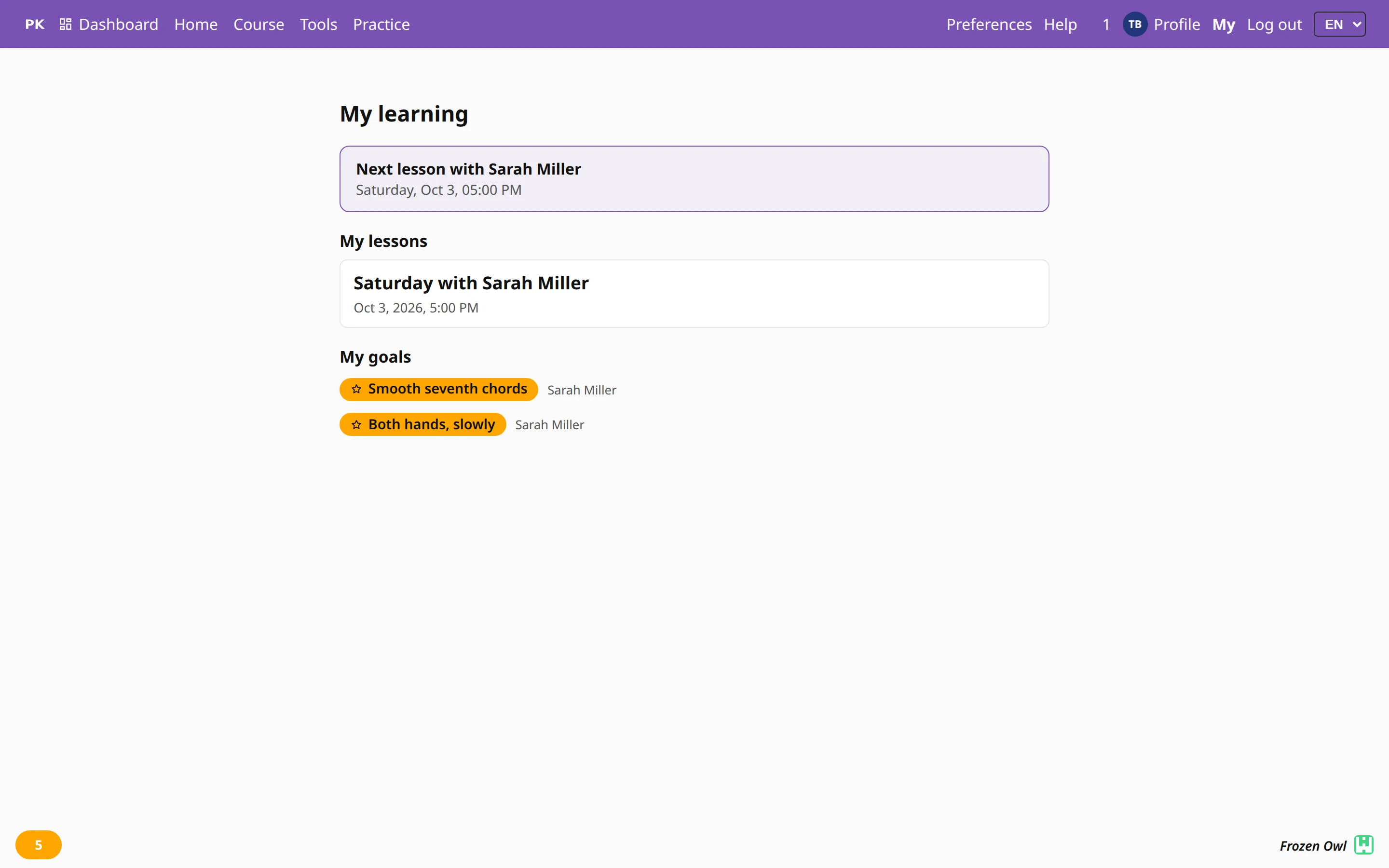
The week ahead, and the week behind
My teaching opens with your upcoming lessons. The roster below shows, for each student, the minutes this week, exercises in the last seven days, the day streak, when they last practiced, and the goal at the top of their list.
So you can start a lesson from what the student practiced instead of asking “so, did you practice?”.
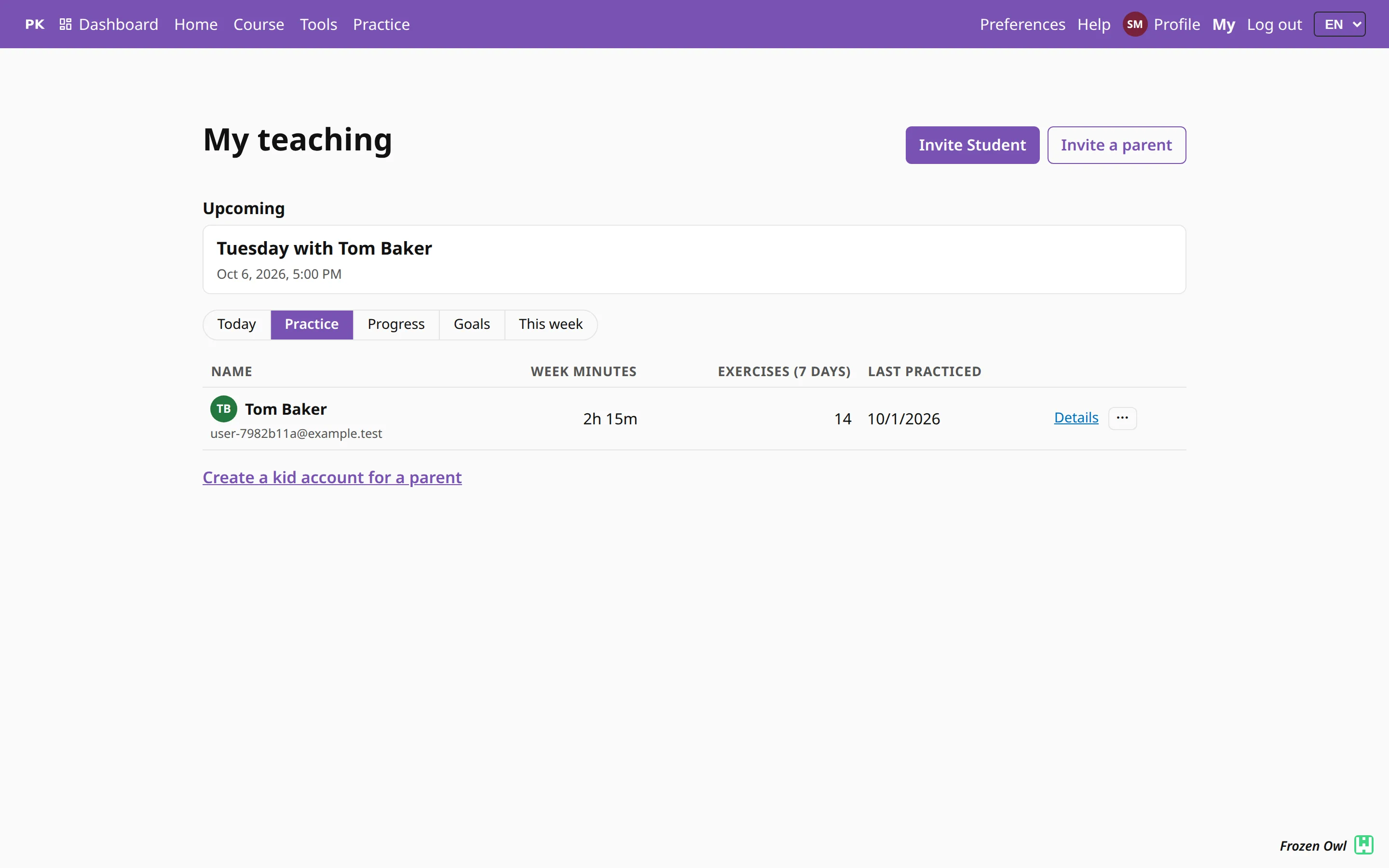
Same lesson every week? Repeat on the lesson page copies its goals and notes into a new lesson, so a weekly slot takes two clicks to set up.