Keyboard shortcuts for a busy pair of hands
Reveal the answer, start the metronome, change the key or the inversion, toggle hints and open Preferences with one key, so your hands can stay on the piano.
One key instead of reaching for the mouse
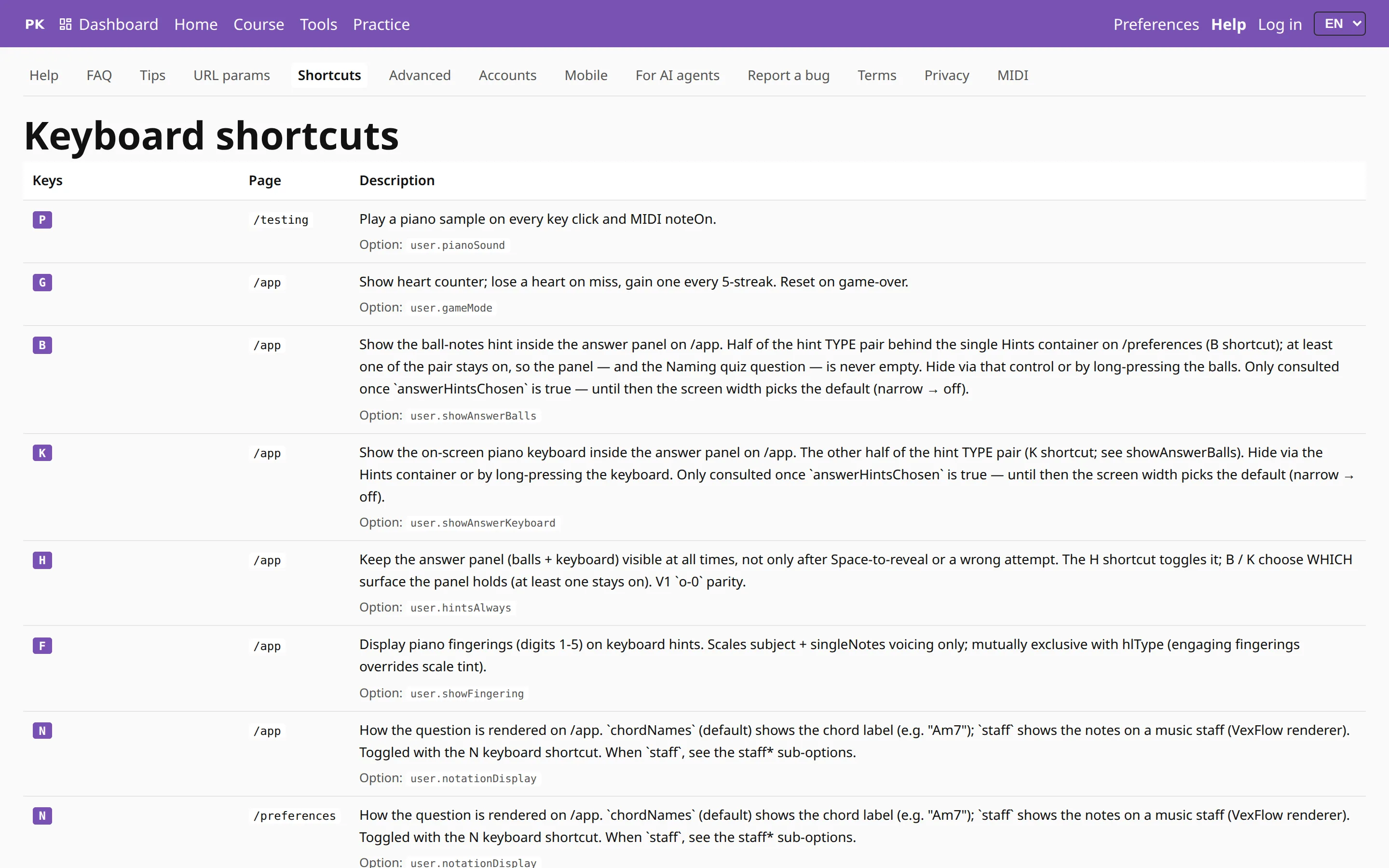
Most of the practice screen can be driven from the computer keyboard. Each shortcut is a single key, with no Ctrl or Shift to hold, and every change is confirmed by a short message on the screen. The list below has the most useful ones. The help page has all of them.
The keys do nothing while you are typing in a field, when you hold Ctrl, Cmd or Alt with them, or while the level board is open.
While you play
| Space | Show the answer, then go to the next chord |
| M | Start or stop the metronome |
| += | One BPM faster |
| -_ | One BPM slower |
| Ctrl | Press and release on its own to change hand: any, right, left, both |
Hints, notation and game mode
| B | Note circles on or off |
| K | Keyboard hint on or off |
| H | Keep hints visible on or off |
| O | Root note only on or off |
| N | Switch between chord names and the staff |
| G | Game mode on or off |
Turning off the last hint with B or K switches all hints off, and a wrong answer still shows the chord. Read more in hints and the configurable interface.
Change the drill without leaving the screen
These keys change the exercise you are playing, so you can move to the next key or a different inversion without opening Preferences.
| QW | Previous or next key, a half step at a time (also < and >) |
| AS | Previous or next key around the circle of fifths (also PageUp and PageDown) |
| ↑↓L | Jump to the relative major or minor key |
| ZX | Previous or next scale type (also Home and End) |
| C | Switch between major and natural minor |
| ←→ | Previous or next inversion |
| `0123 | Choose the inversions to drill; press several quickly to use them together |
In songs, Q and W transpose the song by a half step, and A and S by a fifth. The backtick and 0 both select the root position.
To Preferences and back
| P | Open Preferences from the practice screen, and go back to practice from Preferences |
| / | On Preferences, jump to the search box |
The key, scale, inversion and notation shortcuts work on Preferences too, and the controls on the page move as you press them.